

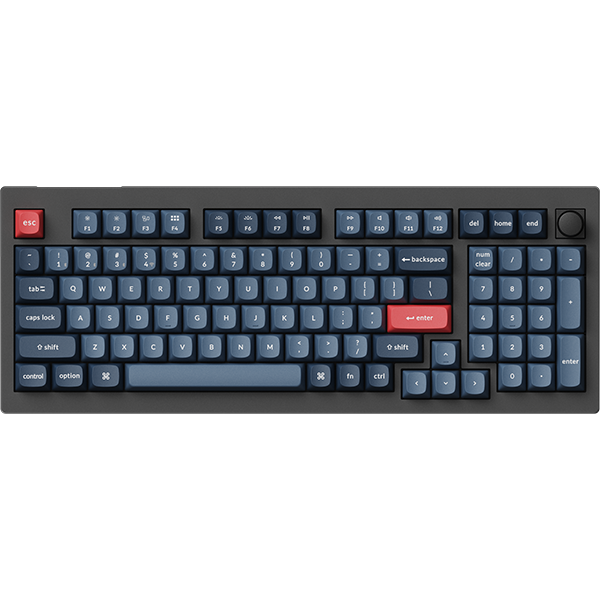
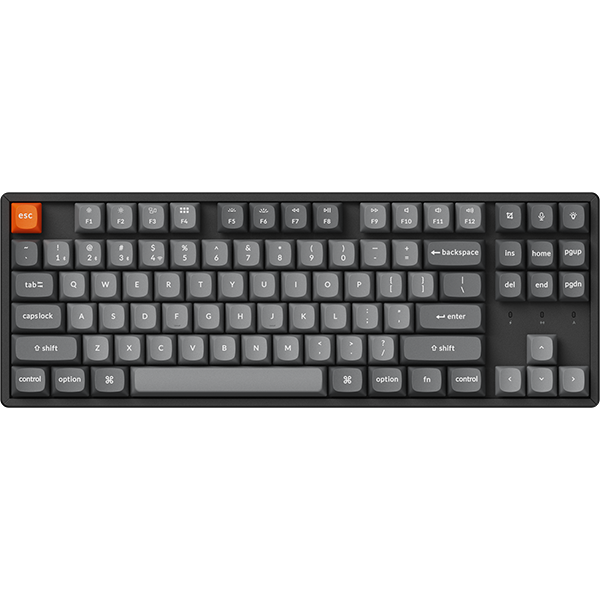

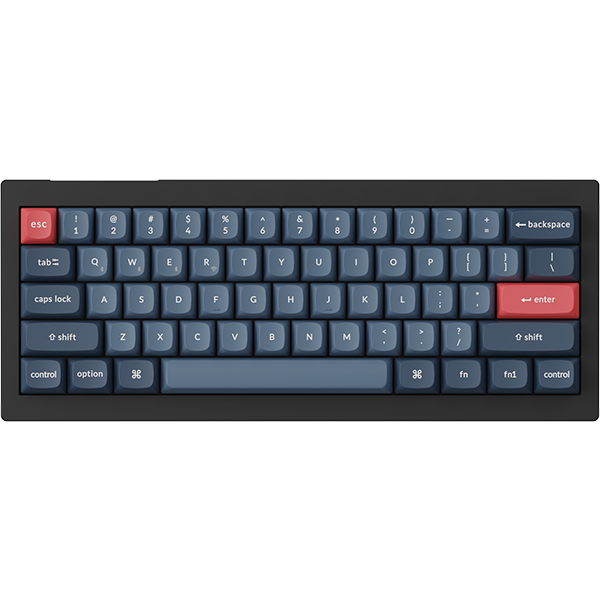




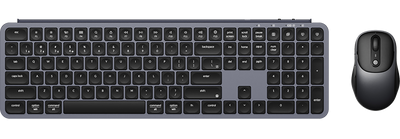
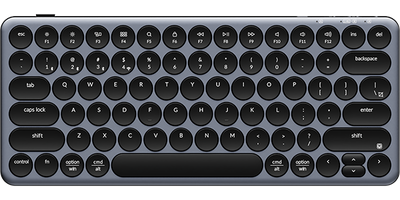
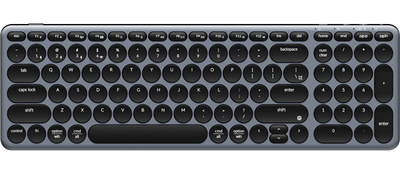
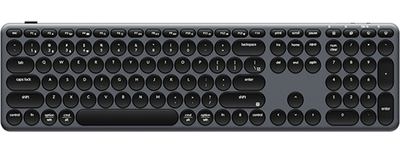


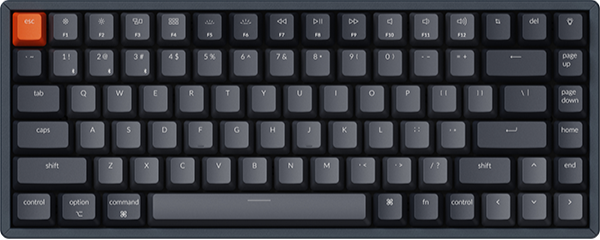
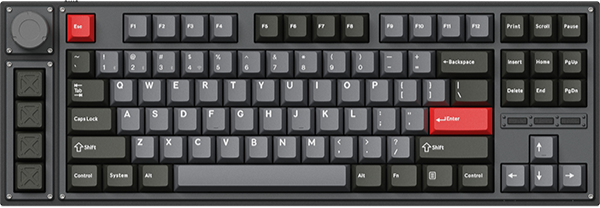
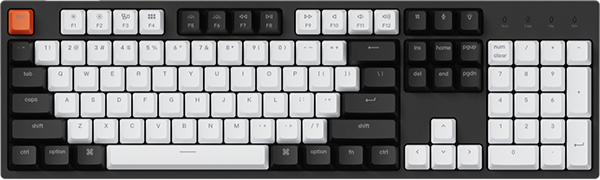
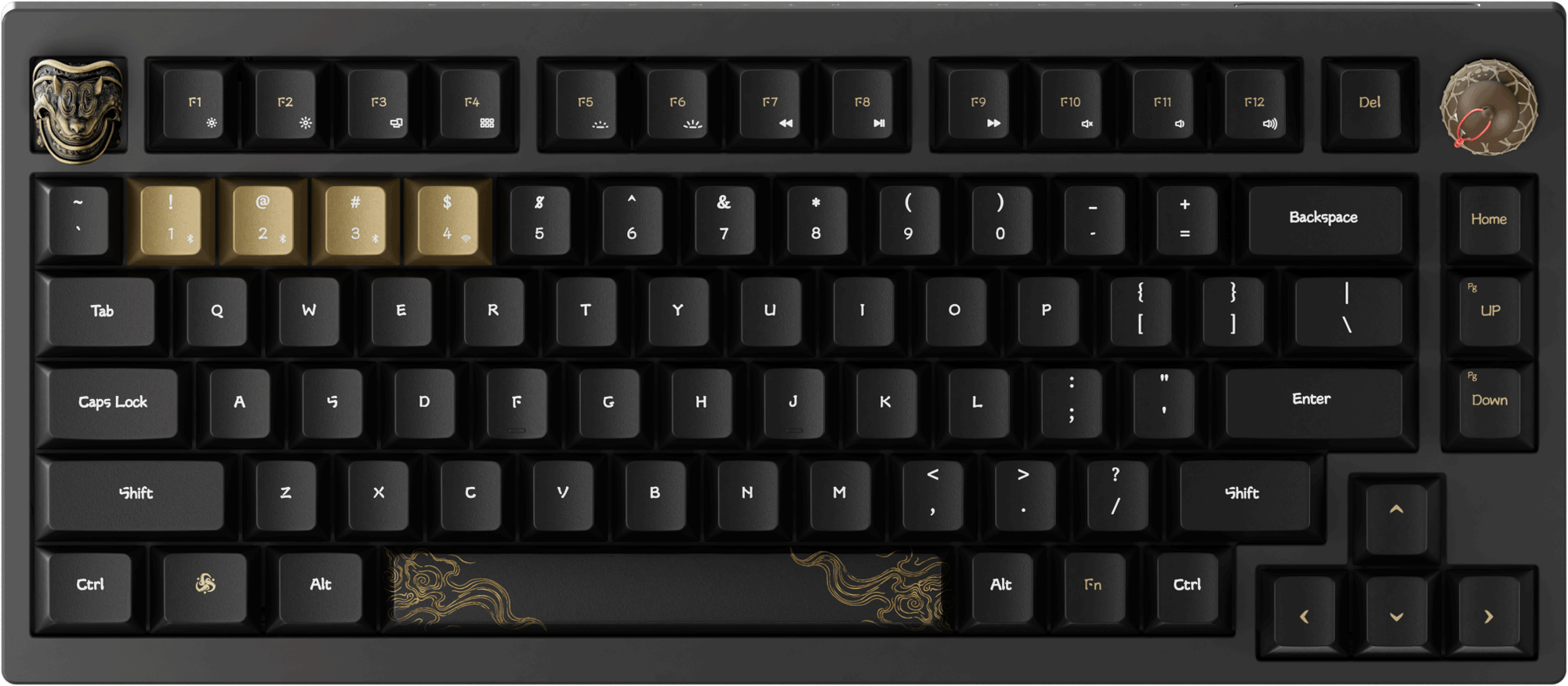


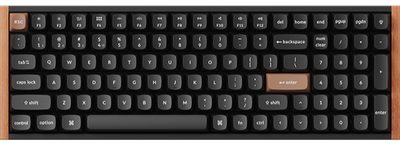
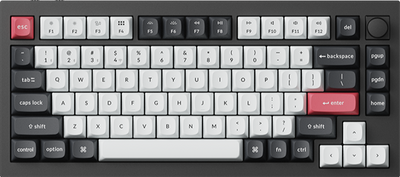
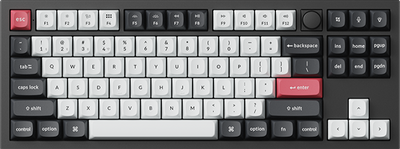
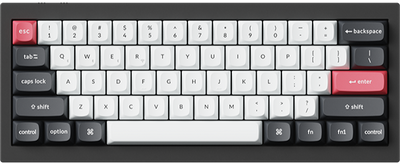
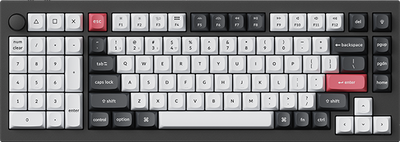

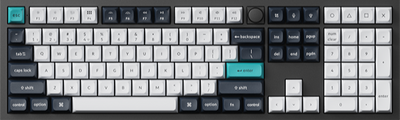
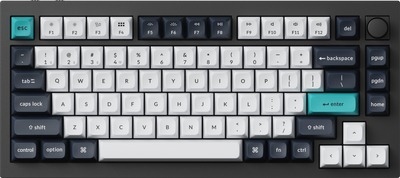
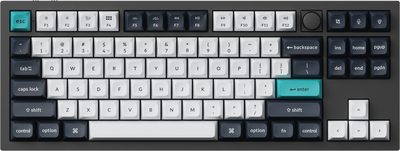
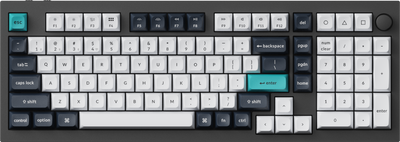
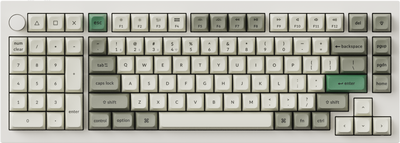
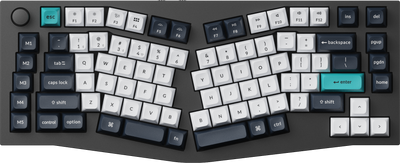
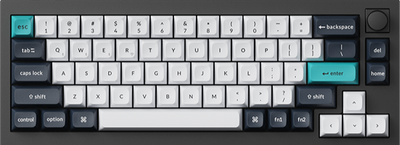
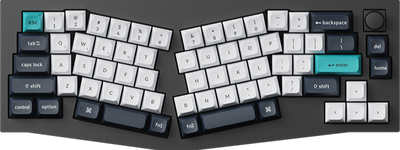
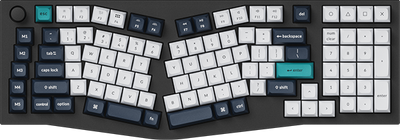
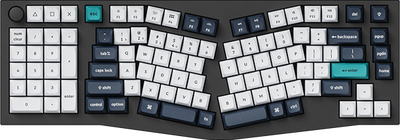
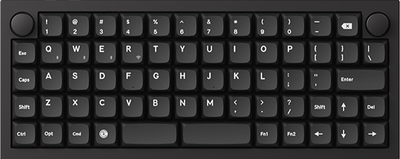
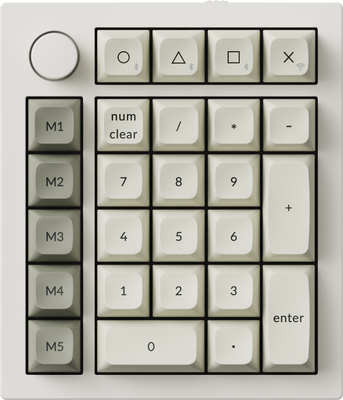
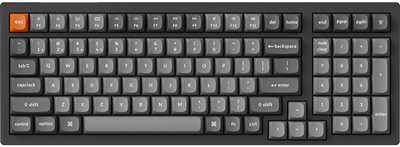
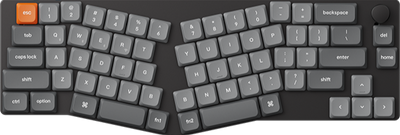
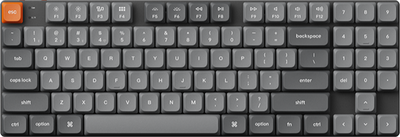
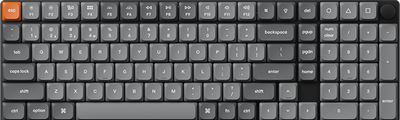
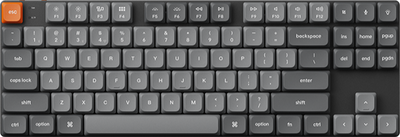
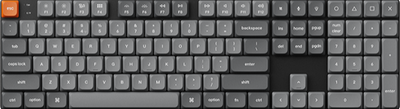
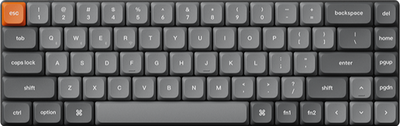
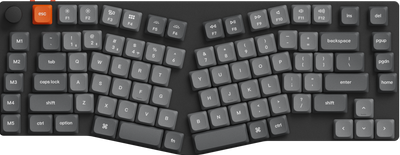
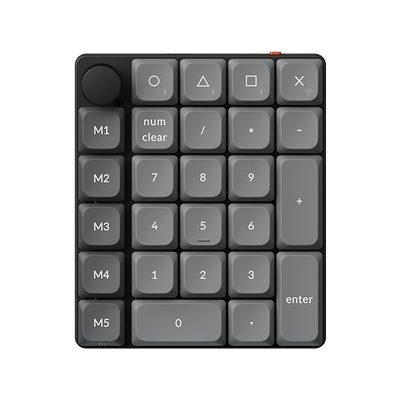
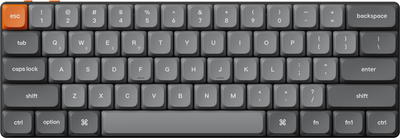
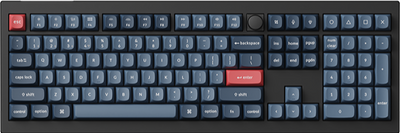
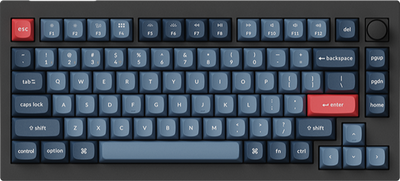
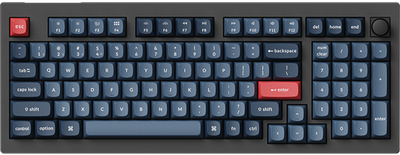
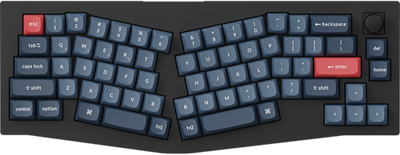
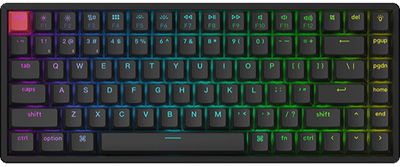
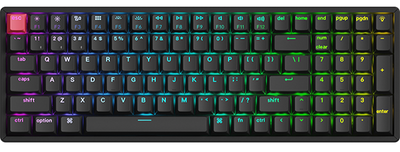
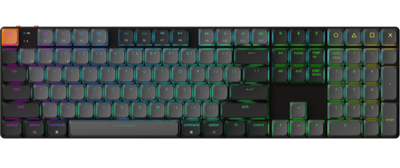
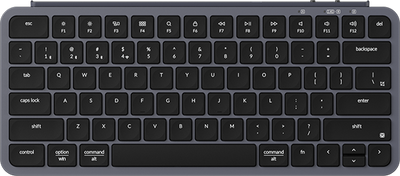
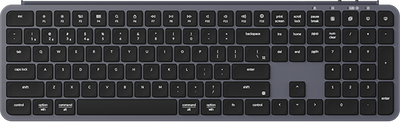
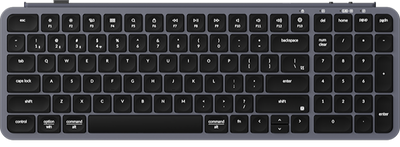
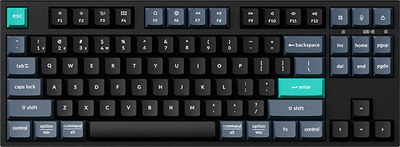
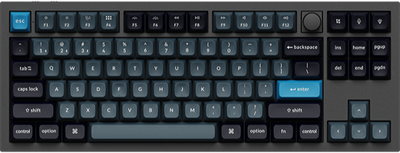
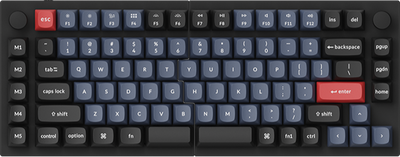
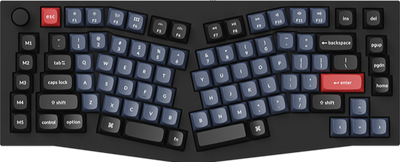
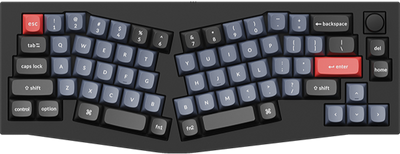
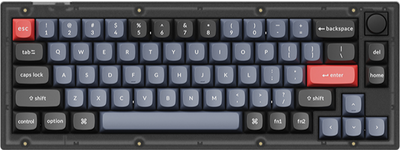
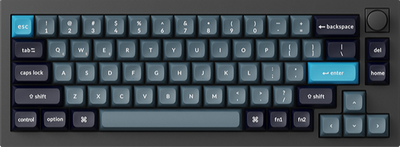
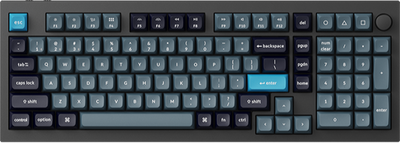
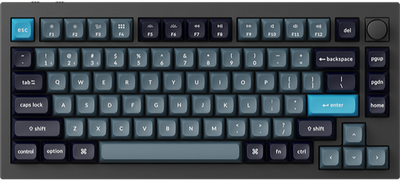
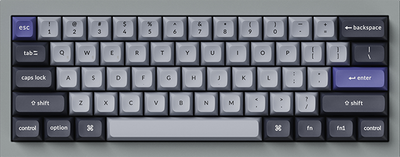
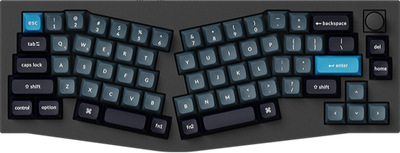
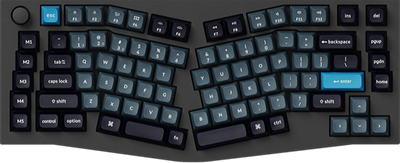
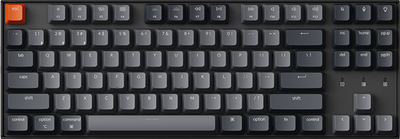
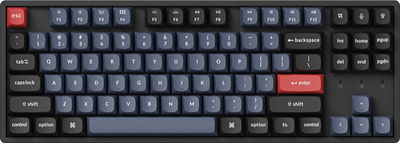
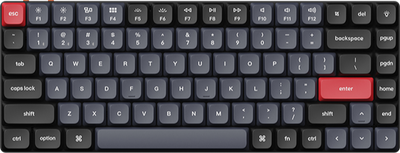
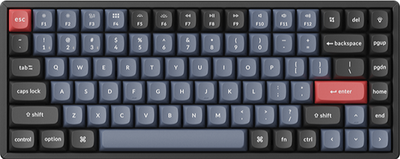
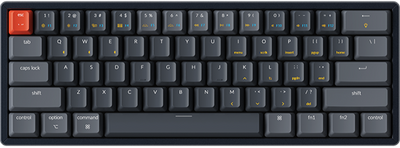
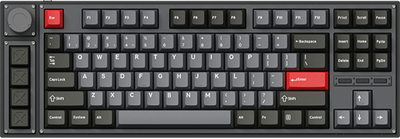
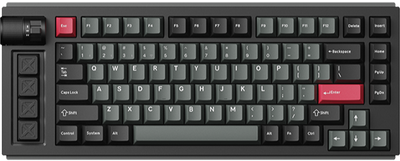
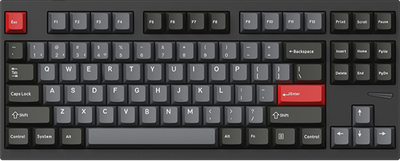
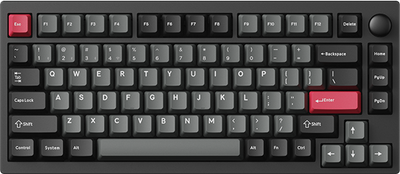
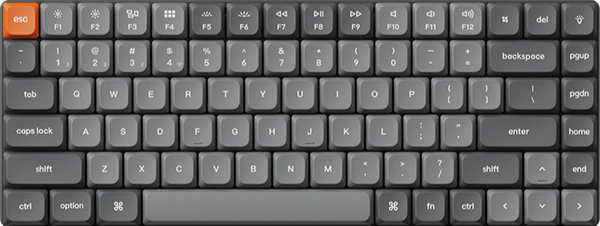
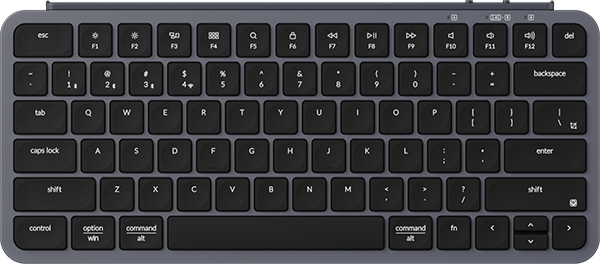
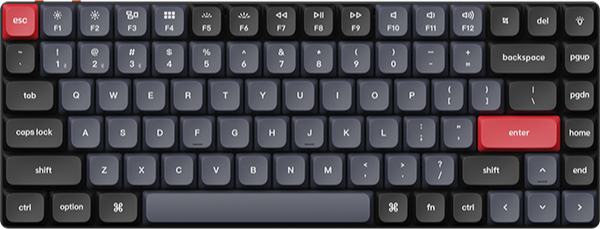
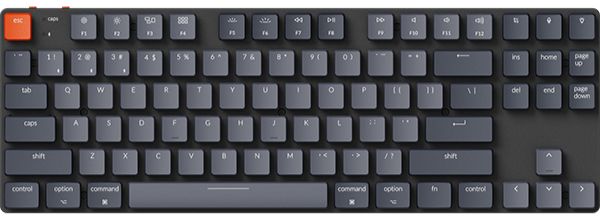

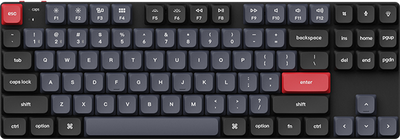
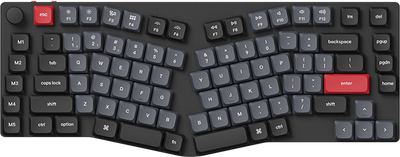
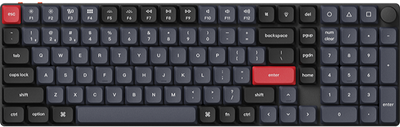
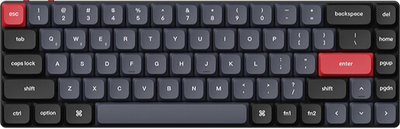
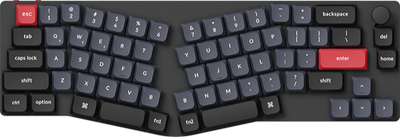
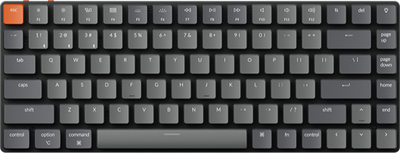
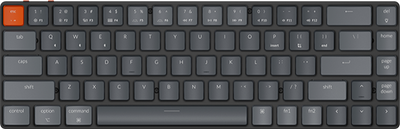
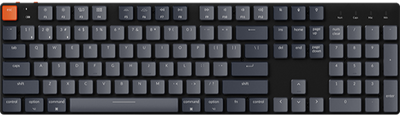
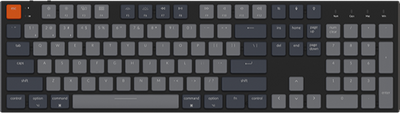














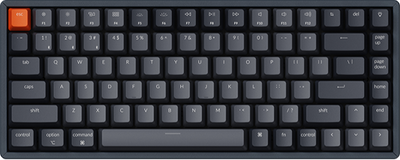
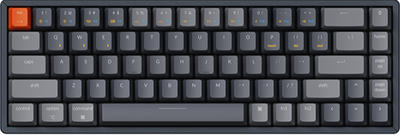
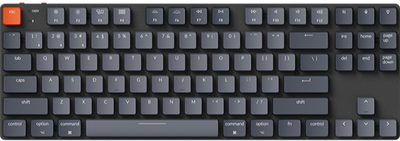
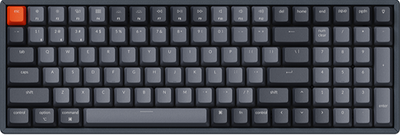
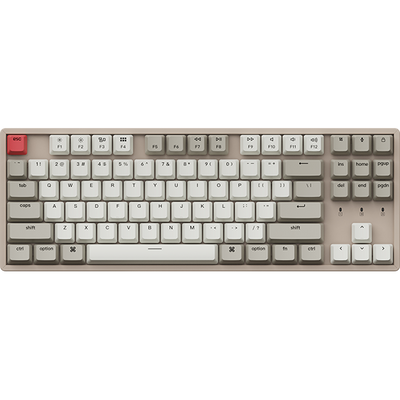









A macro refers to a pre-configured operation that allows executing multiple commands by pressing a single key. Now, you can program a single key to perform the same sequence of actions.
For example, the operation of pressing Shift+Command+4 simultaneously (for macOS screen capture) can now be completed with just one key press.
Specific operating steps are as follows:
-
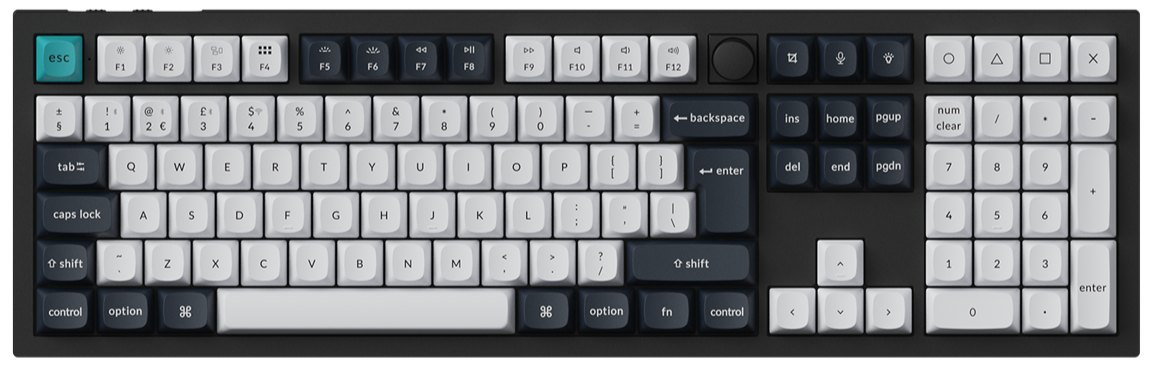
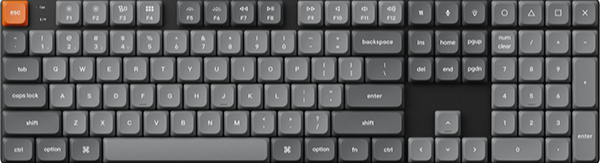
Click "Keymap" on the left, select "Macro" in the function section. Then click the key you want to replace first, and afterwards choose the macro command (M0, M1, M2...) you intend to remap to. For instance, you can remap the "Esc" key to "M0".

-
Click "Macro" on the left, then click to select the macro box number you want to set (M0, M1, M2...). You can choose whether to set a time interval for each operation; after setting, click "Start REC" to create a macro.

-
After starting the recording, press the keys you need to trigger, such as pressing "Shift", "Command", and "4" on the keyboard (for macOS system screenshot). Then click "Stop REC", followed by clicking "Submit", and a macro command will be successfully set up.

-
For the recorded macro command, you can click on it to name it, and we also support users in adjusting the details of the macro command.
-
Click the directional buttons next to the key records to adjust the order of key presses and releases.
-
Click the three dots for more detailed settings, such as changing the input keys, deleting the input of a certain key, setting the delay time between keys, inserting additional keys, reading mouse input, and entering text.

-
Click the '+' button to directly add a new operation (it will be added at the end by default).

-
You can also directly edit in the operation's visualization file using dedicated text editing rules (this method is more complex than the one above).

-
-
We also support users in uploading pre-configured macro files for direct use, as well as exporting macro files set up within the Launcher application.

Notice: Each device has a cap on its macro file storage space, which is sufficient for normal use. Please manage this space wisely.
Here is the video tutorial: Set up Macro by recording keystrokes