
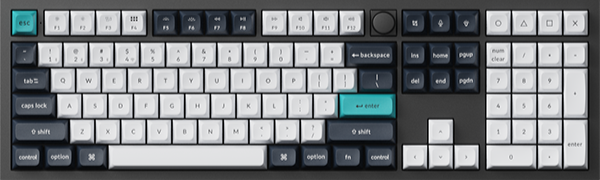
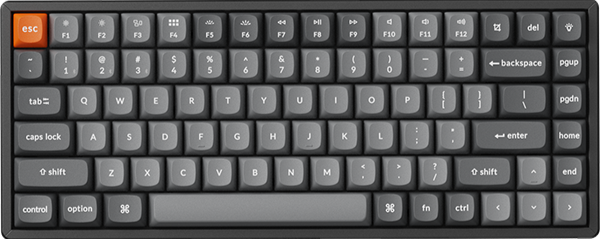
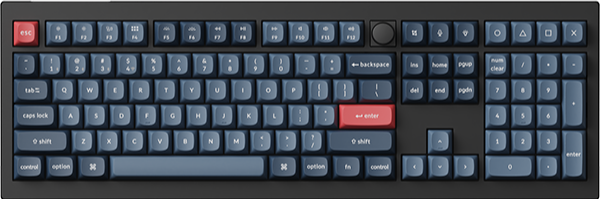

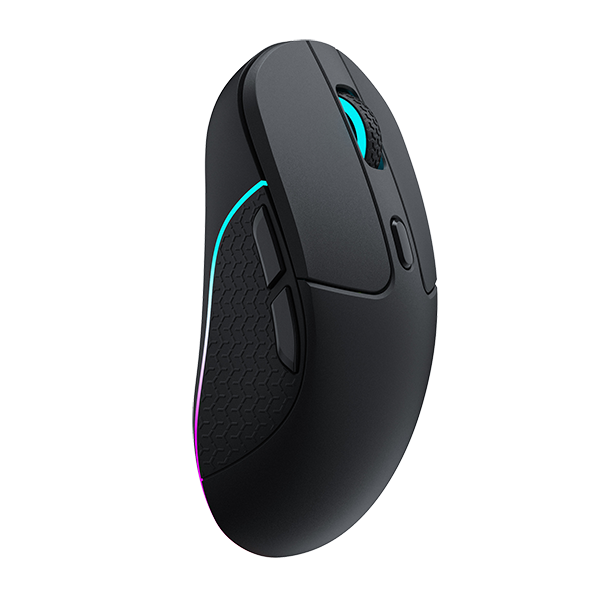

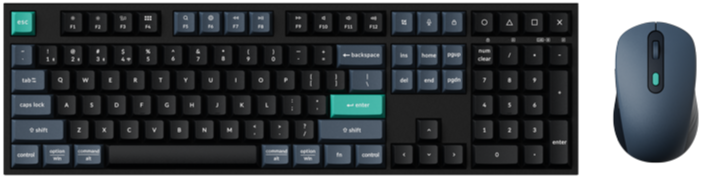
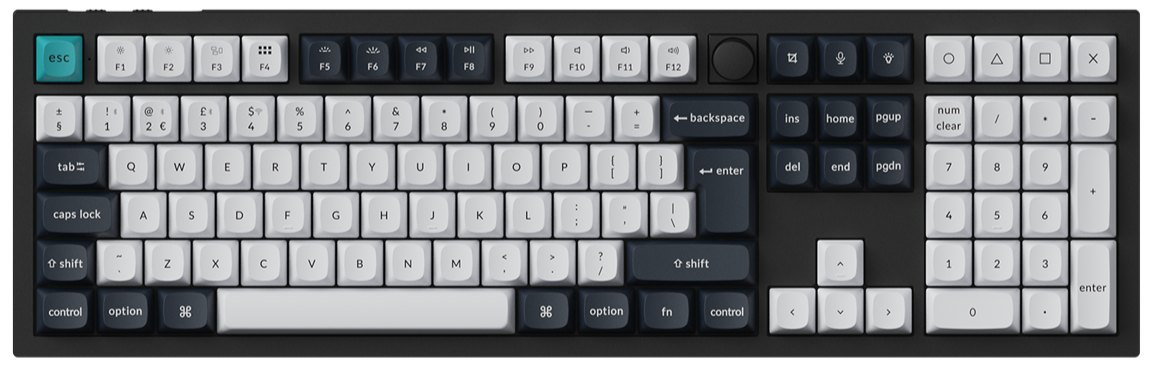
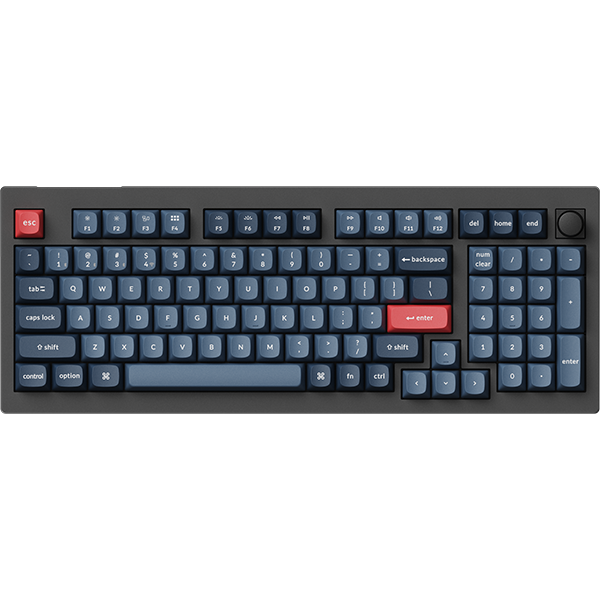
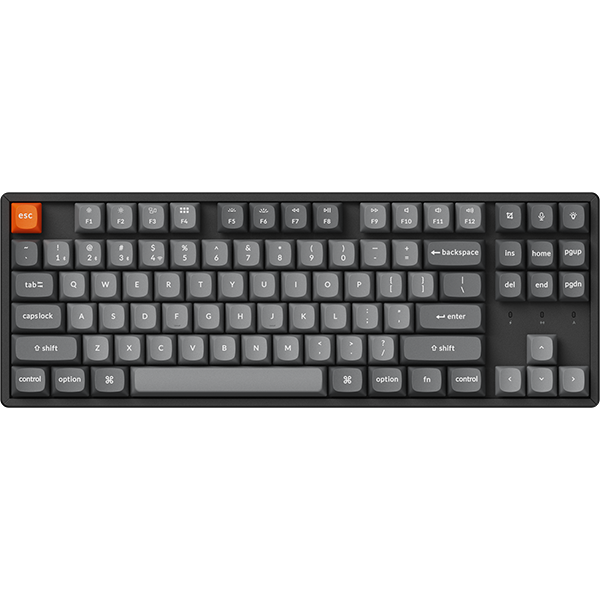

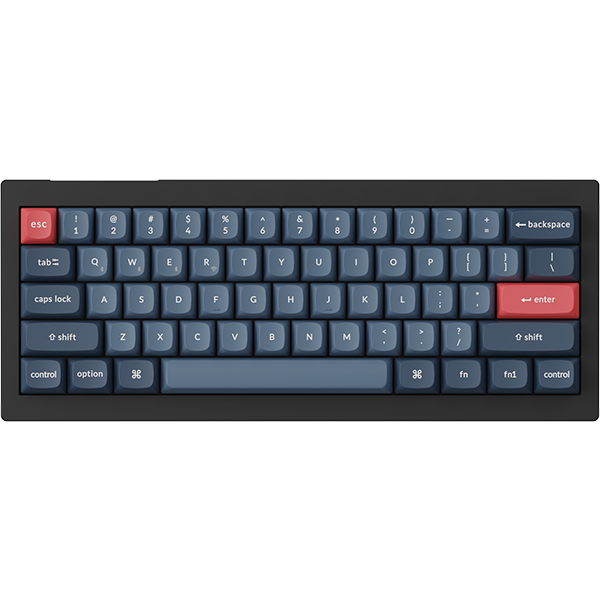




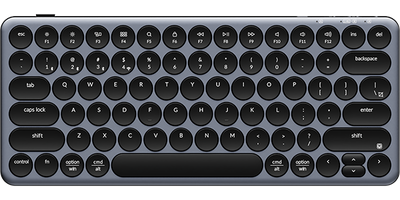
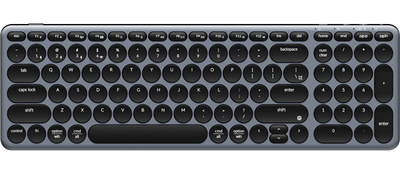
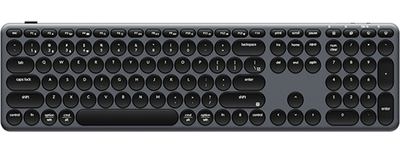

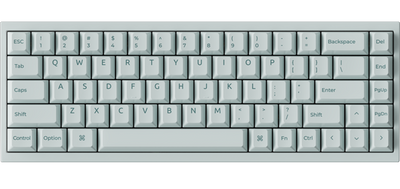
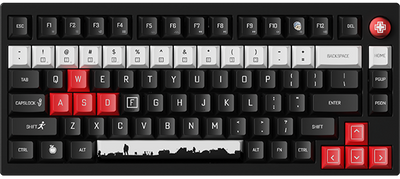
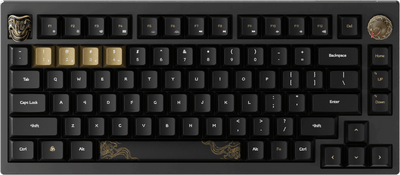


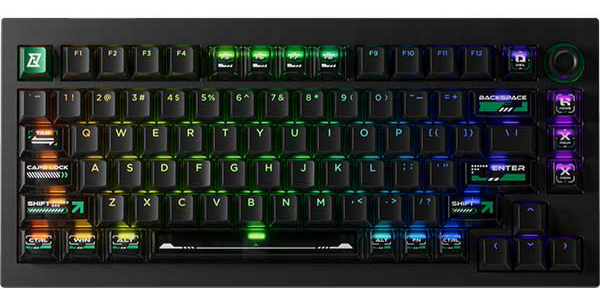
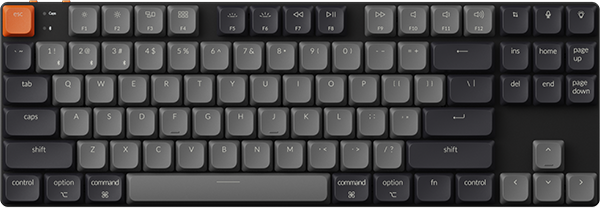
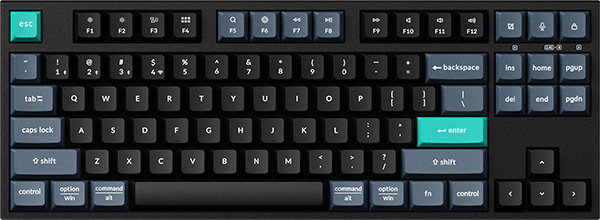
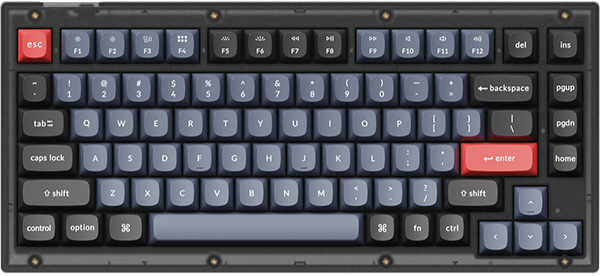
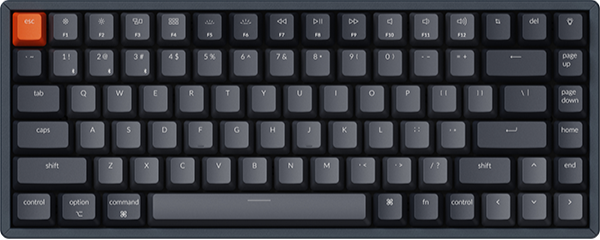
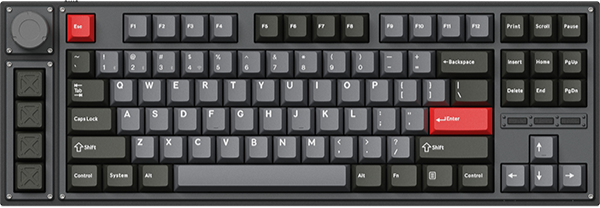
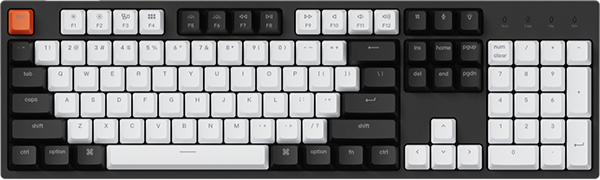
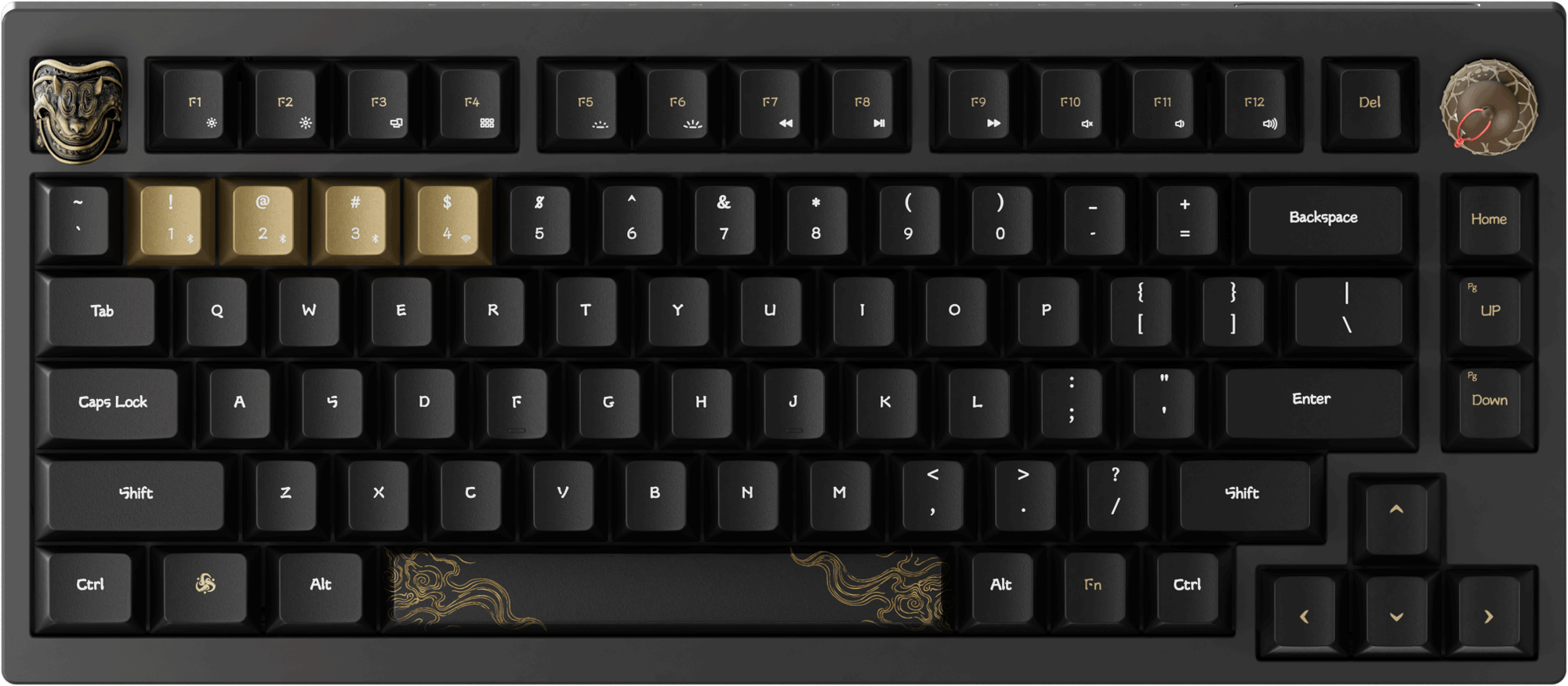


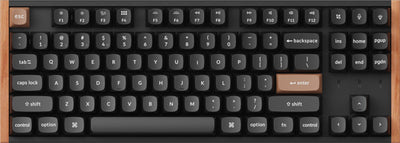
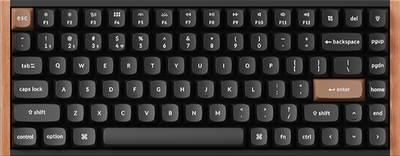
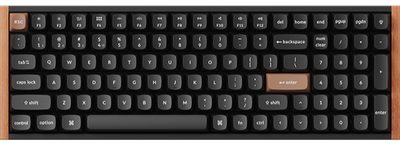
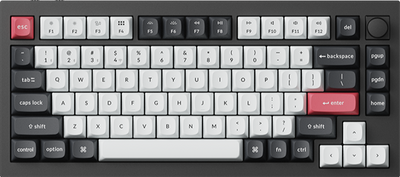
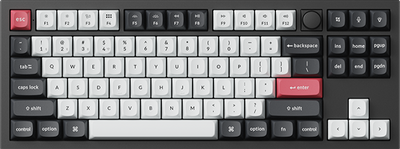
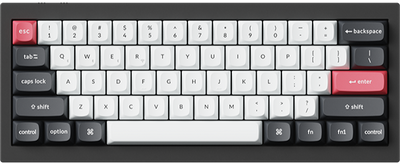
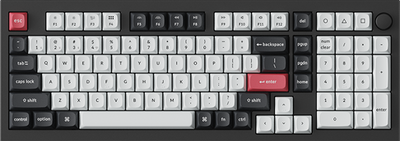
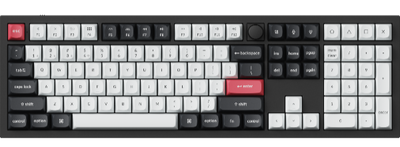
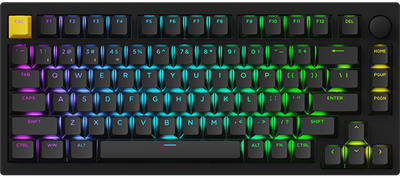
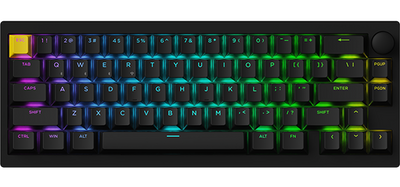
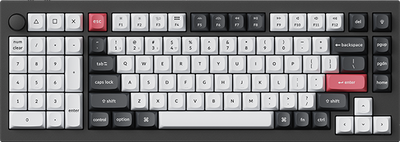
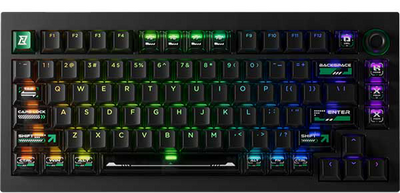
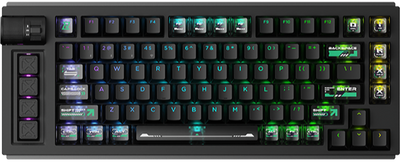

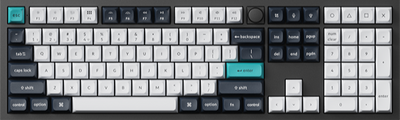
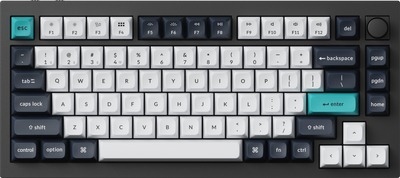
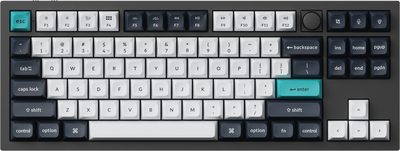
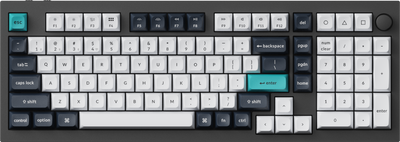
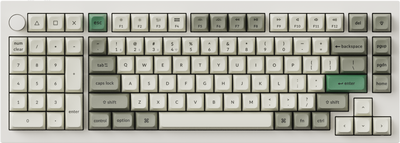
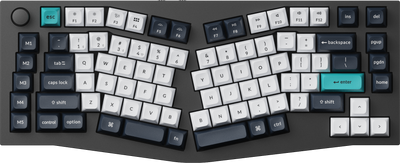
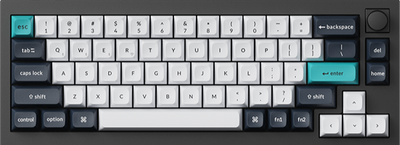
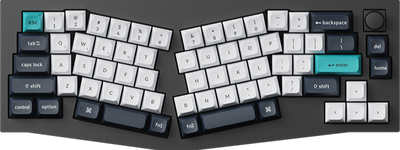
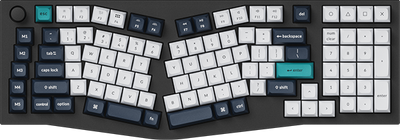
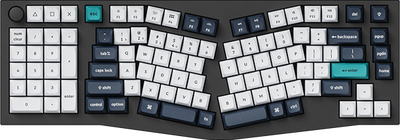
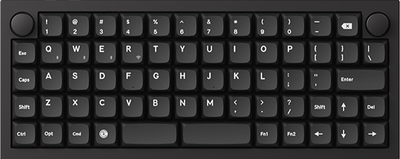
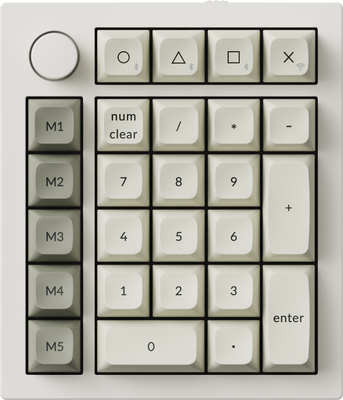
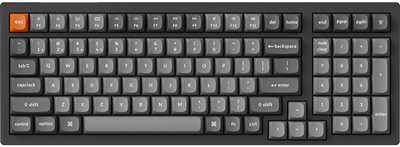
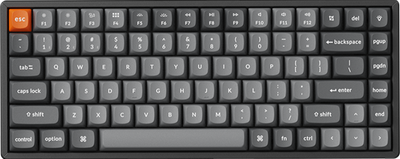
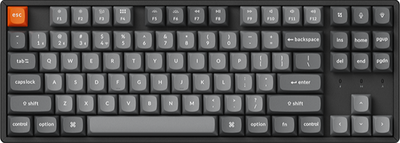
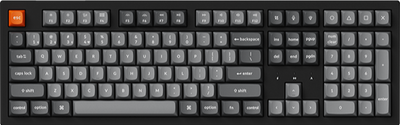
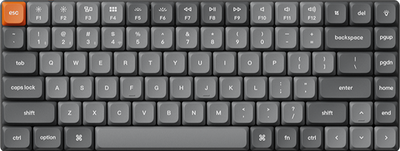
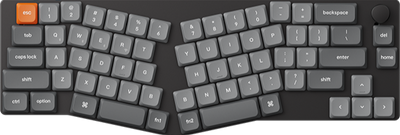
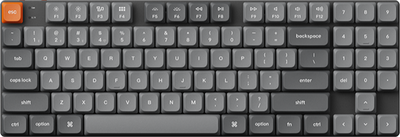
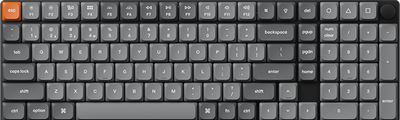
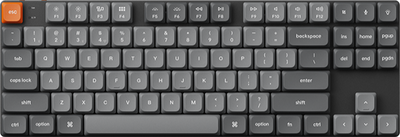
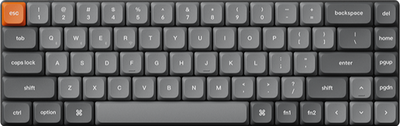
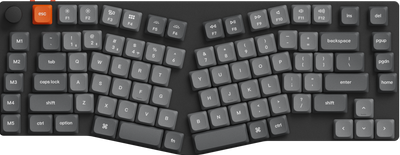
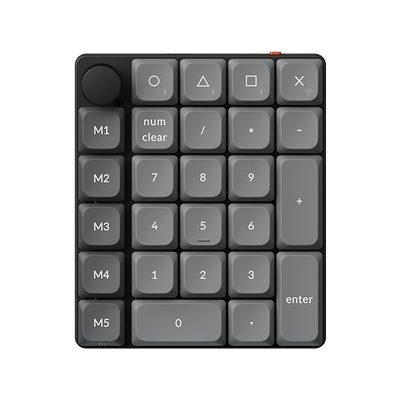
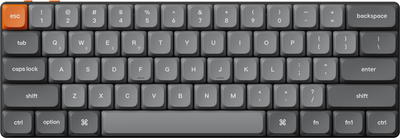
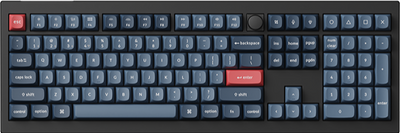
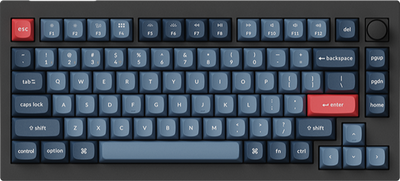
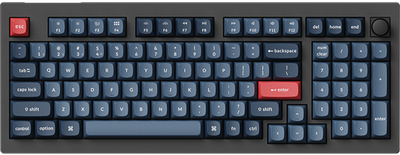
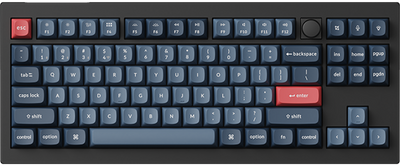
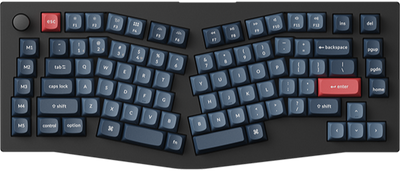
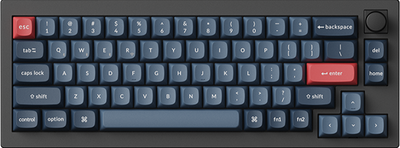
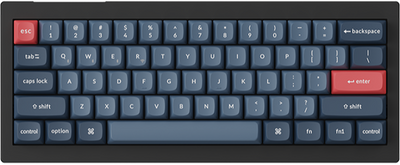
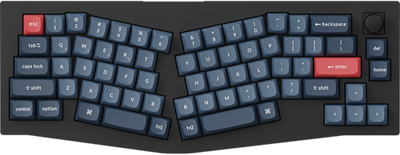
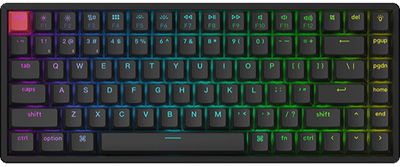
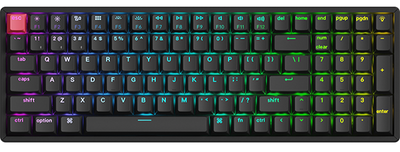
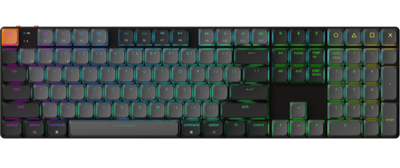
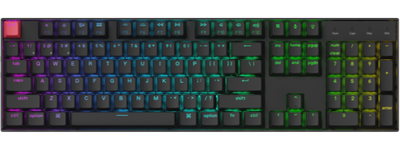
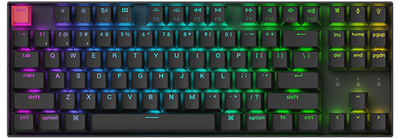
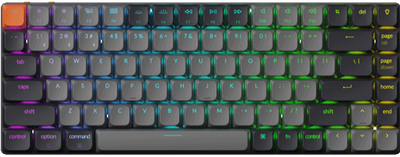
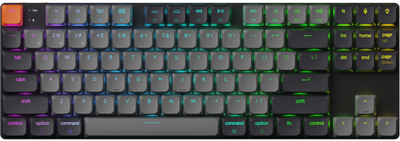
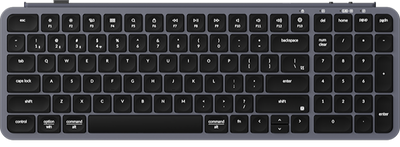
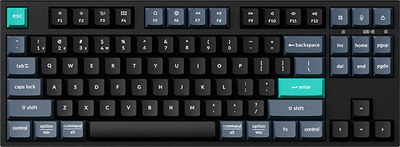
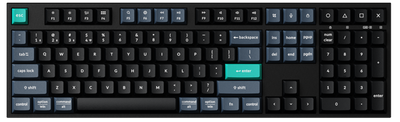
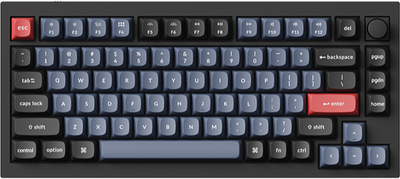
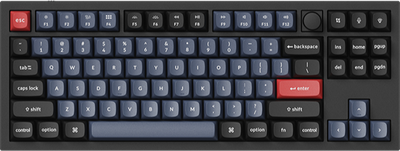
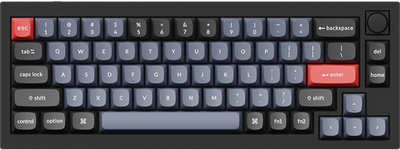
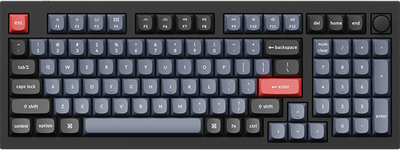
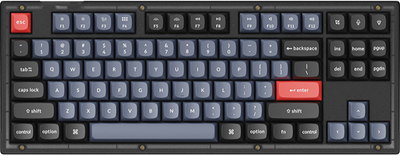
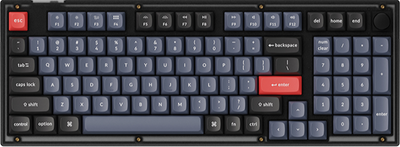
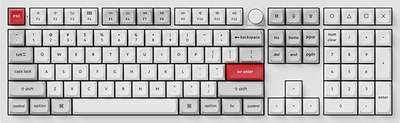
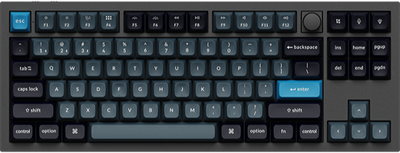
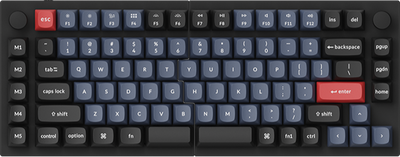
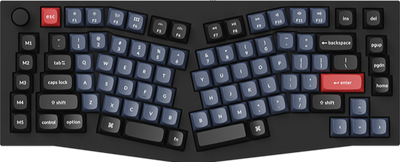
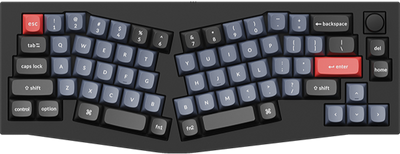
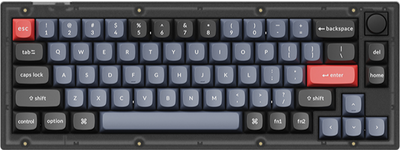
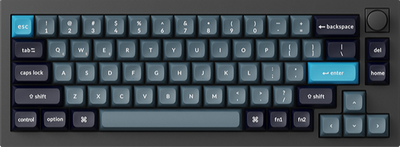
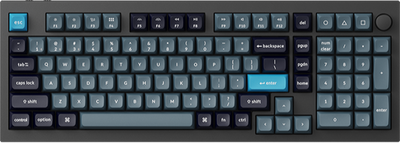
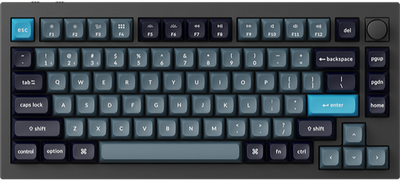
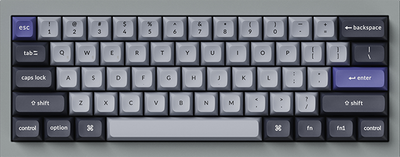
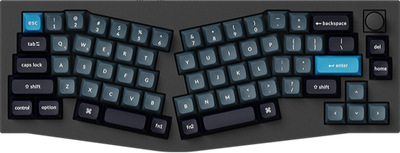
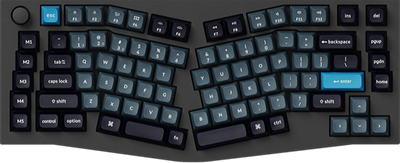
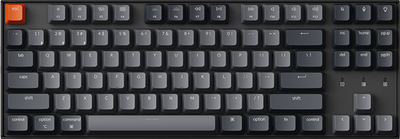
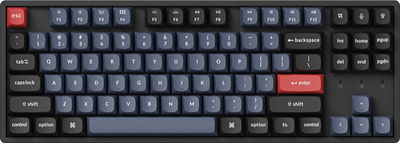
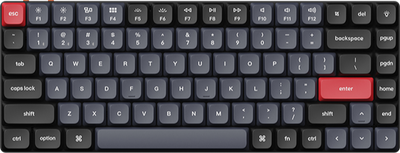
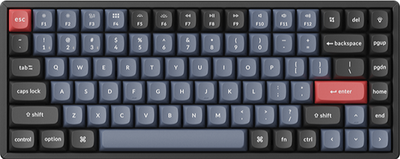
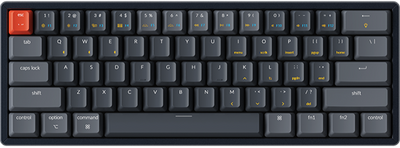
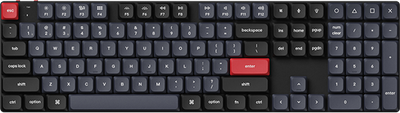
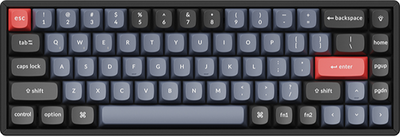
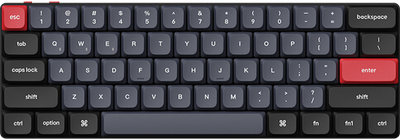
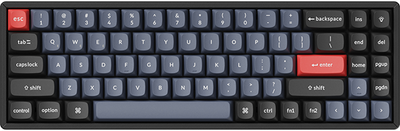
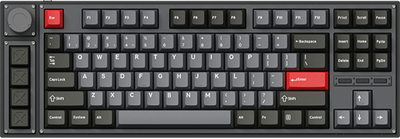
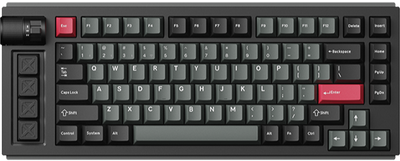
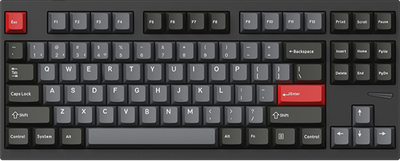
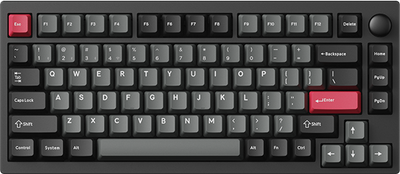
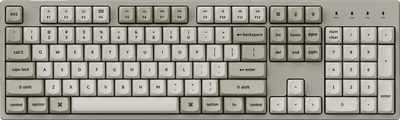
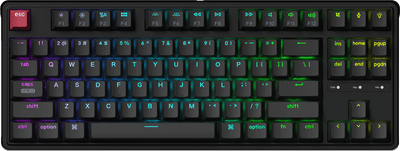
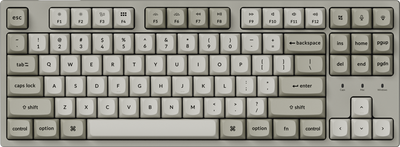
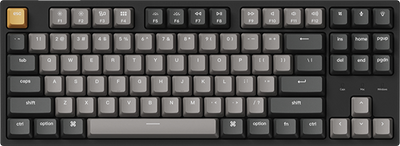
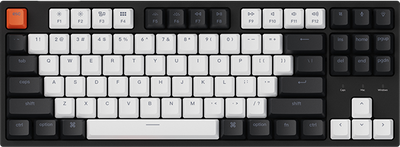
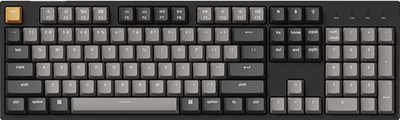
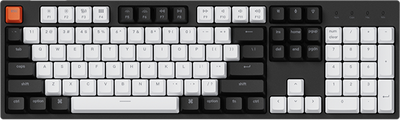
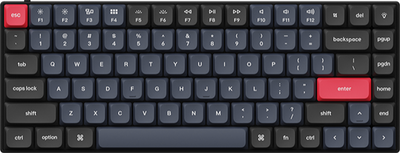
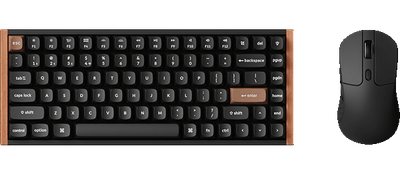
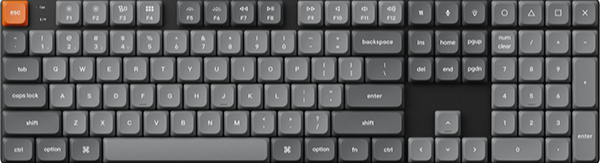
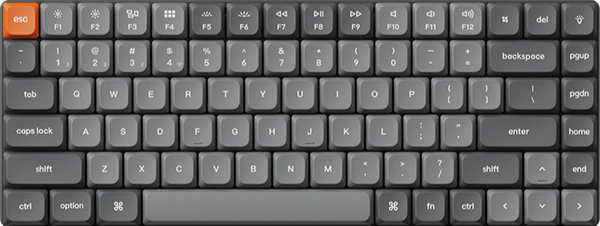
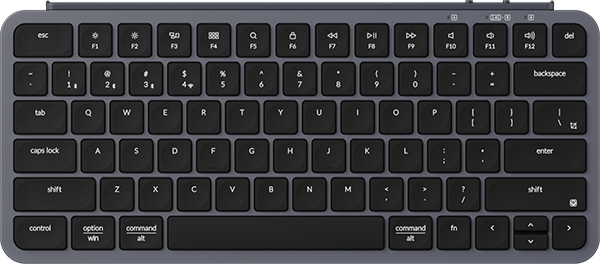
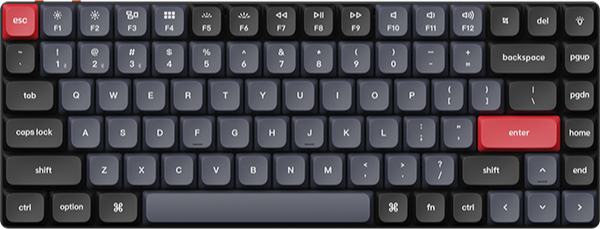
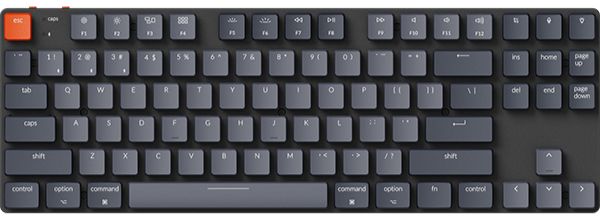

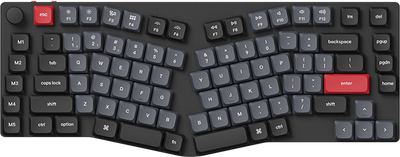
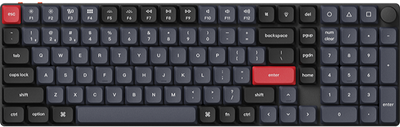
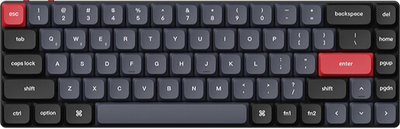
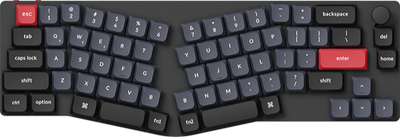
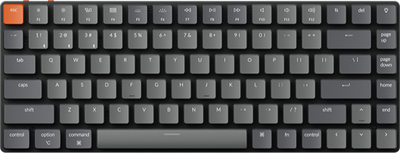
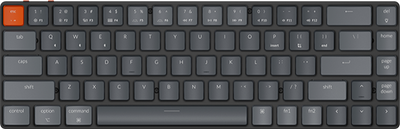
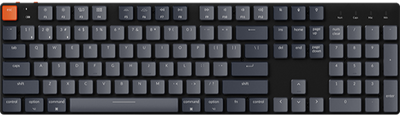
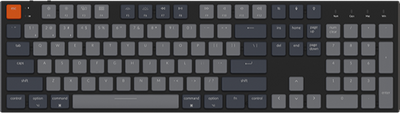





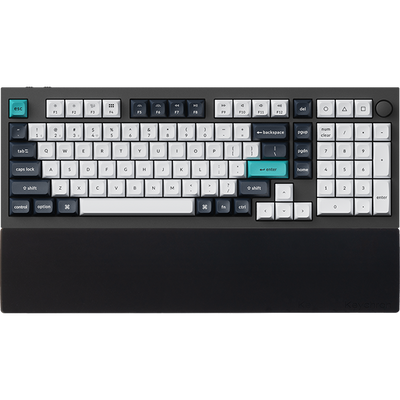


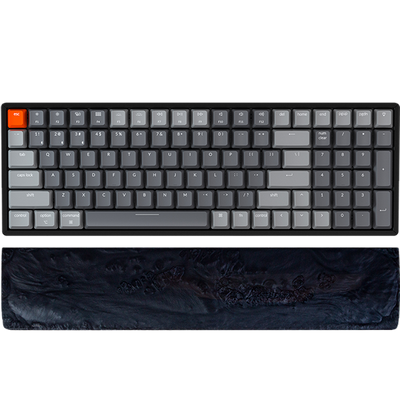
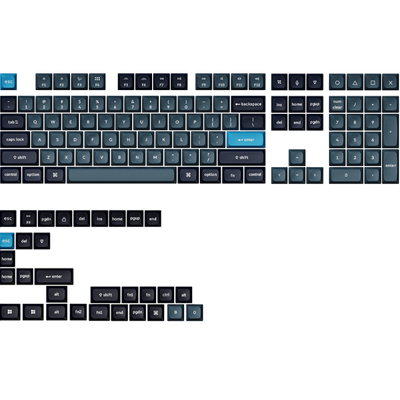
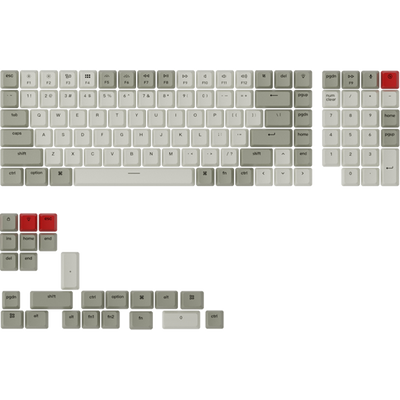
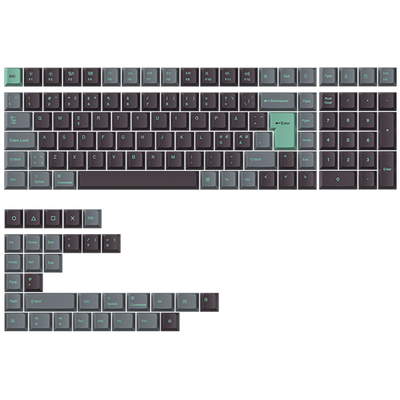
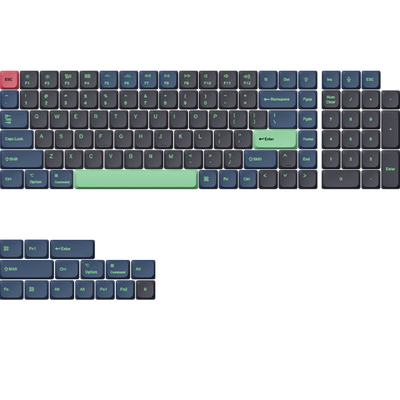








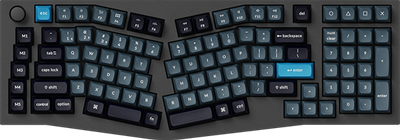
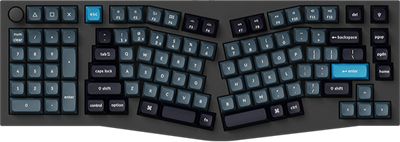

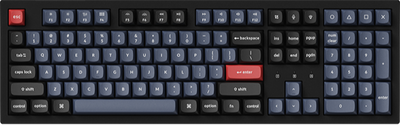
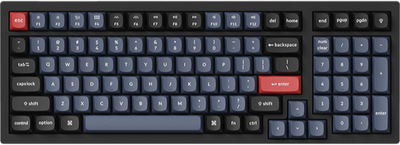
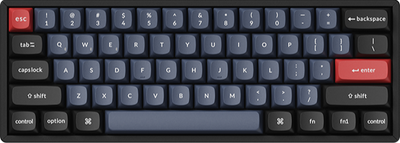
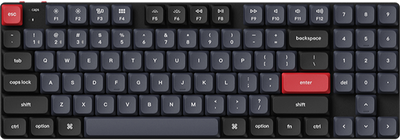

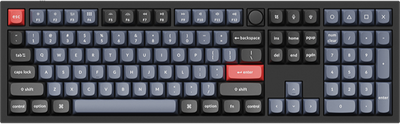
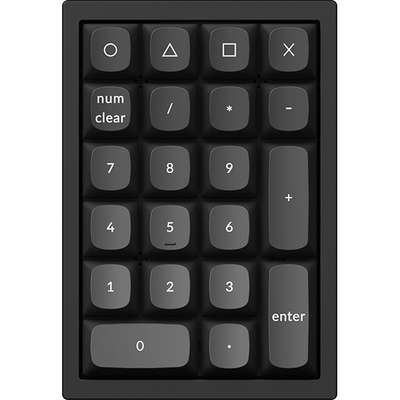
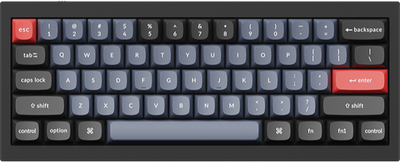
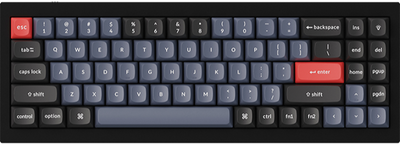
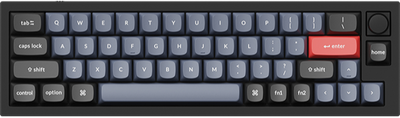
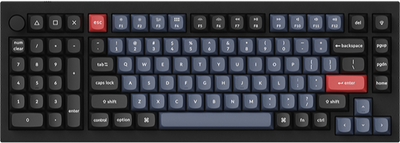
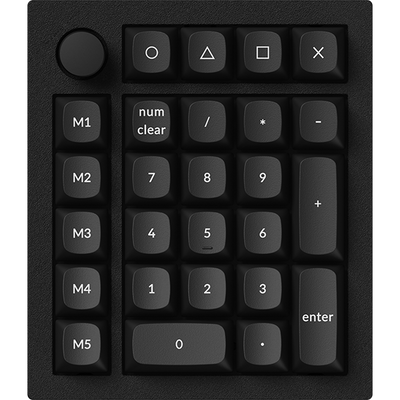
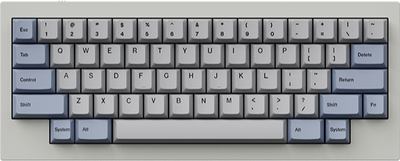
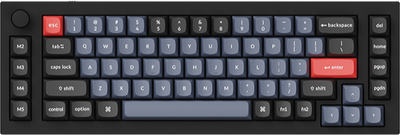
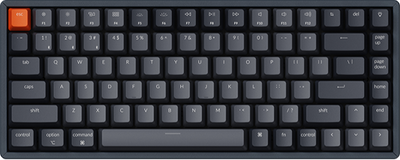
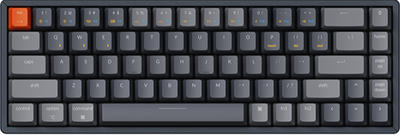
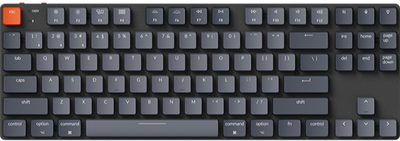
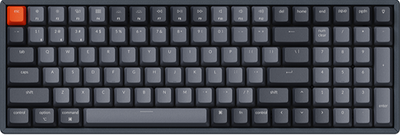
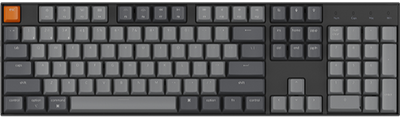
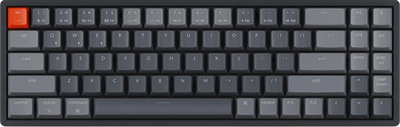
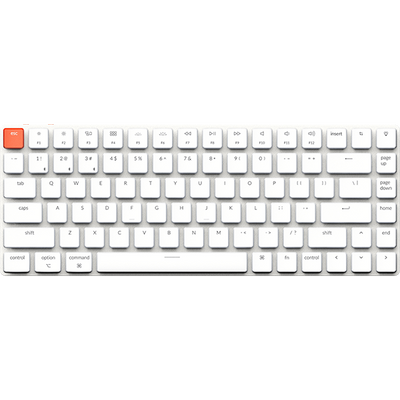
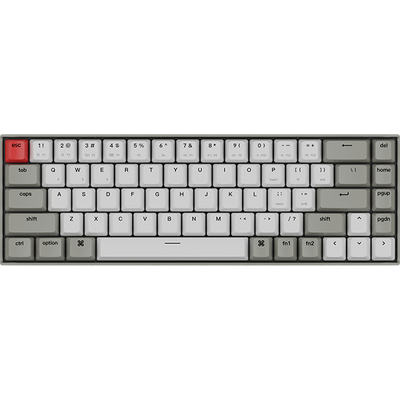
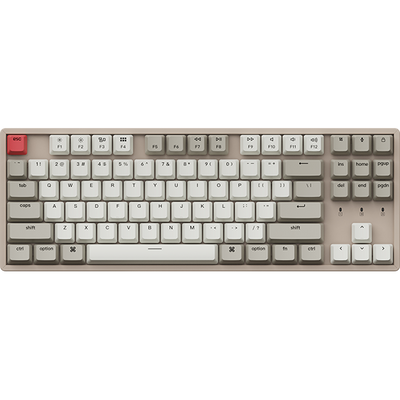

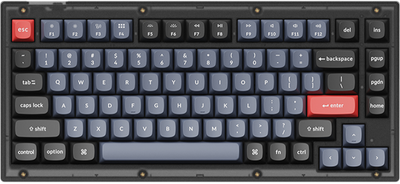
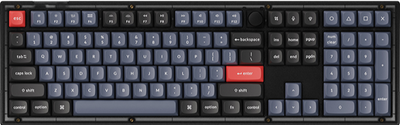
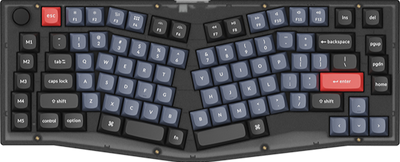
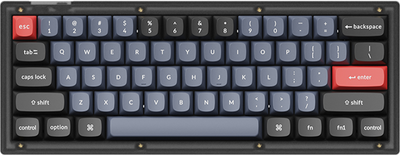
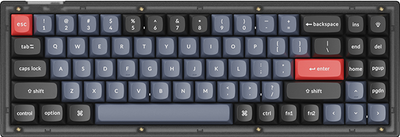
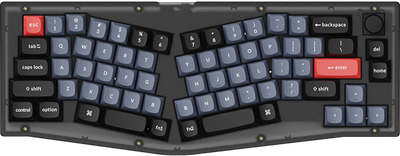



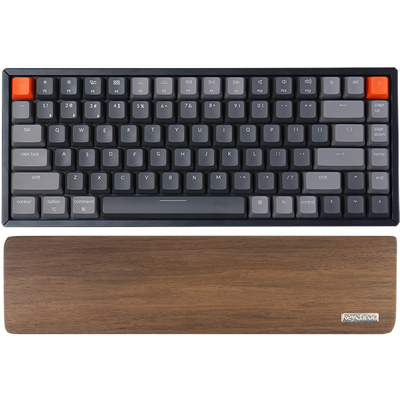





Keychron keyboards offer users a variety of stunning overall backlight effects. Some products also support users in setting individual key lighting effects, allowing for custom design of per-key backlighting within the Launcher.
Per-key RGB allows you to set the color of each key individually. You can change the color of the key by selecting it, clicking on the area where the color is set, changing the color, and saving it.
Below is a step-by-step guide on how to set up Per-key RGB:
1. Use the latest version of Chrome/Opera/Edge browser to click here to open the launcher.
2. After establishing a physical connection using our dedicated connecting cable or 2.4 GHz receiver, click the 'Connect' button on the Launcher and select the device you need to configure to connect to it.
Notice: Some product models only support a wired connection.
3. Click "Backlight" in the left-side function bar, then select "Per-key RGB" and toggle on the function switch to make relevant settings.
4. Click the keys you want to set on the effect keyboard; the main body of the selected keys will turn brown. You can click multiple keys at once to create a selection and apply the same settings. After selecting the keys, choose your desired color and click "Save" to complete the basic per-key setup.
The configured keys will retain their partitions. For subsequent adjustments, simply click the corresponding partition to select all these keys at once.
5. In addition to the basic backlight color settings, the keyboard also supports adjustments for backlight brightness and display effects.
6. To facilitate user operations, the system also supports one-click deletion of configured partitions and undo functionality for user actions.
Here is the complete Per-key RGB video tutorial: