




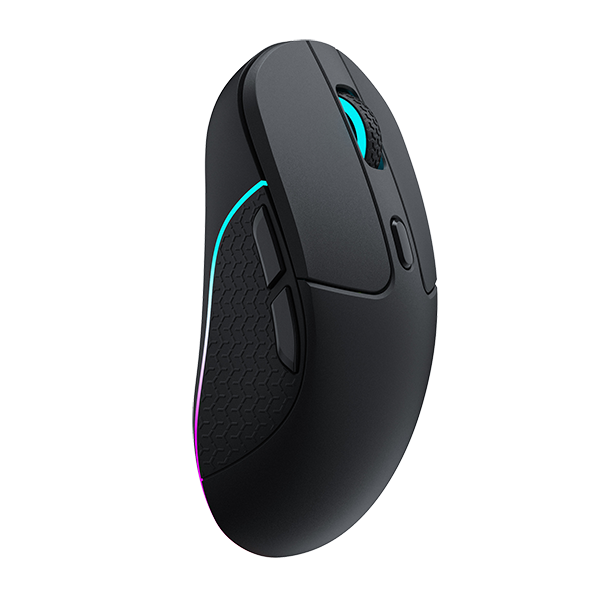












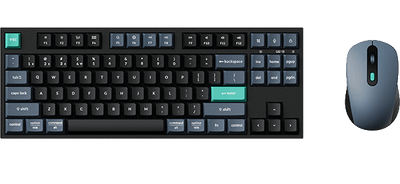
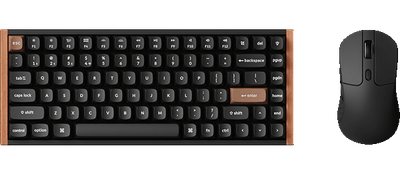
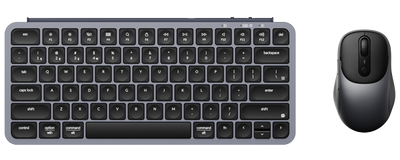
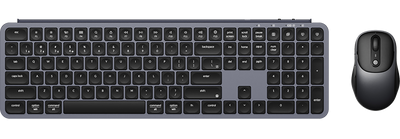






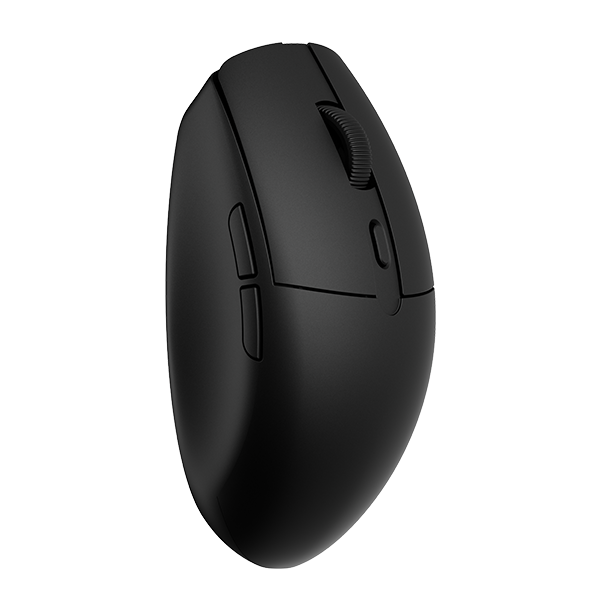


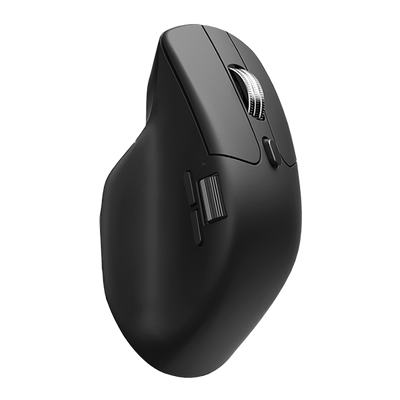
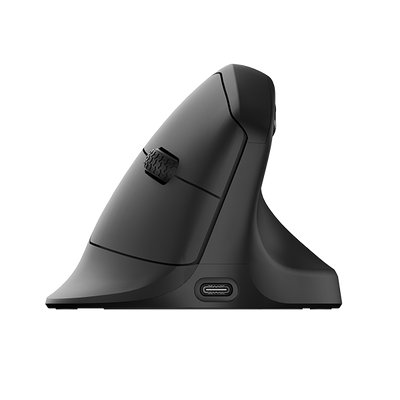
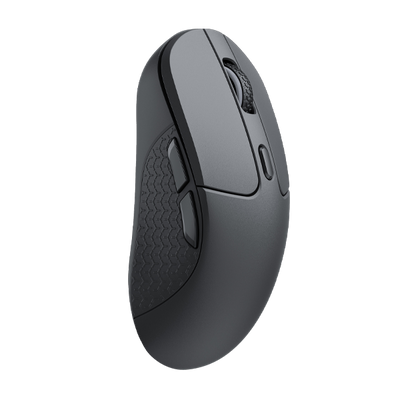
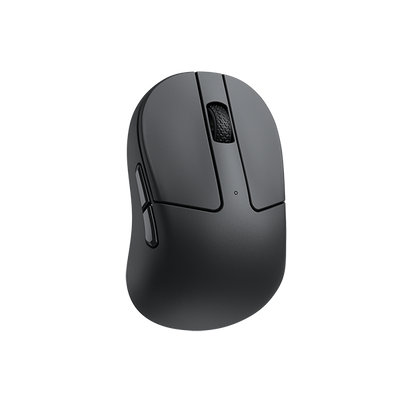
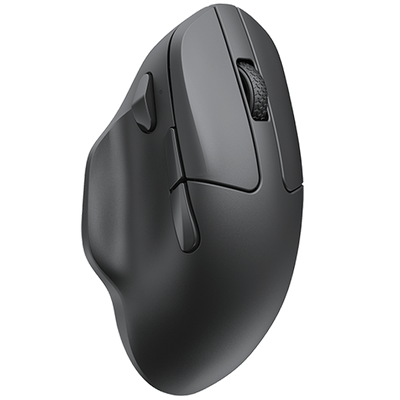
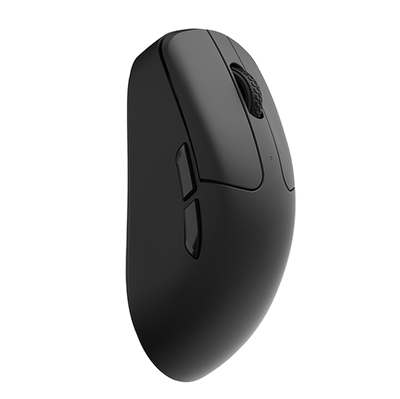
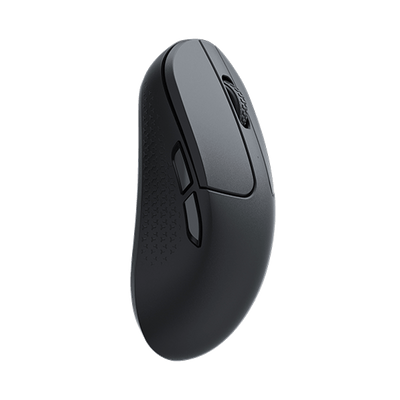
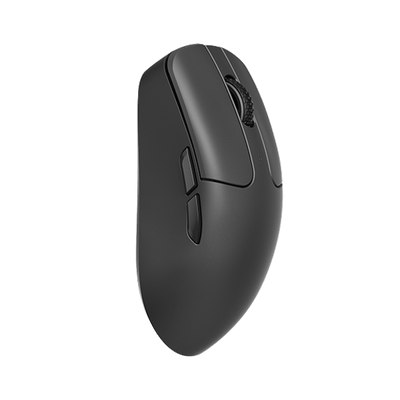


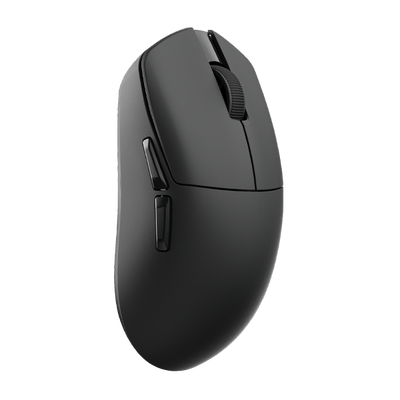
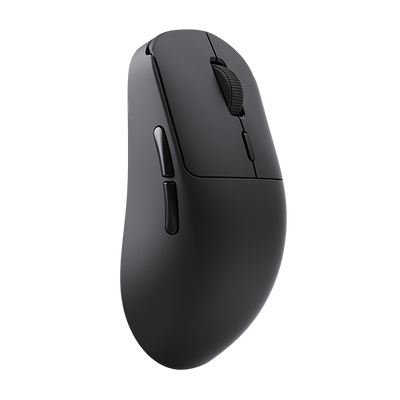
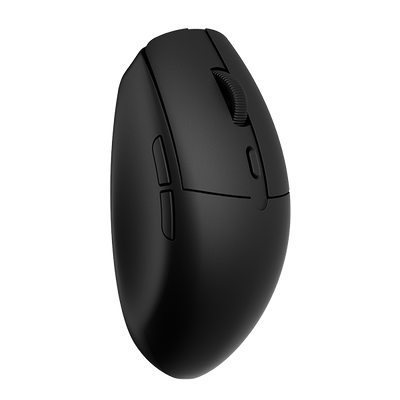
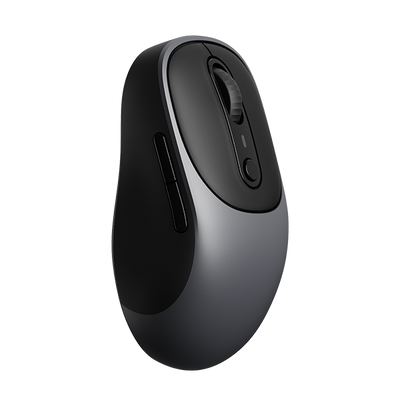






















Keychron mice support customizable DPI levels and selectable Polling Rate tailored to your preferences. Available settings may vary by model.
Getting Started
Below is a step-by-step guide on how to set up Mouse DPI and Polling Rate :
1.Use the latest version of Chrome/Opera/Edge browser to click here to open the launcher.
2.After establishing a physical connection using our dedicated connecting cable or 2.4G receiver, click the 'Connect' button on the Launcher and select the device you need to configure to connect to it.
Notice: Some product models only support a wired connection.
3.Click "DPI Settings" & "Polling Rate" from the function bar on the left side.

Customizing DPI (Sensitivity)
You can set up to 5 DPI levels. The supported DPI range varies by mouse model. For example, the M6 8K in the demo diagram supports a DPI range of 100 to 30000 for each level.
Switching Levels:
Users can set the DPI value for each level in Launcher, and then switch between these levels either via Launcher or the dedicated DPI button on the mouse.
X/Y-Axis DPI Separation:
Users can toggle the switch to enable independent adjustment of X and Y-axis DPI values, allowing for separate fine-tuning of horizontal and vertical sensitivity.

Three Ways to Adjust the Mouse DPI:
1.Interactive Slider: Drag for quick, wide-range adjustments.
2.Precision Arrows: Click the ‘+ ’&‘-’ for granular control (50 DPI per click) to find your perfect feel.
3.Manual Input: Click the value to type a specific number directly. Note: Values outside the hardware's supported range will not take effect.
Selecting Polling Rate (Responsiveness)
The Polling Rate determines how often the mouse reports its position to your computer.
Selectable Levels:
For Polling Rate, we also support multiple levels. Choose the level that fits your needs. For example, the M6 1K offers 125Hz, 500Hz, and 1000Hz. High-performance 4K or 8K models support even higher rates (2000Hz, 4000Hz, and 8000Hz) for maximum smoothness.
How to Change:
Simply click your preferred polling rate level in the Launcher to apply it instantly.
Wired/2.4G Separation:
Allows separate configuration of the polling rate for Wired and 2.4G modes. This feature is currently supported only by specific firmware, with updates to follow.
Bluetooth Limitation:
Due to the limitations of Bluetooth wireless connectivity, the mouse only supports 125Hz in Bluetooth mode and cannot be changed.
Sensor Sampling Mode:
Enabling Competitive Mode boosts the sensor's sampling rate to 20K. This feature is currently supported only by specific firmware, with updates to follow.
