























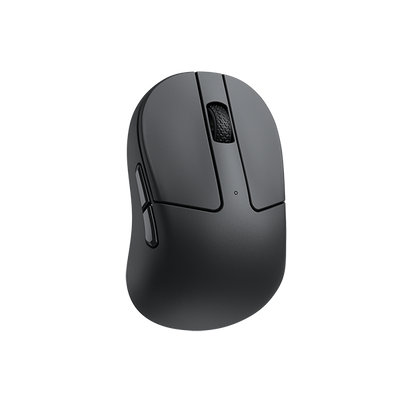
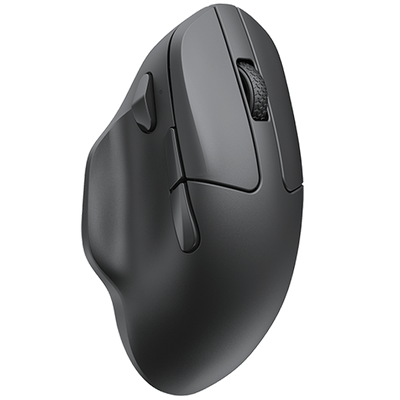
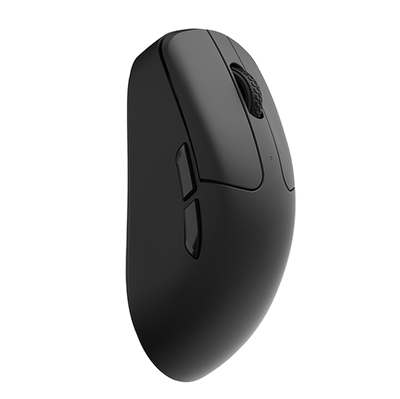
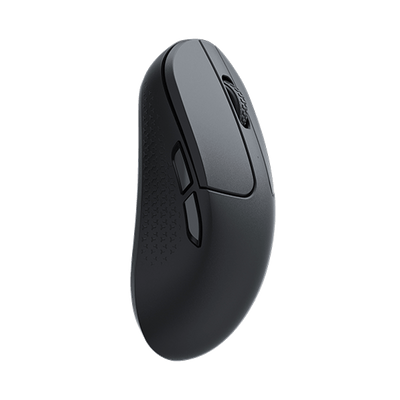


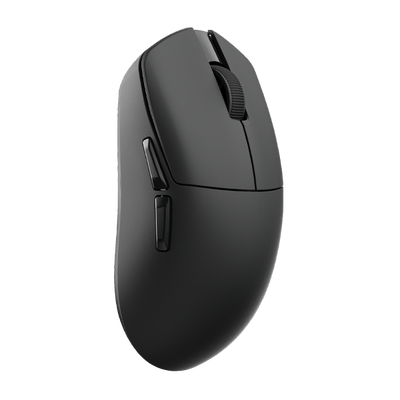
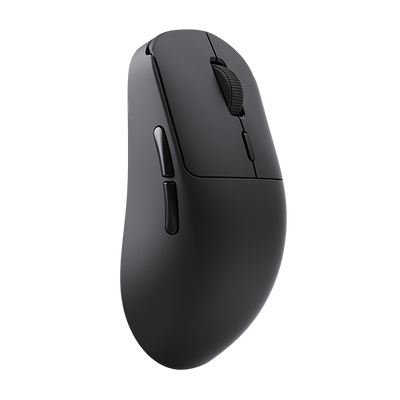
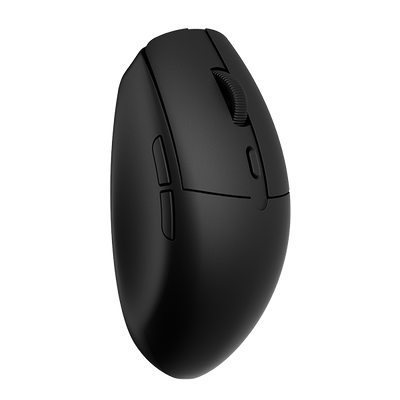
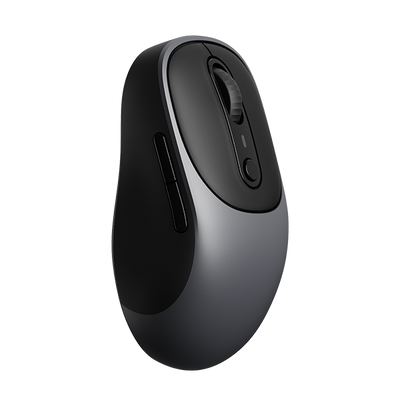
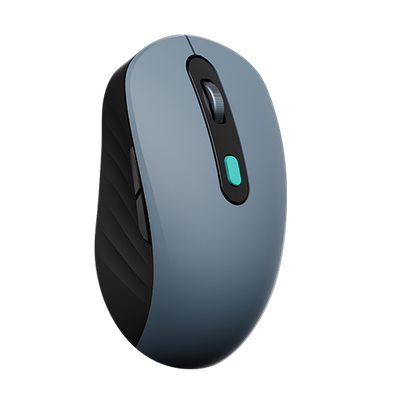





















Keychron mice support both 2.4G and Bluetooth connectivity, both of which are implemented through the receiver’s firmware. We periodically release firmware updates, which you can install via the Keychron Launcher.
Below is a step-by-step guide on how to update the receiver firmware:
1. Use the latest version of Chrome/Opera/Edge browser to click here to open the launcher.
2. After establishing a physical connection using our dedicated cable or 2.4G receiver, click the 'Connect' button in the Launcher and select the device you want to configure to connect to it.
Note: Receiver firmware update requires the user to connect via 2.4 GHz.
3. Click "Receiver Update" from the left function bar.
On the update page, you can see the current receiver firmware version and the latest firmware version.

4. Click "Next" to enter the next level page.

5. Click "Match Device" to enter the mouse matching mode.

Note: The mouse will disconnect automatically. Please prepare a spare mouse for the following operations.
6. Following the upgrade prompt, select "Bootloader device" from the HID list, then click "Connect" to enter the update mode.

7. Click "Flash Firmware" to start the update.

8. Please remain patient during the upgrade process. Once the progress bar is completed, a success prompt will appear.

Here is the video tutorial: How to update the receiver firmware?