




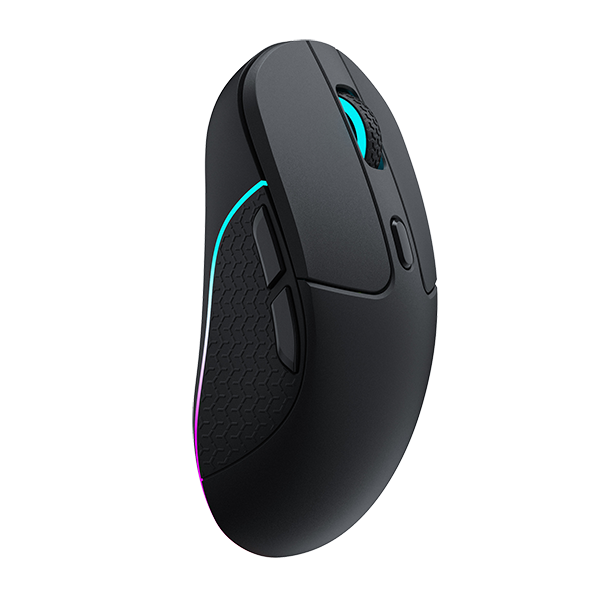












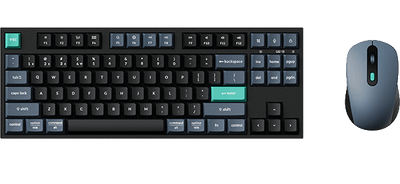
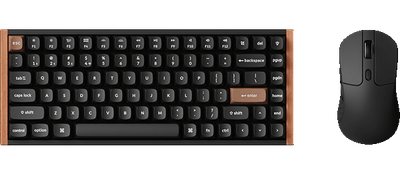
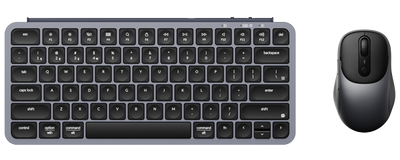
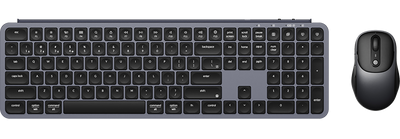






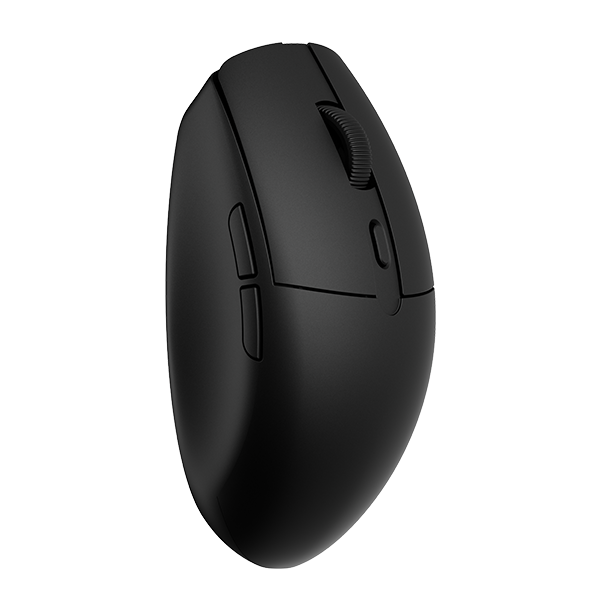


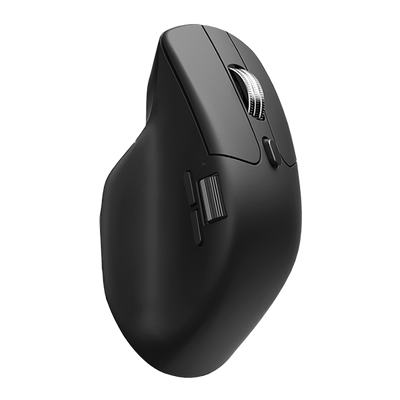
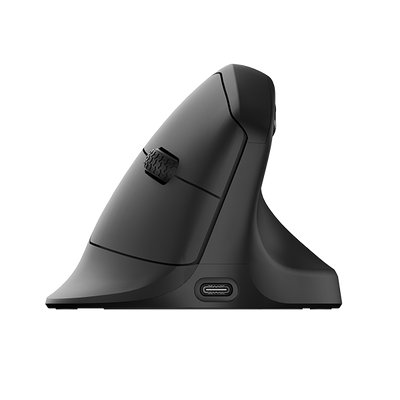
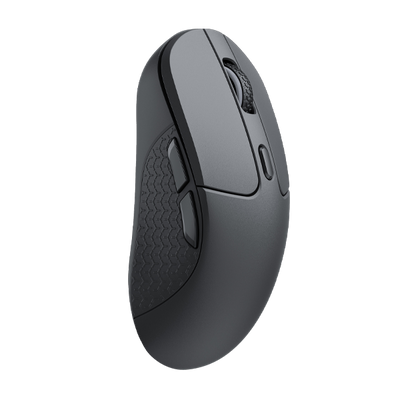
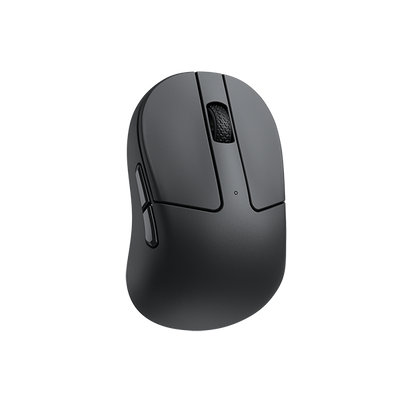
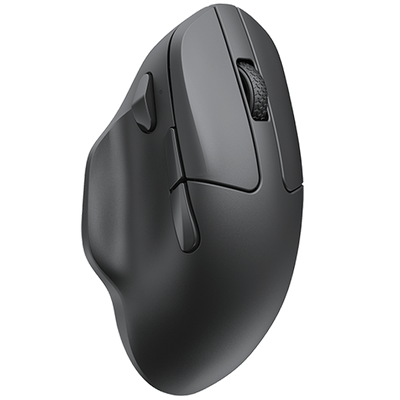
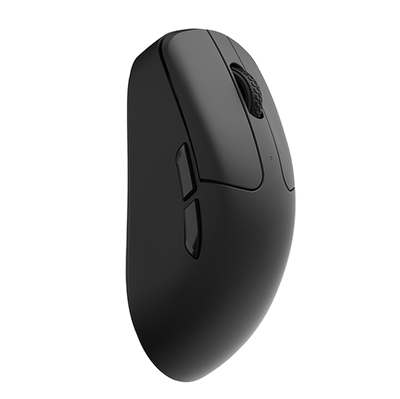
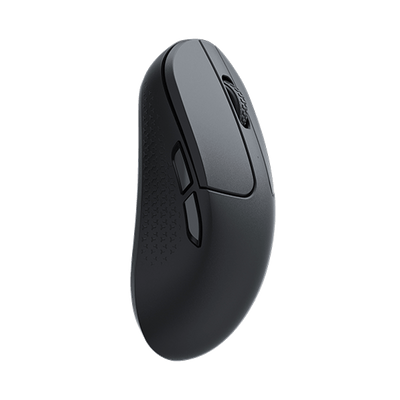



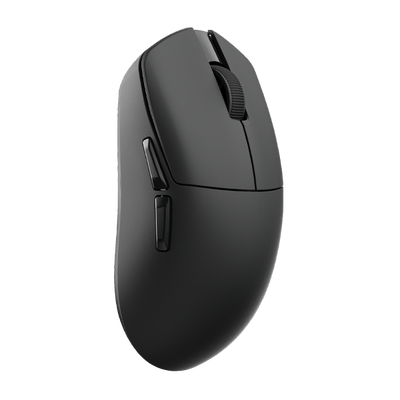























Keychron allows users to customize mouse buttons to fit their usage habits. A wide range of functions is available to choose from.
Below is a step-by-step guide on how to set up Mouse Customize Buttons:
1. Use the latest version of Chrome/Opera/Edge browser to click here to open the launcher.
2. After establishing a physical connection using our dedicated connecting cable or 2.4G receiver, click the 'Connect' button on the Launcher and select the device you need to configure to connect to it.
Notice: Some product models only support a wired connection.
3. Click the "Customize" button on the left, then select the button you wish to configure on the virtual mouse. Once the button highlights, it indicates it has been selected. You can then click your target function in the section below to complete the remapping.

A. Basic Keys: Common daily operations such as left-click, right-click, middle-click, scroll up, scroll down, forward/backward, and left double-click.

B. Shortcut Keys: Common shortcuts for different systems, such as macOS and Windows, covering operations like copy, cut, and screenshot.

C. Keyboard Combination Key: Supports combinations of up to 4 modifier keys and 2 regular keys.

D. Multimedia Keys: Volume adjustment, Menu, Play/Pause, and more.

E. Macro: Preset command sequences.

F. DPI: Switching to the previous and next DPI levels, as well as the DPI cycle (switching to the next lower DPI level).

G. Game Key: Allows you to set functions for a specific key, as well as the trigger count and trigger interval.

H. Disable: You can disable the functions of your infrequently used keys to prevent accidental presses.

4. While most functions can be set with a single click, setting up "Keyboard Combination Keys" and "Game Keys" involves a few additional steps:
Keyboard Combination Key: You can combine up to 4 modifier keys and 2 regular keys. After defining your combination, select the target key to bind and click "Save."
Game Key: Bind a specific function to a key, then configure the trigger count and interval. Click "Save" to finalize the setup. You can also toggle the "Test" function on the right and press the bound key to verify your settings.