


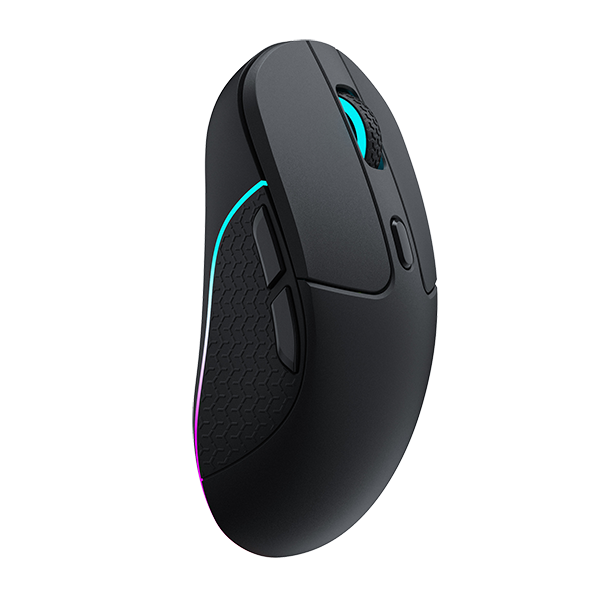

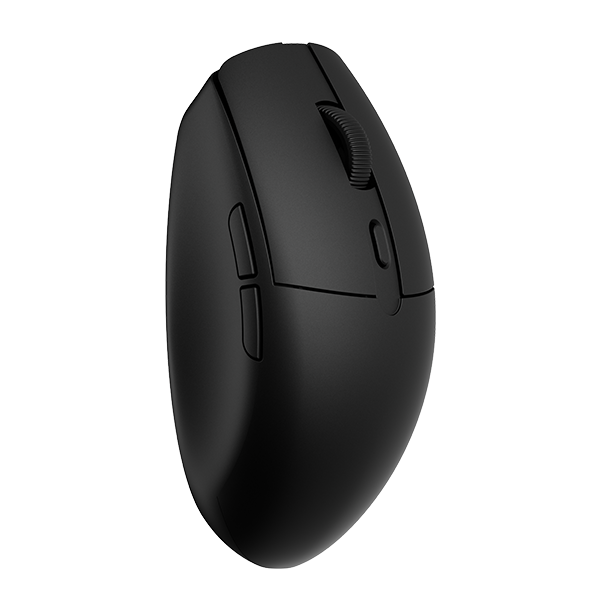

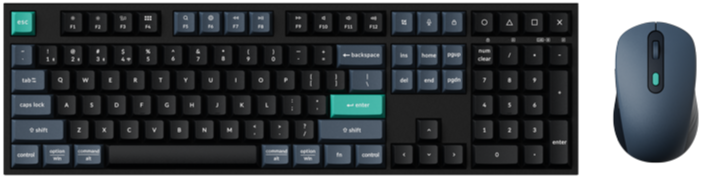
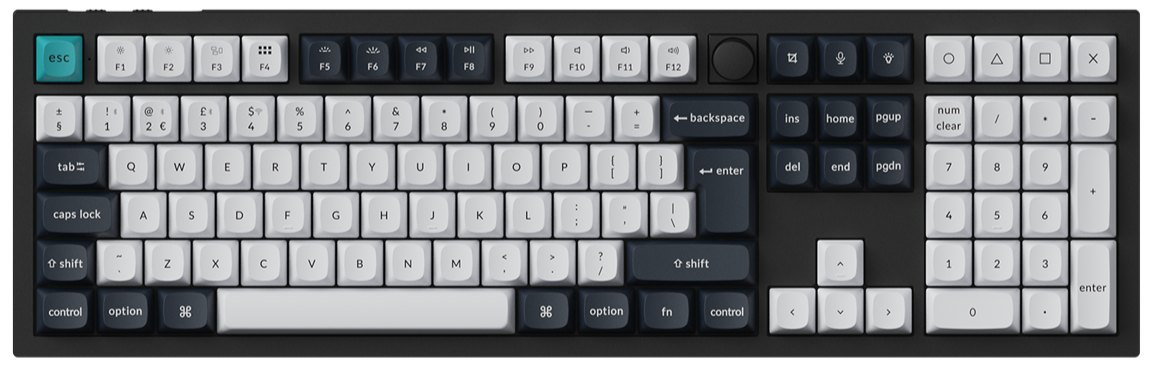
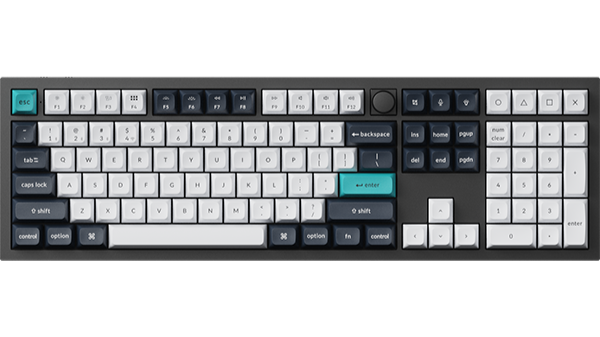
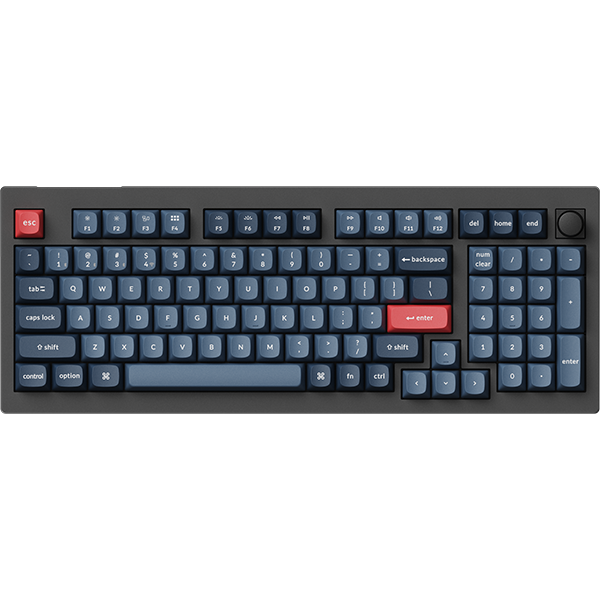
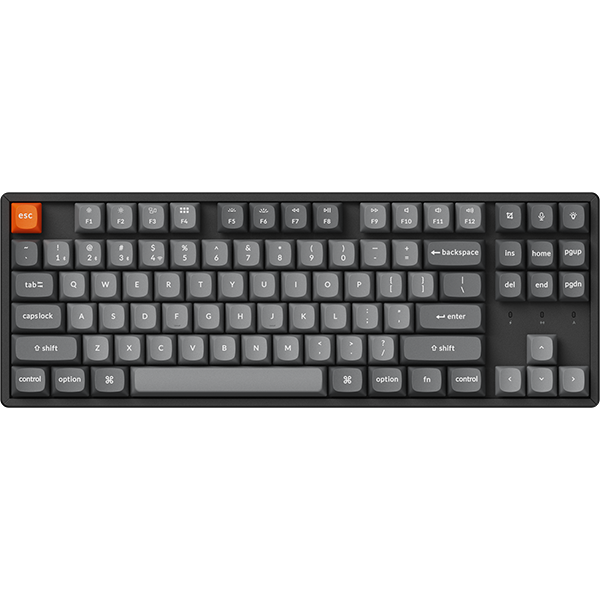

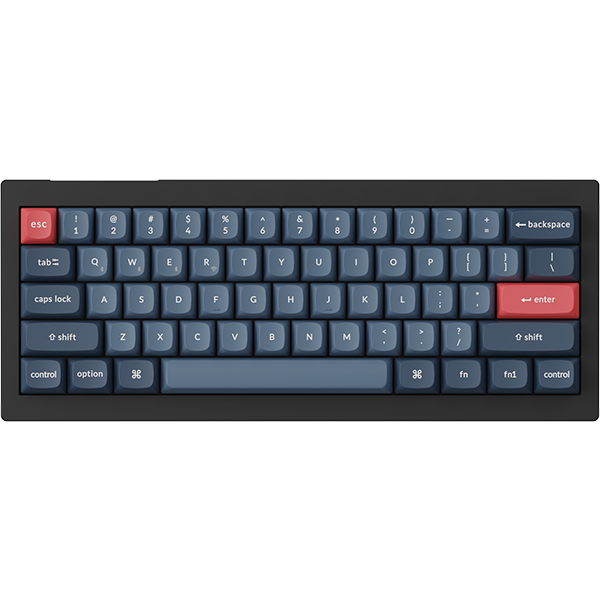


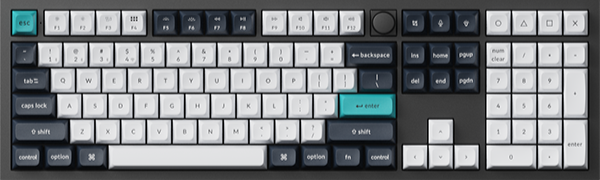
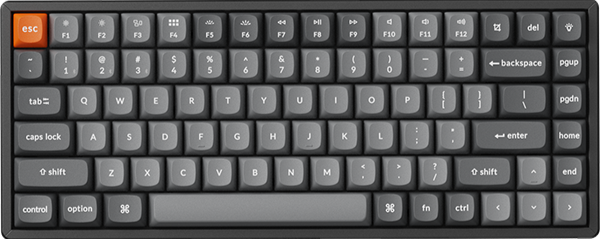
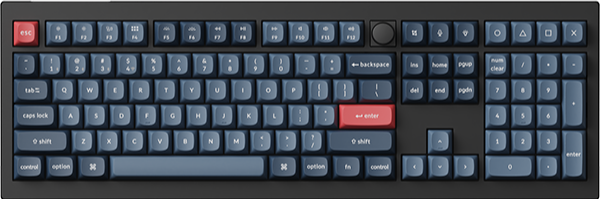
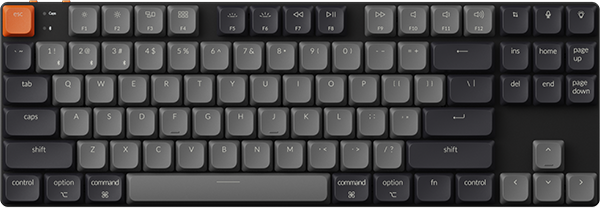
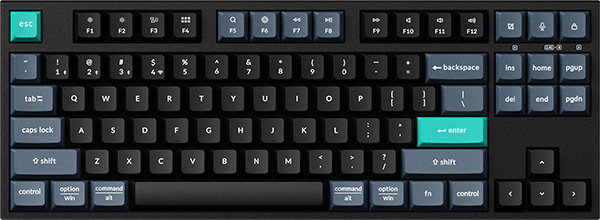
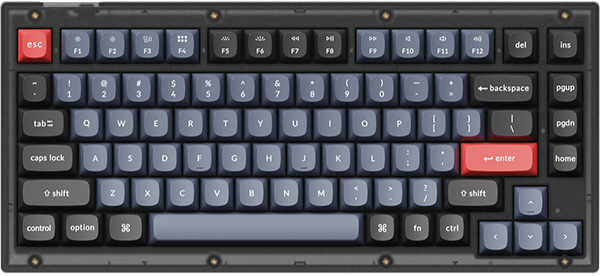
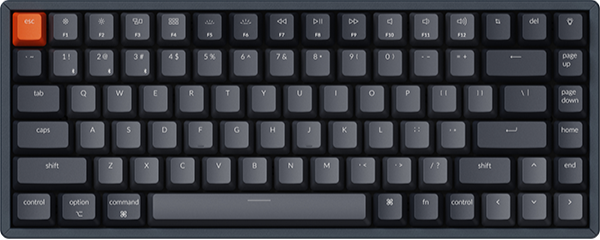
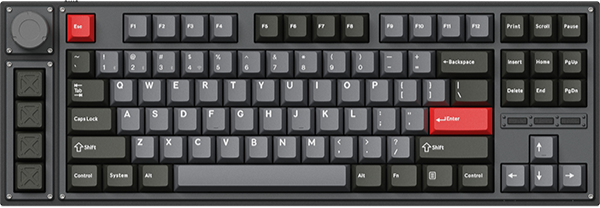

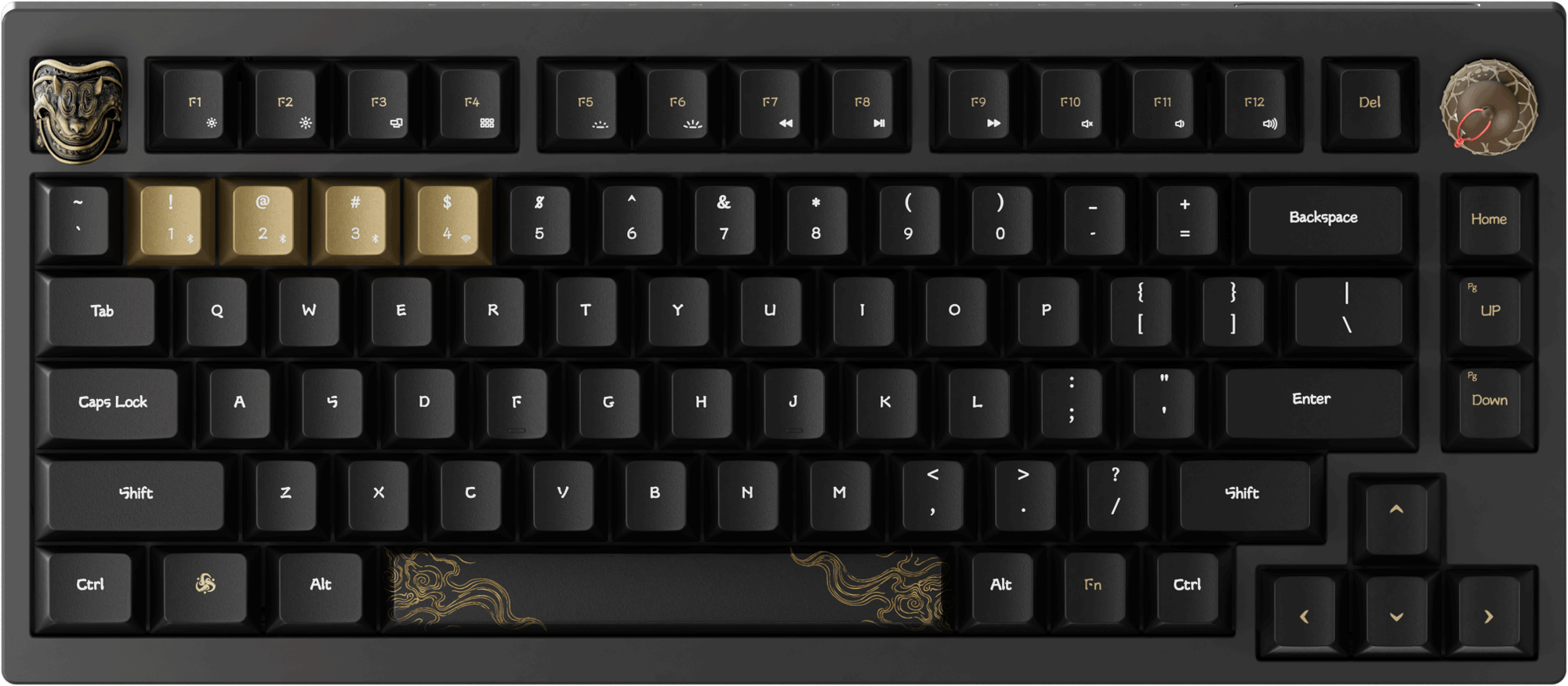



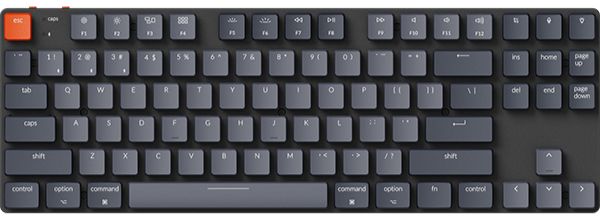


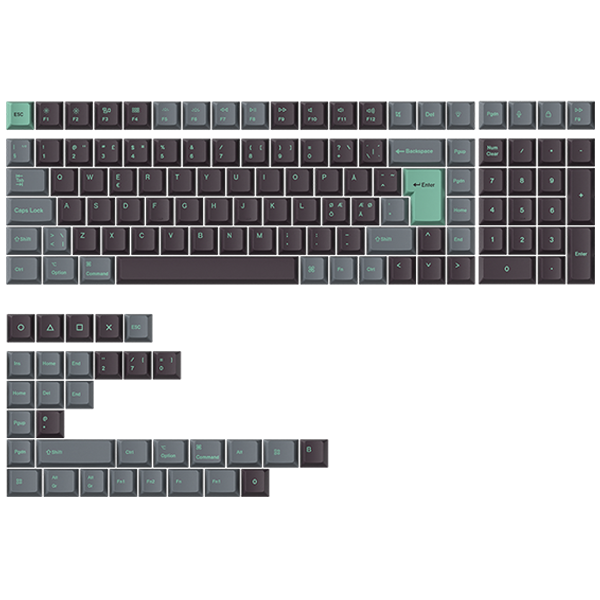










Keycheon Launcher features a keyboard test with responsive audio. Choose from our built-in collection, or upload your own to make every keystroke yours. It’s more than a functional check—it’s an expression of your style.
How to set up your custom sounds:
1. Use the latest version of Chrome/Opera/Edge browser to click here to open the launcher.
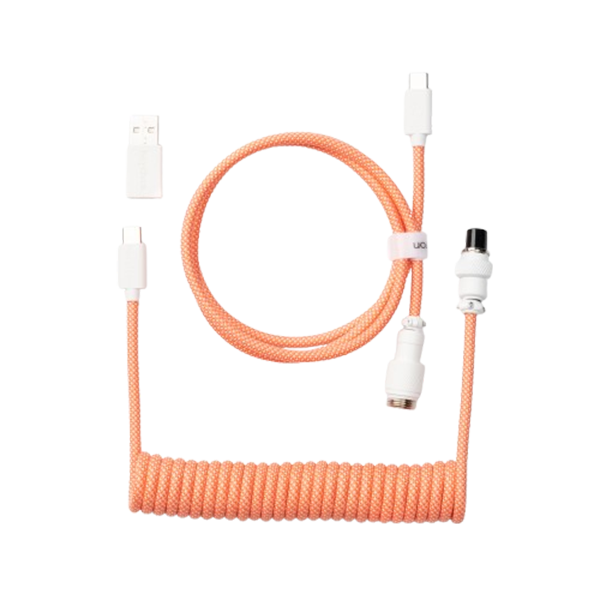
2. After establishing a physical connection using our dedicated cable or 2.4 GHz receiver, click the 'Connect' button in the Launcher and select the device you want to configure to connect to it.
Notice: Some product models only support a wired connection.
3. Select "Key Test" from the function bar on the left side, and find the “Custom” tab to add your sounds.

4. The Launcher supports up to 25MB of audio files in MP3, WAV, OGG, and M4A formats.
To upload, simply click the “+” icon or drag and drop your files into the box. Once added successfully, it will be displayed below, and you can rename them for easy organization.
5. We support assigning independent audio to individual keys during matrix testing, so that each key has its own unique response sound. Of course, you can also set a uniform sound for all keys; simply click here to toggle the "Per-Key Sound Assignment."
Note: Only uniform audio is supported in non-matrix test modes.

6.The method for setting up independent audio for individual keys is as follows:
A. Click to choose the audio file you want to assign.
B. Click the specific key on the screen. Once bound, a confirmation will appear, and the key will display a colored frame matching your audio.
C. If you accidentally bind an audio file, you can replace it with the correct one, or click Clear Bindings to remove all bindings.
Applying a uniform sound to all keys is just as simple: turn off the "Per-Key Sound Assignment" and pick your favorite effect. Once applied, the selected audio will be highlighted.