




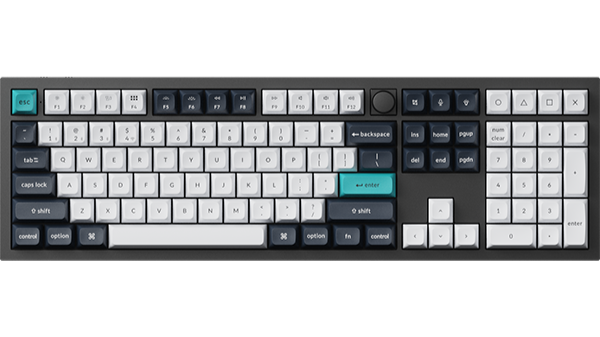
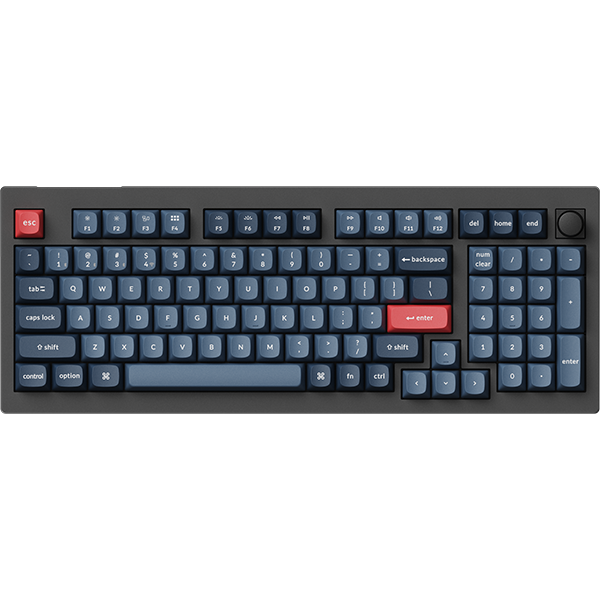
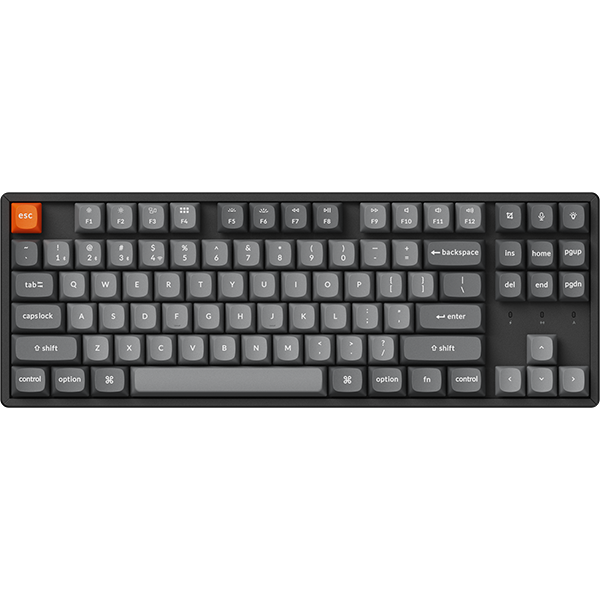

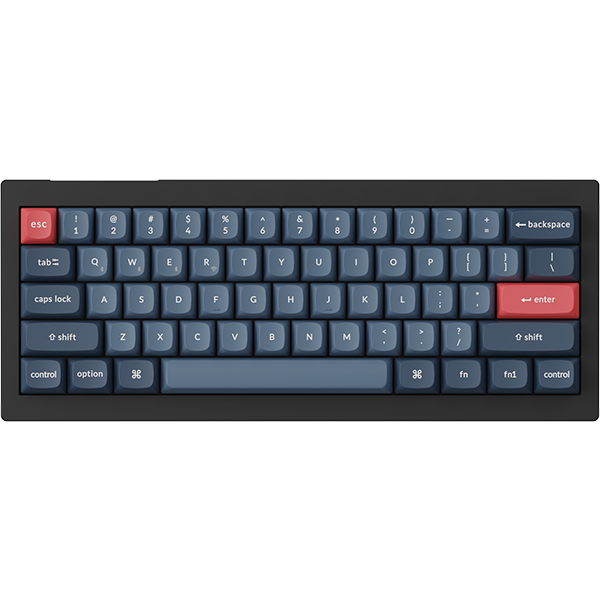


















LKP (Last Key Priority) prioritizes the last pressed key (especially opposite-direction keys) to resolve key conflicts, ensuring smoother and more precise gaming and daily continuous operations.
Certain games (such as CS: GO and Apex Legends) have explicit rules prohibiting the use of LKP. Players should exercise caution when enabling this function in these games and ensure compliance with the game service terms.
Below is a step-by-step guide on how to set up LKP:
-
Use the latest version of Chrome/Opera/Edge browser to click here to open the launcher.
-
After establishing a physical connection using our dedicated connecting cable or 2.4 GHz receiver, click the 'Connect' button on the Launcher and select the device you need to configure to connect to it.
Notice: Some product models only support a wired connection.
-
Click "Snap Action" from the function bar on the left side. For some magnetic switch keyboards, the LKP function is located within the HE mode.

-
Click the "Create" button to create a key pair and select keys:
-
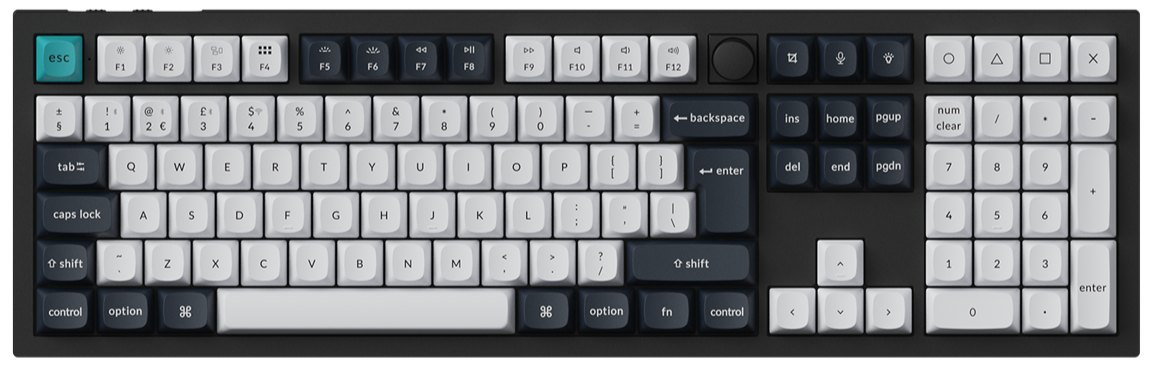
Choose the two keys to bind on the virtual keyboard.
-
Directly press the corresponding keys on your physical keyboard.
After selection, click "Submit" to save the settings. A maximum of five key pairs can be configured.Once the key pair is successfully configured, two LKP icons of the same color will be displayed on the bound keys. -