























Moving from a mechanical mouse to a hall effect one does not require a new desk, a new game, or a new grip. It requires a browser tab, one setting, and about twenty minutes of patience on the first day. The mouse itself will feel familiar in the hand. What changes is behind the button.
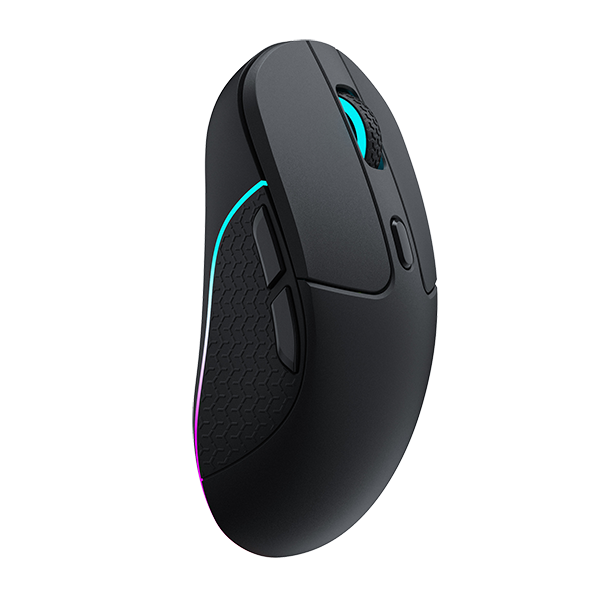
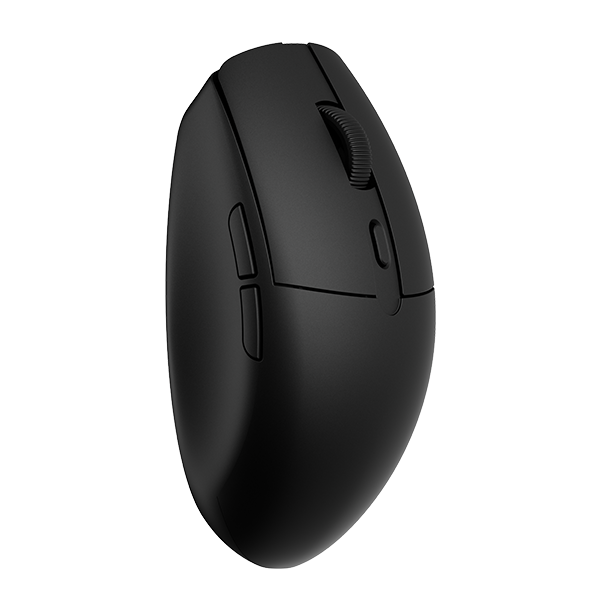
The order matters. Most people who try to change everything at once end up unable to tell which change helped and which one made the click feel wrong. This guide walks the migration in the order that keeps one variable moving at a time: connect it, set the software up, set the cursor, then set how the button fires, then let your hand catch up. Keychron's G6 HE is the example because Keychron Launcher is where the settings live.
Step 1: Get it connected on the connection you will actually use
Before touching any setting, pick how the mouse will live on your desk. Wired, 2.4 GHz wireless, and Bluetooth all work with no software involved, and the mouse behaves normally on all three from the first click.
Use the connection you plan to keep for the first week rather than the easiest one to set up. A mouse tuned over the cable and then moved to a receiver can feel different enough to send you back to the settings panel for no good reason. If you are unsure, start on the 2.4 GHz receiver. It is the connection most people keep, and the polling rate you set later is the one that applies to it.
One more thing nobody mentions. Check that the mouse is being read as a mouse and not through some leftover driver from the old one. Unplug the old mouse before you start, or at least uninstall its companion software if it has any. Two pieces of software fighting over the same device is the most common reason a perfectly good setting appears to do nothing.
Step 2: Open Keychron Launcher and find HE Mode
Keychron Launcher is a web app, so setup begins with a browser tab instead of an installer. It runs on current Chrome, Edge, or Opera, and some mice need to be connected by cable before the browser will see them, so if the device does not appear, plug in and reload.
Once the mouse shows up, the left panel lists buttons, DPI, polling rate, and a section called HE Mode. HE Mode is the only part that is new to you. Everything else is a normal gaming mouse and probably already familiar.
If this is your first time in Launcher, take a minute to look at where the breadcrumbs are and where the save action lives, because you will come back here repeatedly. Novices lose the most time not to bad settings but to not knowing whether a change was saved.


Step 3: Set DPI before anything else
DPI comes first because it is the setting you can actually feel in the first ten seconds, and because it is the one most migrating players get wrong.
Your old mouse probably ran at 800 or 1600 DPI, set years ago and never touched. Moving that number across to a new mouse directly is not a mistake, but assuming the new number means the same thing is. In-game sensitivity and DPI multiply together, so if you change DPI without changing sensitivity, your aim will feel too fast or too slow and you will start blaming the slide.
The clean way to migrate: keep your in-game sensitivity exactly as it was, set the new mouse's DPI to the same value as the old one, and play one session before you change anything else. If it feels close, you are done. If it feels off, move DPI in the smallest step the mouse supports and adjust until it matches what your hand expects.
Do not jump to a very high DPI because it looks impressive on a spec sheet. Higher DPI does not make you more precise past a certain point, and a number that fights your muscle memory is a worse setting than a modest one that disappears under your hand.
Step 4: Update sensor and polling rate only if you have to
Polling rate is how often the mouse reports its position. The G6 HE supports up to 8,000 Hz on both wired and 2.4 GHz, and a higher rate costs battery life, so the right answer depends on what you play and how you play it.
Leave the default for the first week. If you play competitive shooters and your machine is not struggling, raising it is a reasonable second step. If you play single-player games and work all day, a lower rate gives you the battery back and changes nothing you can feel. Some older games and some systems behave badly at very high polling rates, so if the pointer stutters after a change, that is your signal to step back down.
The pointer acceleration and "enhance pointer precision" options in your operating system deserve a check too. They were designed for the office, they existed long before gaming mice, and they are still on by default for most people. Turning them off on the first day prevents a category of weirdness that gets blamed on the mouse.
Step 5: Now set the actuation point
This is the step that actually needs a hall effect mouse, so it comes after the settings that would apply to any mouse.
In Magnetic Mode, the actuation slider sets how far the button travels before a click registers. The G6 HE divides the button's 0.65 mm of travel into 12 steps, and the panel puts the tradeoff plainly: shallow fires sooner, deep means fewer accidental clicks.
Start at a middle step. Play a normal session without looking at the number.
Then read the failure, not the slider. If clicks fire before you decided to fire, the setting is too shallow and you move one step deeper. If you find yourself pressing harder than you should, or missing shots because the button feels late, it is too deep and you move one step up. One step at a time, one session per step, until the button stops being a thing you think about. That point is your setting, not somebody else's.
The left and right buttons can be adjusted together or independently. Keep them together until you have a reason not to. The reason is usually a specific problem, such as a right button that clicks while you hold your mouse idly, and a separate setup invented without a problem just adds variables.
Step 6: Set Rapid Trigger last, or leave it off
Rapid Trigger resets the button based on its current position instead of waiting for a full release, which makes the next press ready sooner. The G6 HE offers 11 steps. It is the most overused setting in the whole panel.
Turn it on only if a specific input asks for it: rapid taps on the same button, fast semi-auto fire, or a game where quick re-presses matter. Start in the middle, play, and turn it down if ordinary single clicks start feeling like double inputs. If you only press each button once at a time, off is the correct setting, and it will not make you slower.
Step 7: Give your grip a few days before you change it
Hand size and grip style do not change because the mouse changed, and neither does the best way to hold it. The switch underneath is different. Your hand is not.
That said, the first week with a new mouse produces false signals, and most of them are the hand rather than the hardware. Players who palm grip report the new mouse feels too slippery, then find their fingers were resting further forward than on the old shape. Players who claw grip report the click feels shallow, then realize their grip had drifted into a fingertip hold because they were concentrating on aim.
Treat the first three days as yours to relearn, not the mouse's to fix. Keep your existing grip, keep your existing arm position, and resist the urge to move your hand to make a new setting feel right. If the same complaint survives a week, that is a real fit problem and the answer is usually the shape or the grip, not the actuation slider.
A wrist rest, a lighter or heavier mouse, or a different pad are all legitimate later moves. They are not first-day moves, because changing the surface and the button at the same time leaves you unable to tell which one helped.

Step 8: Save the setup and confirm it travels
Settings are stored on the mouse rather than the computer, so once you are happy, the setup should follow the hardware. Test it on the first day: move the mouse to a second machine, open Launcher, and confirm the DPI, actuation, and Rapid Trigger values are still there.
If something resets, reapply and save again before you depend on it in a match. Discovering that your settings did not travel during a ranked game is an avoidable way to lose one.
Common mistakes when moving from a mechanical mouse
Four habits cause most of the trouble in the first week.
Changing everything at once. DPI, actuation, and Rapid Trigger together produce a mouse that feels wrong and no way to find out why. Change one, play, then change the next.
Copying somebody else's profile. A profile belongs to a hand, a game, and a sensitivity. Importing a number you did not arrive at yourself usually fails, and then the feature gets blamed.
Setting the trigger as shallow as it goes. Shallow is fast until it is twitchy. The shortest setting is a competitive option, not a default, and most players are better served one or two steps deeper.
Judging the click in the first ten minutes. A hall effect button sets its feel from a setting you have not finished choosing and a hand that has not settled yet. Give it a few sessions before you decide it feels wrong.
A first-week checklist
- Unplug the old mouse, or uninstall its software.
- Connect on the receiver you plan to keep.
- Open Keychron Launcher and confirm the mouse is detected.
- Turn off OS pointer acceleration.
- Carry your old DPI across and keep in-game sensitivity unchanged.
- Leave polling rate at the default for week one.
- Stay in Magnetic Mode and start the actuation point in the middle.
- Try Rapid Trigger, or leave it off if you do not need it.
- Keep your existing grip for three days before judging it.
- Confirm the settings survive a move to another computer.
There is no perfect configuration to arrive at on day one. A hall effect mouse is adjustable because the right setup belongs to the player, and the numbers you land on this week will probably move in a month. Change one thing, play with it, keep what helps, and then change the next.
FAQ
Do I need to reinstall my games or change any in-game settings?
No. Keep your in-game sensitivity and controls as they were, and match the new mouse's DPI to where the old one was. Changing both at once is the most common reason a new mouse feels unusable.
Should I use the highest DPI and polling rate available?
Not by default. DPI above a certain point does not improve precision, and a higher polling rate costs battery life without a change most players can feel. Set what matches your old mouse first, then raise the polling rate only if a competitive game calls for it.
What is the right actuation setting for a first-time hall effect user?
Middle is the right starting point. Shallow settings suit reaction-based play, deeper settings suit deliberate presses and resting fingers, and most people who start at the shallowest step end up moving back.
Will my grip need to change on a hall effect mouse?
No. The switch changed, not your hand. Complaints in the first three days usually come from concentration and a slightly drifted hand position, so keep your existing grip before you try a new one.
Do my settings follow me to another computer?
Yes. The profile is stored on the mouse, so the DPI, actuation, and Rapid Trigger values should still be there when you plug it into a different machine.
Can I go back to how a normal mouse behaves?
Yes. Optical Mode uses a fixed trigger point, so the click behaves like a conventional optical mouse with nothing to tune. It is a reasonable setting for work and for anyone who would rather not think about the button.
If you want the background before the settings, Hall Effect Mouse Explained: How a Magnetic Switch Clicks covers what the switch actually does. Comparing a hall effect mouse with the optical one you are leaving behind? Optical vs MagOptic Switches puts them side by side. Ready to run this setup on a mouse? See the Keychron G6 HE UltraLight.