























Nape Pro Quick Start Guide
Follow these steps to set up your Nape Pro, customize it in Keychron Launcher web app, and keep it ready for daily use.
Connect to Your PC
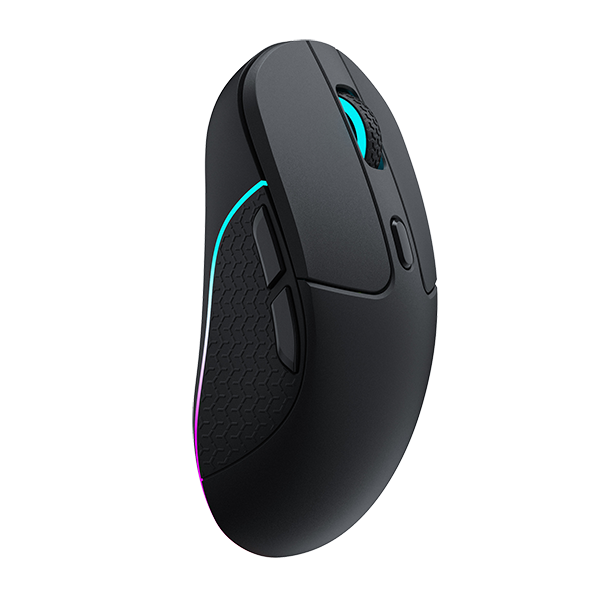
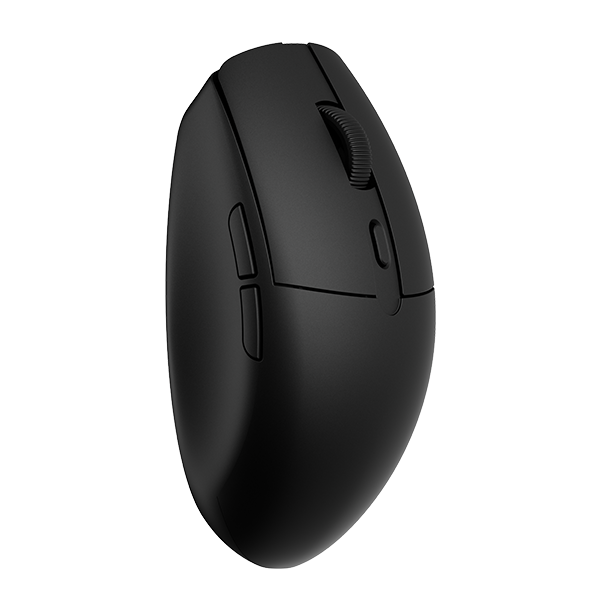
Connect Nape Pro to your computer and make sure it is recognized properly. Once connected, you can begin using the device and prepare it for firmware updates or customization.
Update the Firmware
Open Keychron Launcher web app and update your Nape Pro to the latest firmware version. Keeping the firmware up to date helps ensure better compatibility, stability, and access to the newest features.
Set Your Preferred Angle
Adjust Nape Pro to the angle that feels most natural and comfortable for your hand position. A proper angle can improve comfort and make long sessions feel easier.
Assign Button Functions
Use Keychron Launcher web app to assign different functions to the buttons based on your workflow, shortcuts, or gaming needs. This lets you make Nape Pro feel more personal and efficient.
Adjust DPI
Set the DPI level that matches your preferred cursor speed and control style. You can fine-tune it for precise work, fast navigation, or different usage scenarios.
Unlock Advanced Features
Explore advanced settings in Keychron Launcher web app to customize Nape Pro further. These options help you get more control over how the device responds and performs.
Clean Your Nape Pro
Clean your Nape Pro regularly to keep it comfortable, responsive, and ready for daily use. Proper care helps maintain a smooth feel over time.
Use It Naturally
Spend some time using Nape Pro in your daily routine so the controls become familiar. With regular use, the setup should feel more intuitive and natural.