



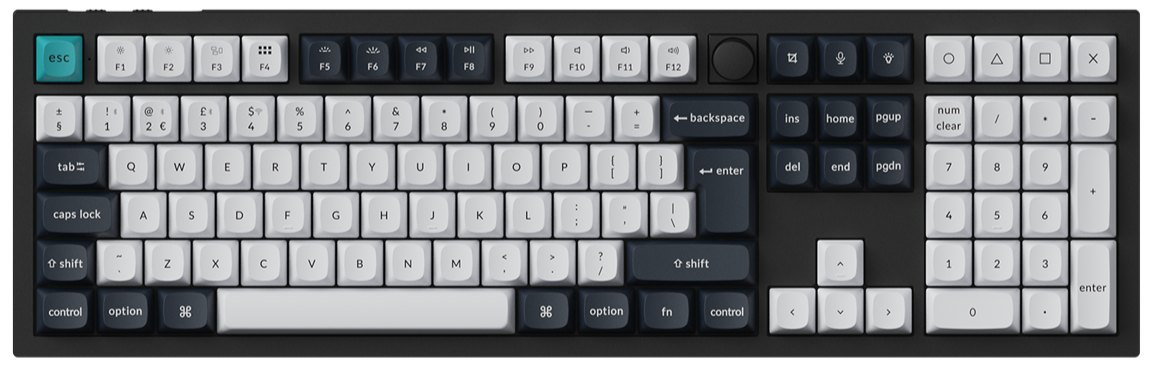
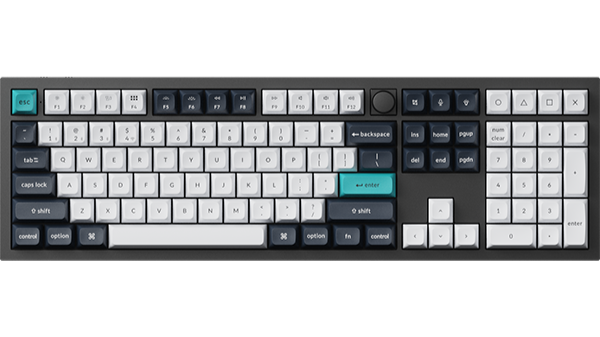
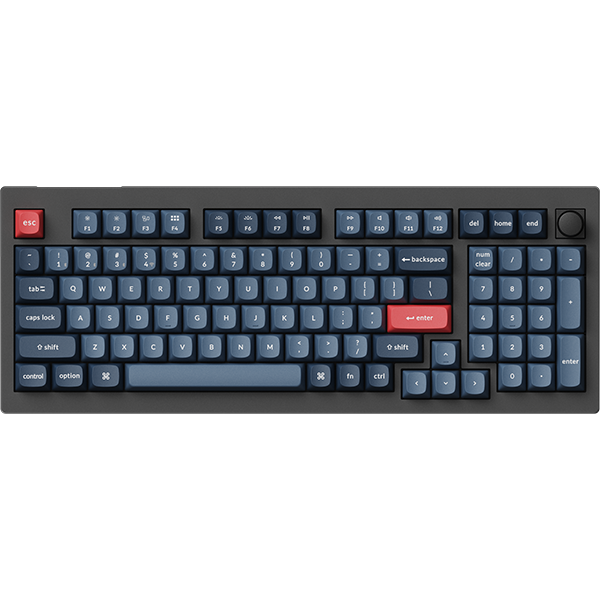
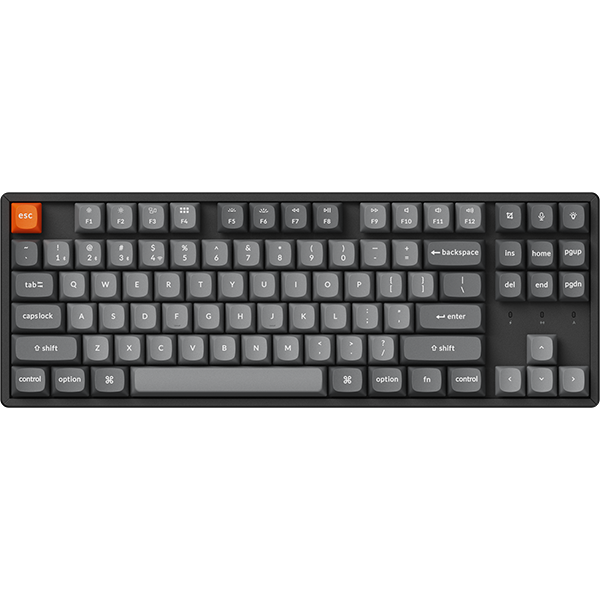

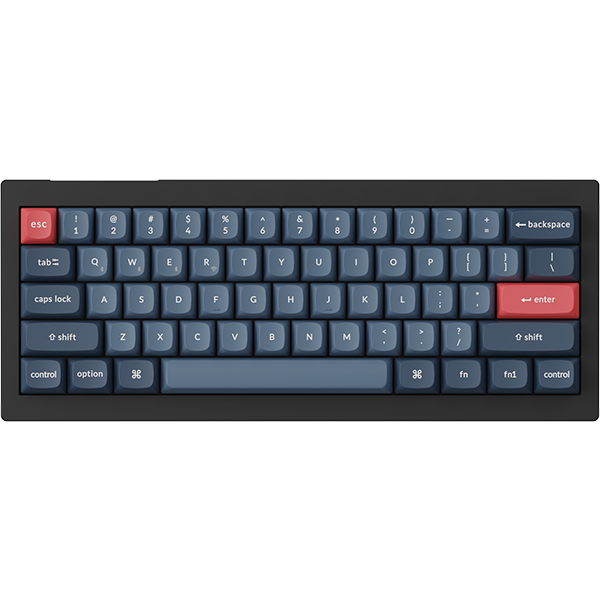


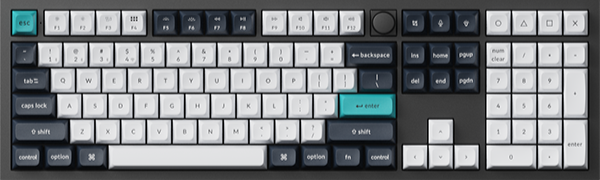
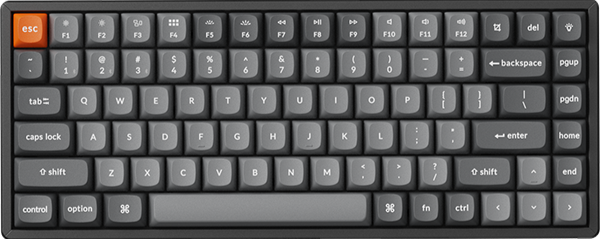
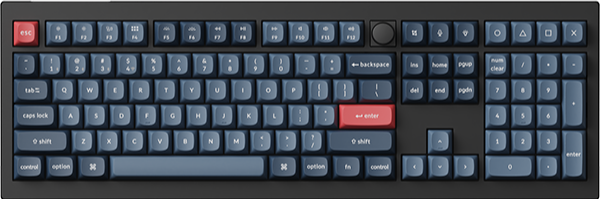
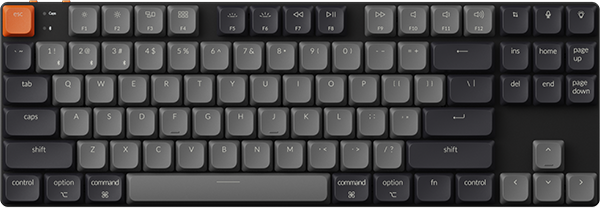
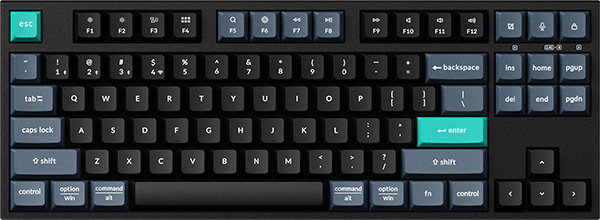


















This blog includes firmware and JSON files for the Keychron Q0 Mini 8K.
Firmware

JSON File
We recommend using the Keychron Launcher Web App to update your firmware (see this blog How to Factory Reset or Use the Launcher Web App to Flash Firmware for Your Q0 Mini 8K Action Key for steps). If the launcher web app fails to flash the firmware for the Q0 Mini 8K, you can try manually downloading the QMK toolbox and its firmware by following these steps:
How to flash the Keychron Q0 Mini 8K's firmware with the QMK toolbox
1. Plug the power cable into the Q0 Mini 8K and connect it to the computer.
2. Download the firmware (see above on this page) and download the QMK Toolbox. (If the download link below does not work, use this link: https://github.com/qmk/qmk_toolbox/releases)
3. Unplug the cable from the Q0 Mini 8K.
4. Open the QMK Toolbox.
5. Disassemble the Q0 Mini 8K and find the reset button at the corner of the PCB.
(Don't know how to disassemble? Refer to Step 2 on this blog: How to Disassemble the Keychron Q0 Mini 8K Action Key and Find the Reset Button.)

6. Press and hold the reset button, and plug in the power cable simultaneously. Do not release the reset button till the QMK Toolbox displays in yellow words "***DFU device connected". This indicates that your device has entered DFU mode.
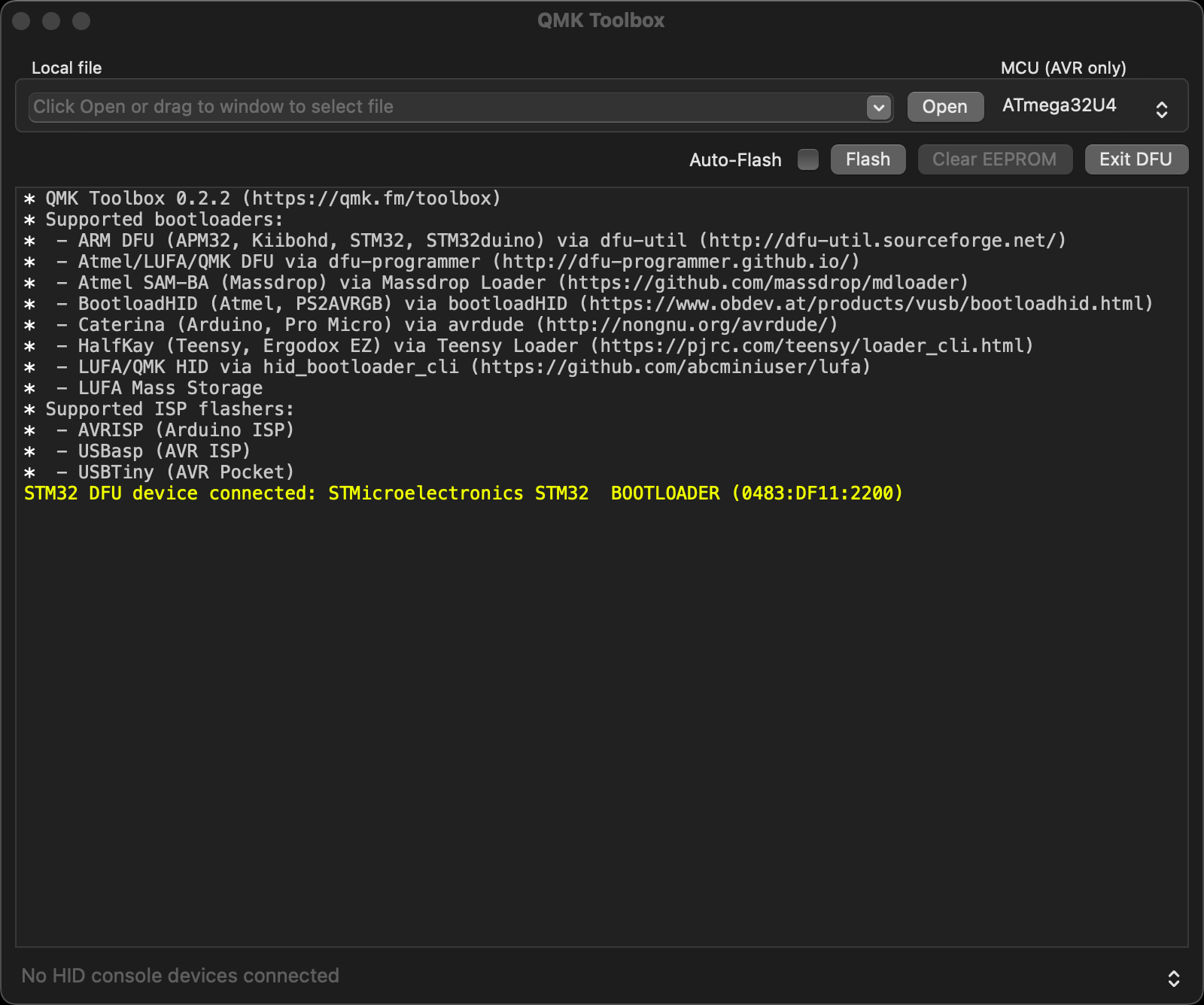
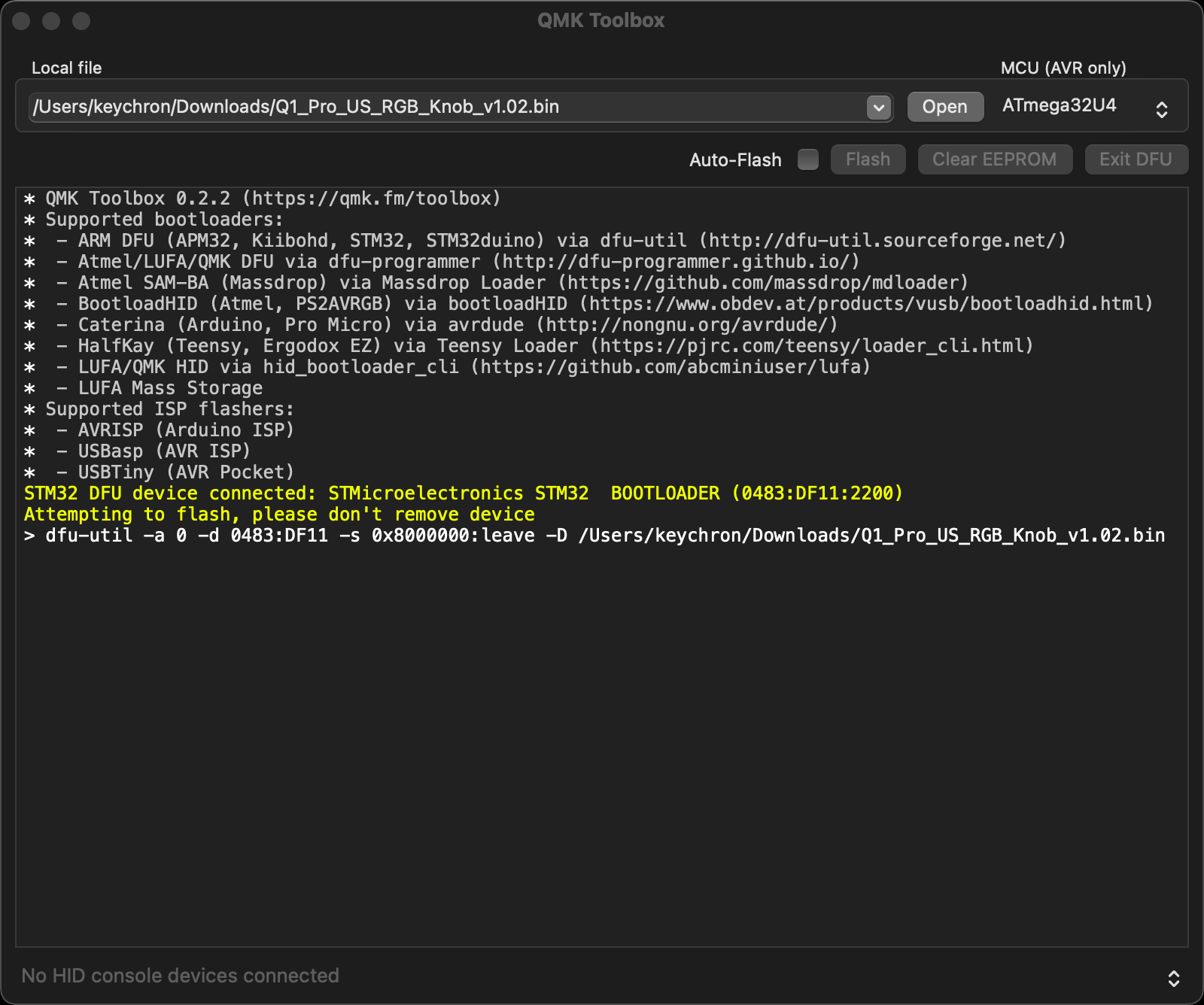
7. Click open and choose the firmware. Click the Flash button. It will start flashing. (Note: Do NOT unplug the power cable while it's flashing.)
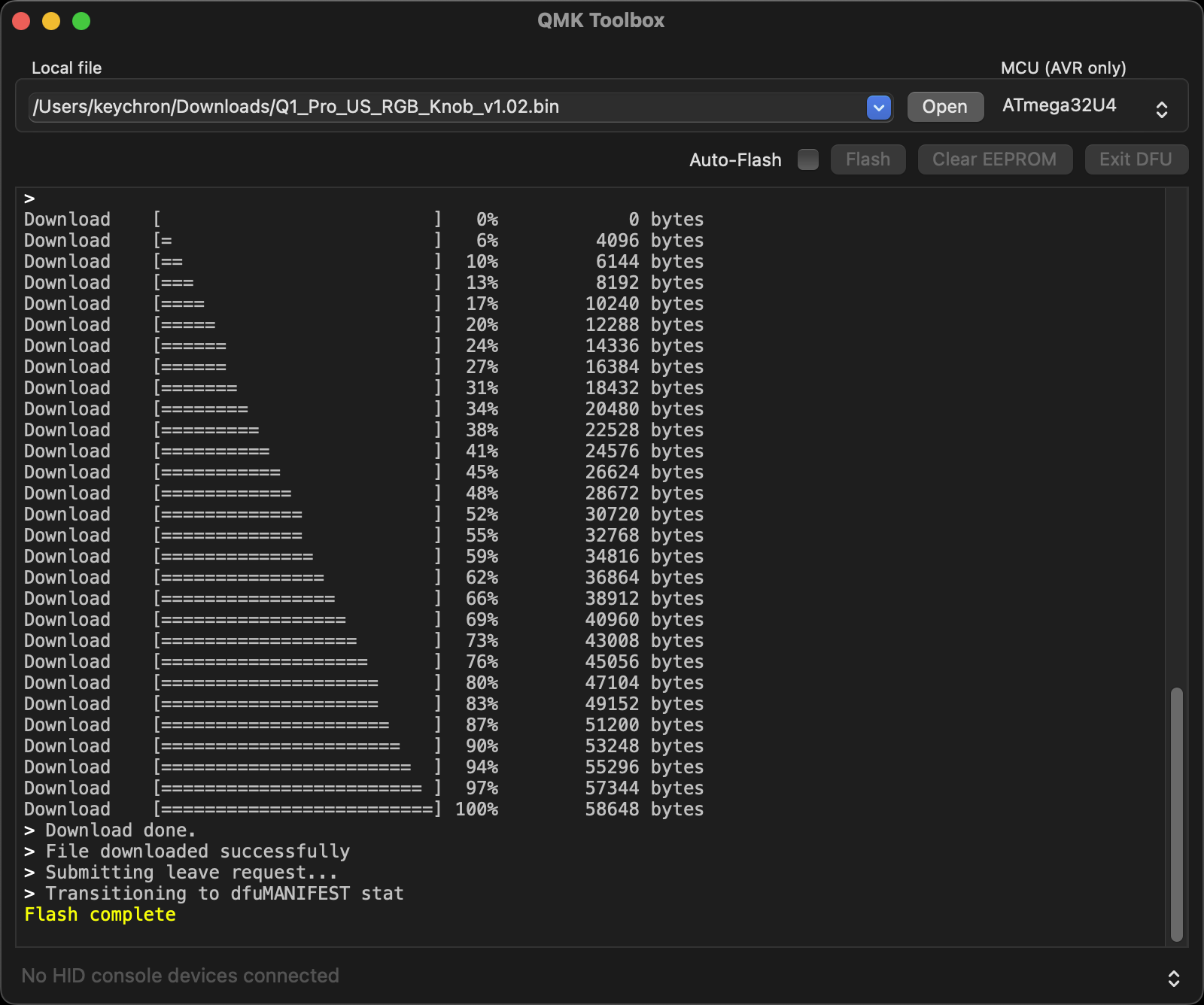
8. Wait a few seconds, and when you see the content below, it means the Q0 Mini 8K has flashed successfully factory reset.
If VIA can't pair with your Keychron QMK Q0 Mini 8K Action Key after you tried flashing, you need to follow these steps:
1. Reconnect the power cable.
2. If VIA still doesn't pair together after you reconnect the power cable, download the keymap JSON file (see above on this page).
3. Open online VIA.
Step 1: Turn on "Show Design tab" on "SETTINGS" tab.
Step 2: Click on "Design" tab, then click on "Confirm".
Step 3: Drag the JSON file into the “Design” tab on the VIA.
Step 4: A window will pop out after you drag the JSON file, please click on your Q0 Mini 8K's model and then click on "Connect".
4. VIA should pair with the Q0 Mini 8K now.