



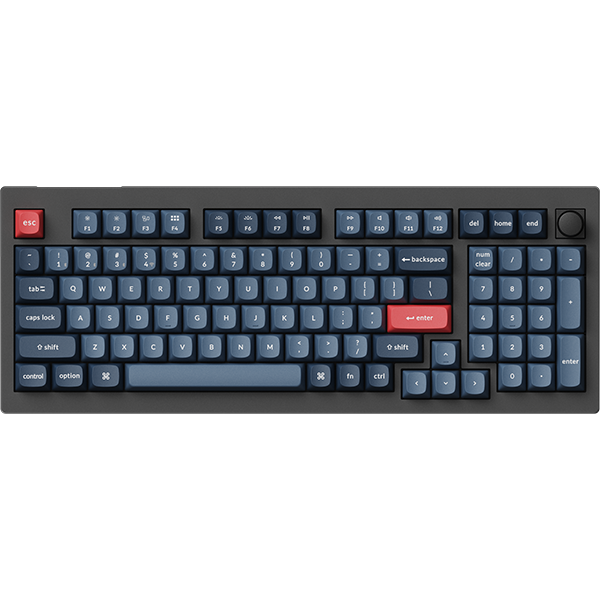
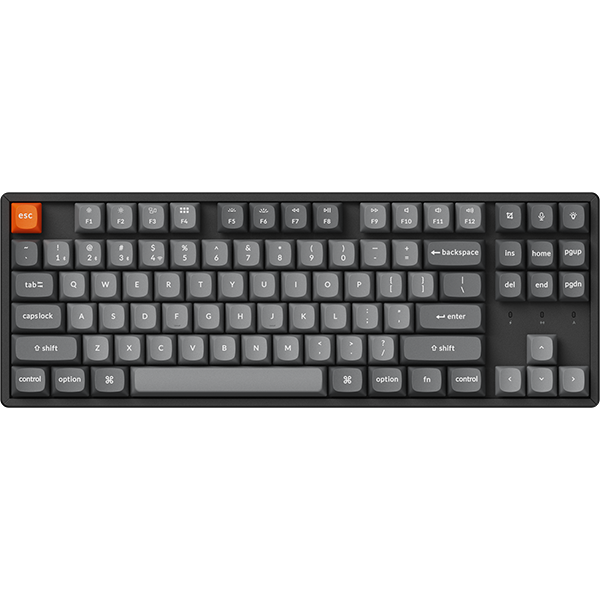

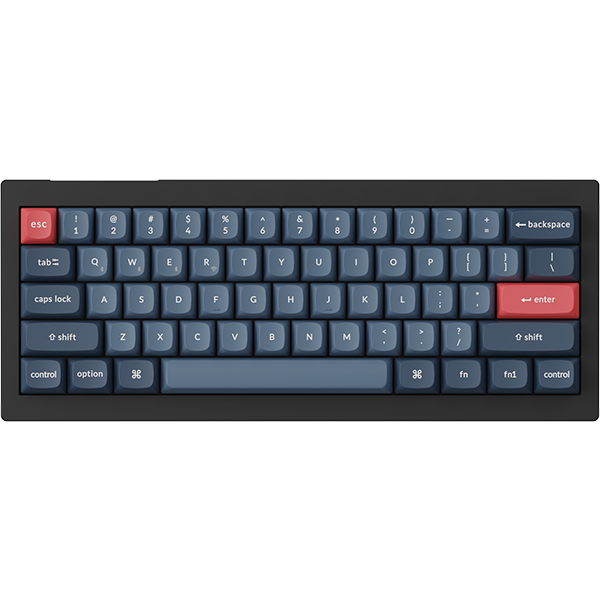


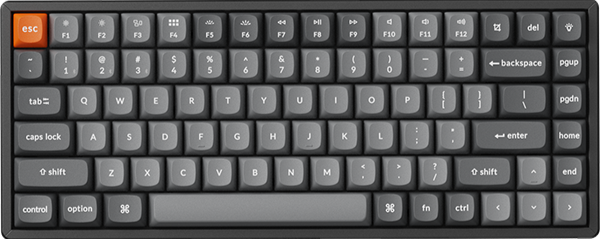
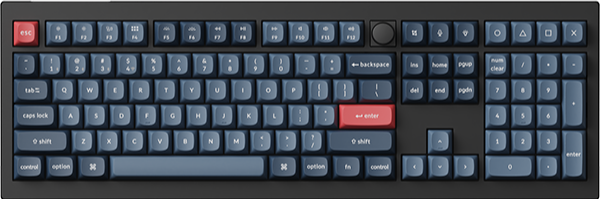
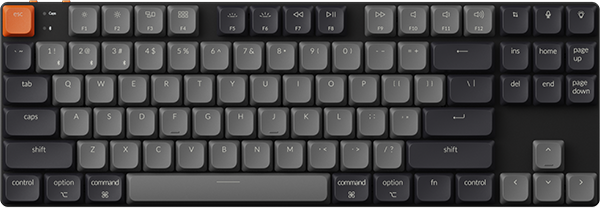
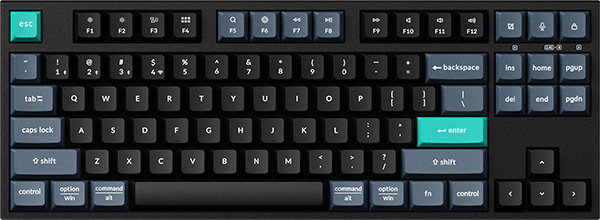
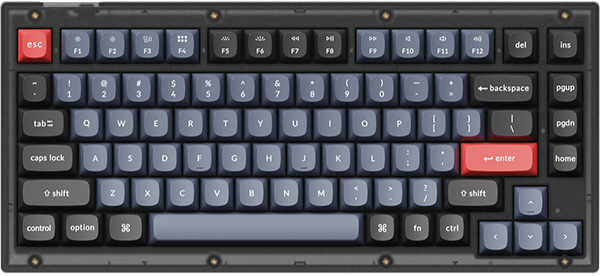
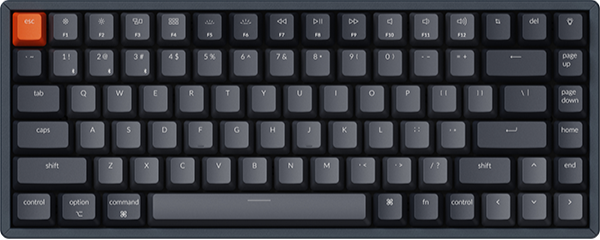
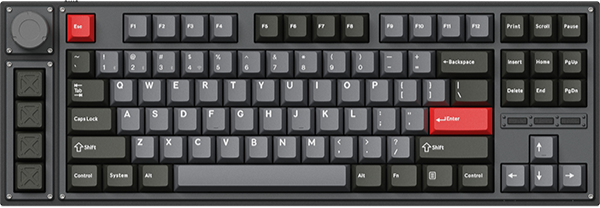

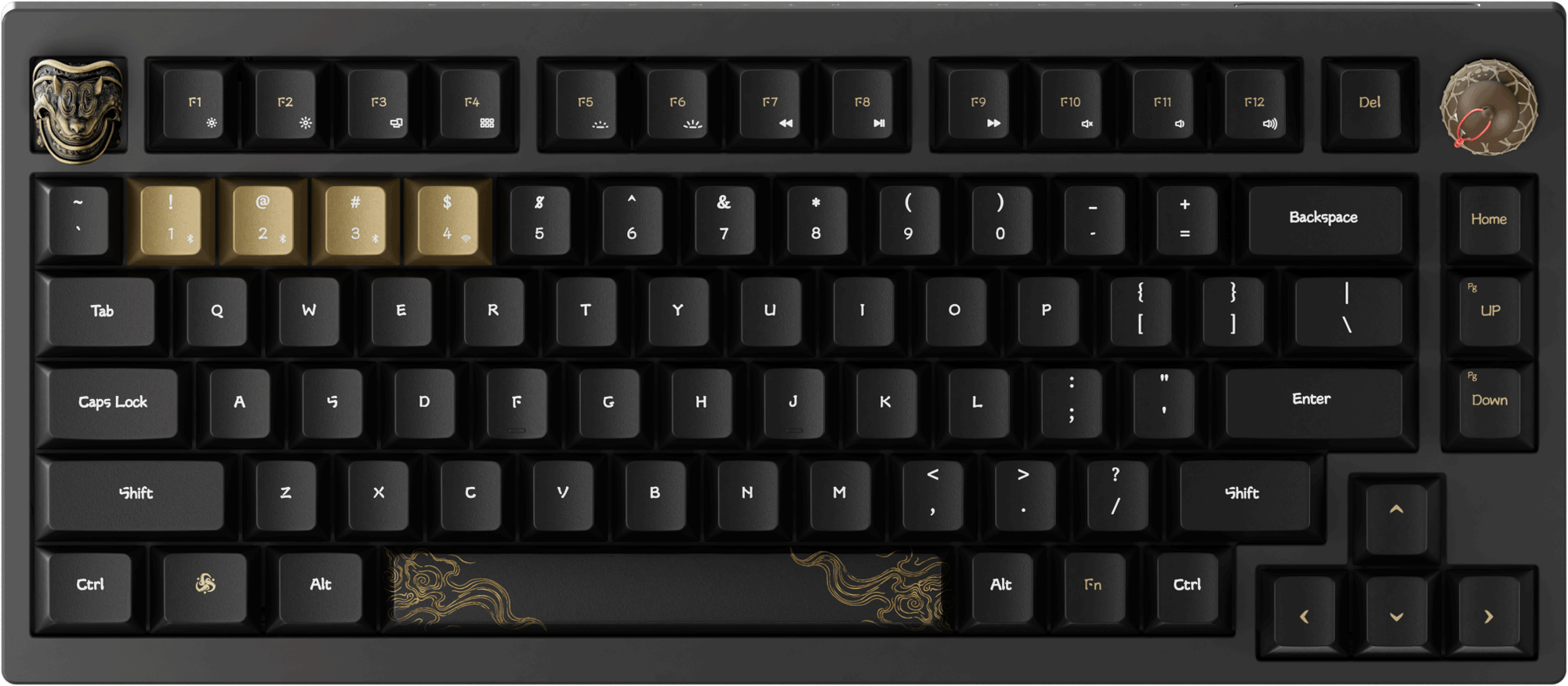


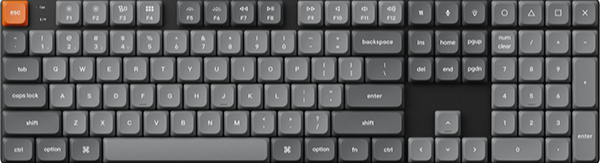

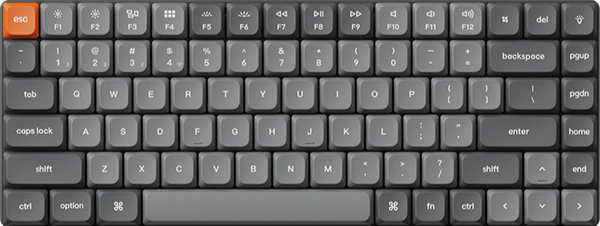
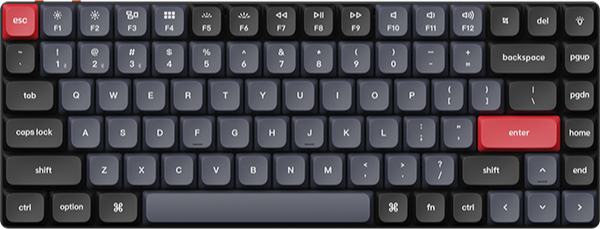
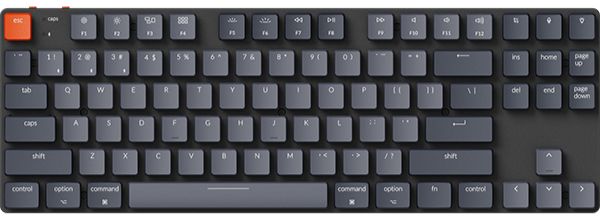














If your keyboard has unresponsive keys, malfunctioning functions, or other issues and you don’t know how to troubleshoot.
You may try restoring the keyboard to its factory settings or updating the keyboard firmware!
How to factory reset the keyboard?
The factory reset of the keyboard can be performed directly via key combinations.
- Turn on your keyboard.
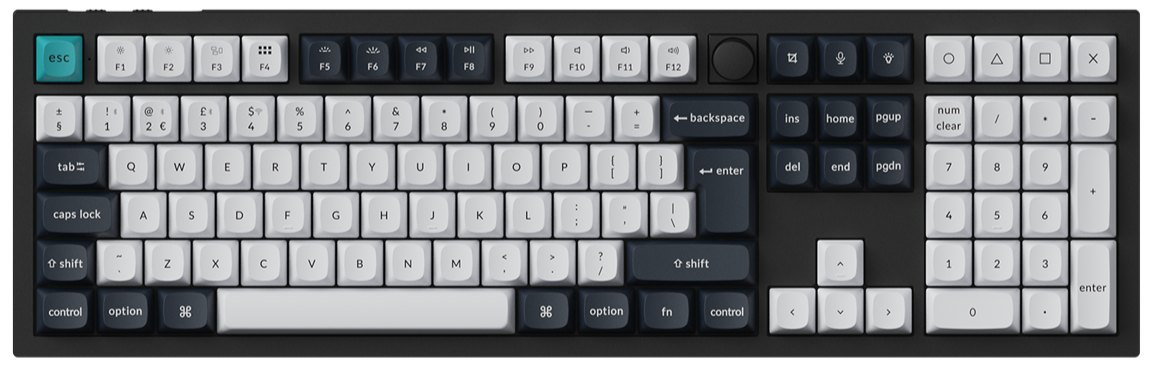
- Press and hold fn + J + Z (for 4 seconds). The keyboard backlight will flash red quickly for three seconds, indicating that your keyboard has been reset.
If the problem persists after factory resetting, you can try to update the keyboard firmware by following the steps below.
How to Update Firmware on the Launcher?
The update methods vary for different computer systems: macOS and Windows.
macOS:
1. Use the latest version of Chrome/Opera/Edge browser to click here to open the launcher.
2. After establishing a physical connection using our dedicated connecting cable, click the 'Connect' button on the Launcher and select the device you need to configure.
3. Click "Firmware Update" in the left function bar, then click "Next".

4. Please follow the instructions to avoid unknown damage to your device.

- Press and hold the ESC key of the keyboard, then unplug the keyboard's USB cable and let it disconnect.
- Continue holding down the Esc key and simultaneously connect the keyboard to the computer with the USB cable.
- Let the keyboard enter the state of preparing to update the firmware.
5. After completing the above steps, click the "Match Device" button, select the device starting with "STM32, WB, DFU in FS Mode", and connect it.

6. After successfully matching, the 'Flash Firmware' button will appear; click it to start updating the firmware. (Do not disconnect the keyboard from the computer while flashing firmware.)

7. Wait a while, 'Firmware update successfully' will appear at the top of the screen. The firmware update is complete.

Windows:
1. Use the latest version of Chrome/Opera/Edge browser to click here to open the launcher.
2. After establishing a physical connection using our dedicated connecting cable, click the 'Connect' button on the Launcher and select the device you need to configure to connect to it.
3. Click "Firmware Update" in the left function bar, then click "Next To Update".

4. Please read the tutorial and click "Download Toolbox" to download the toolbox.

5.After downloading the Toolbox, right-click the Toolbox icon, then click "Run as administrator" to open it.
Next, click "Install Driver", continue to click "Yes" to start installing the firmware driver, and wait for the installation to complete.

6. After the installation is complete, you can click 'Next' to start the process of updating the firmware.

7. Please follow the instructions to avoid unknown damage to your device.

- Press and hold the ESC of the keyboard and unplug the keyboard's USB cable, and let the keyboard disconnect.
- Continue holding down the Esc key and simultaneously connect the keyboard to the computer with the USB cable.
- Let the keyboard enter the state of preparing to update the firmware.
8. After completing the above operations, click the "Match Device" button, select the device starting with "STM32, WB, DFU in FS Mode", and connect it.

9. After successfully matching, the 'Flash Firmware' button will appear; click it to start updating the firmware. (Do not disconnect the keyboard from the computer while flashing firmware.)

10. Wait a while, 'Firmware update successfully' will appear at the top of the screen. The firmware update is complete.