


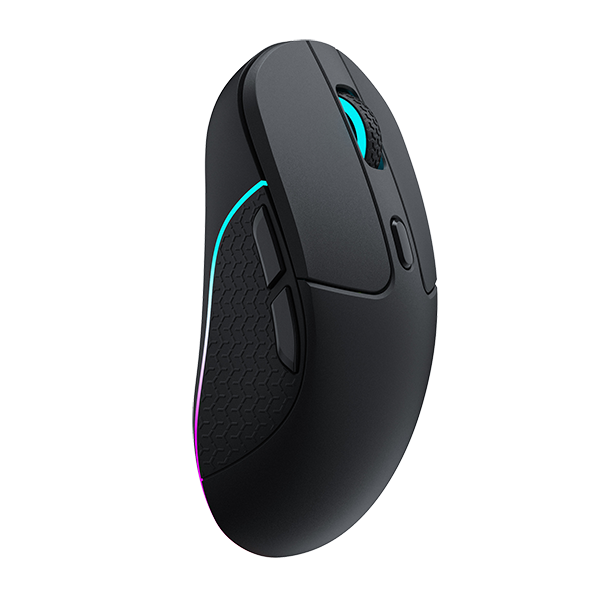

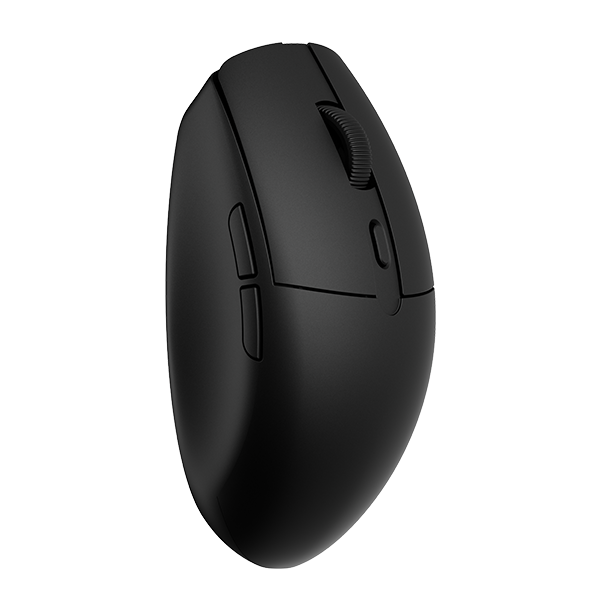

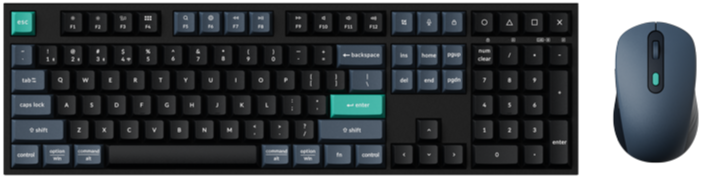
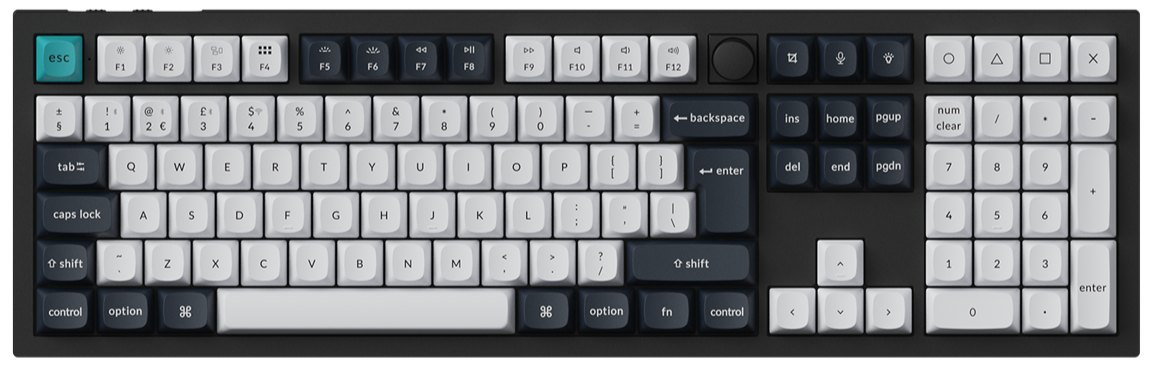
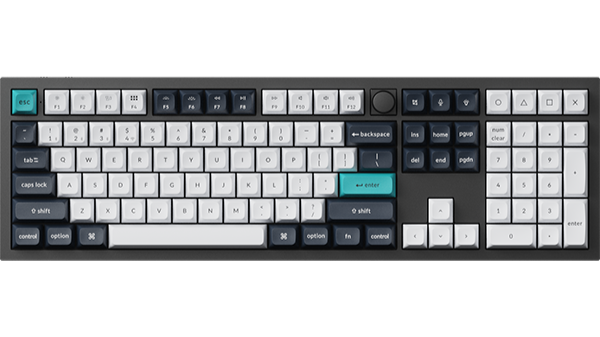
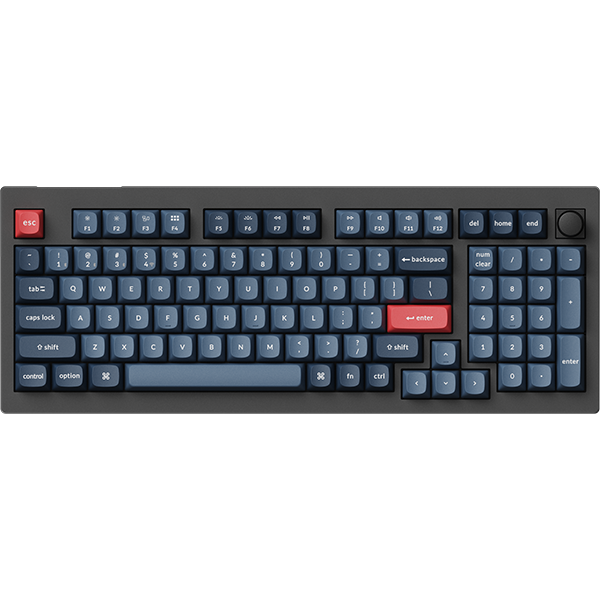
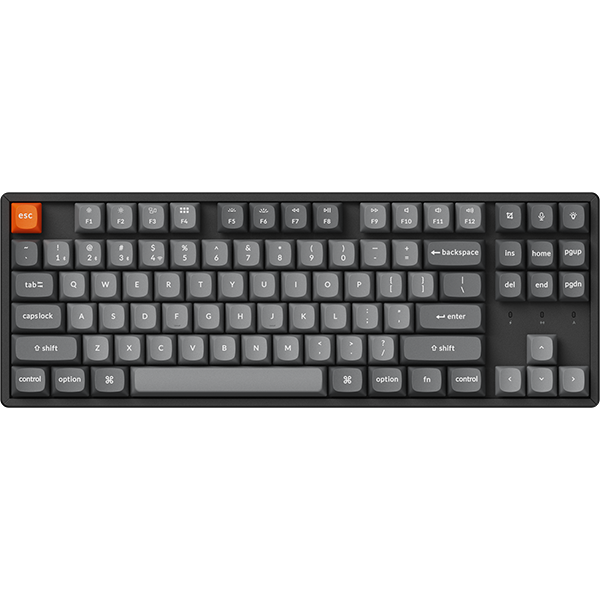

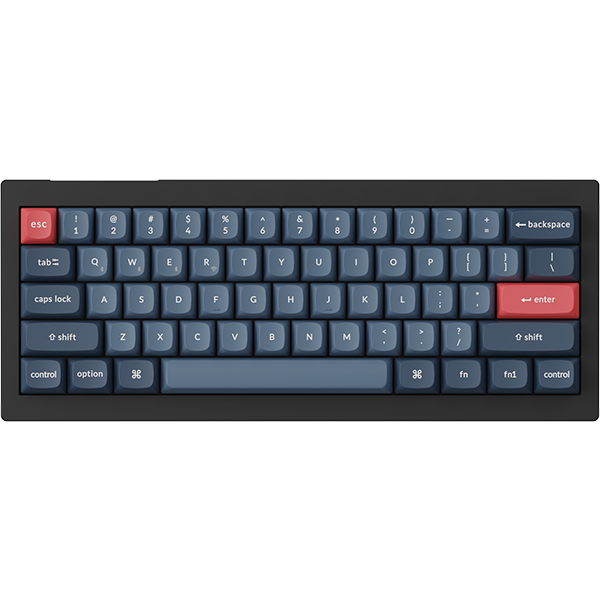


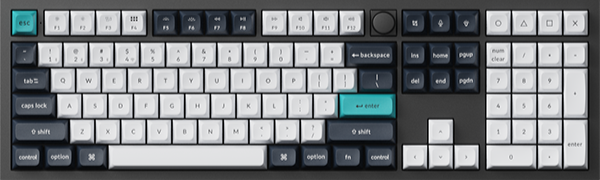
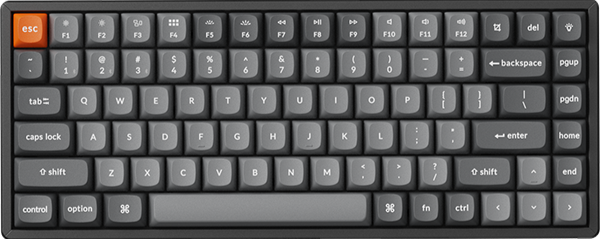
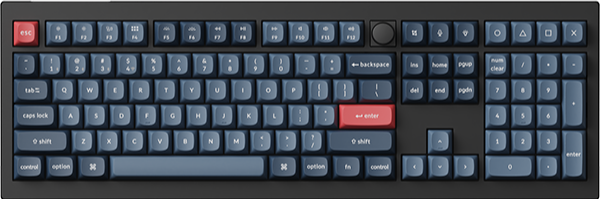
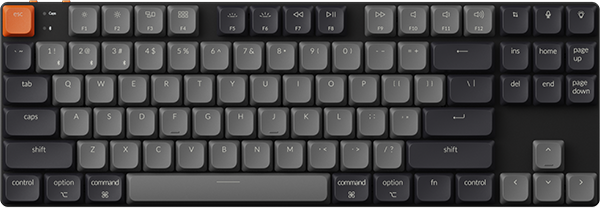
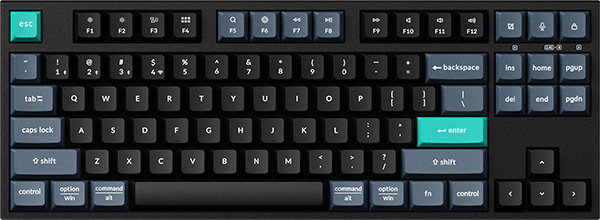
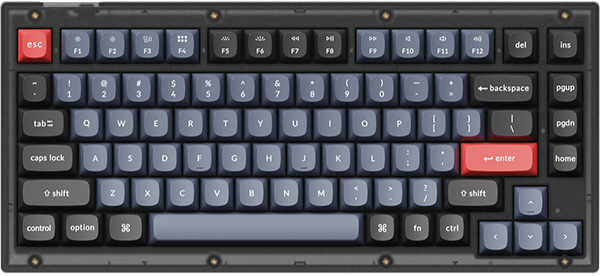
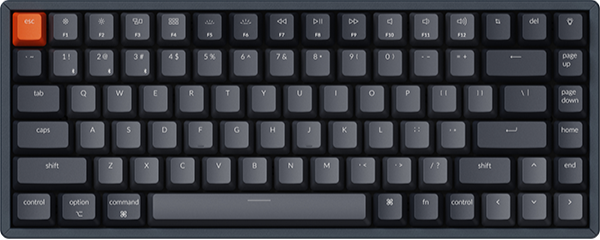
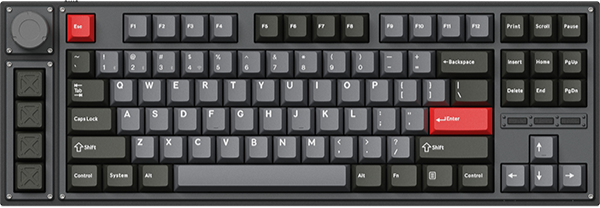

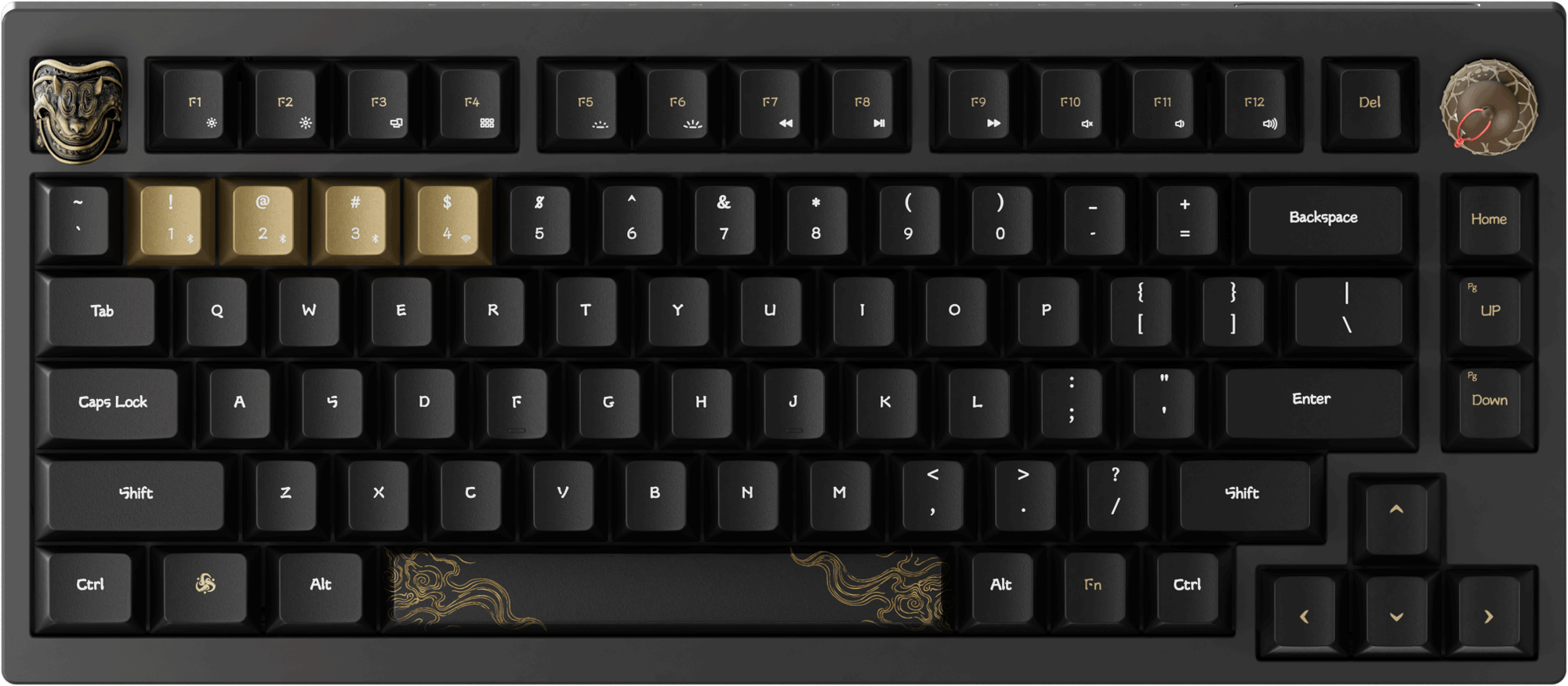



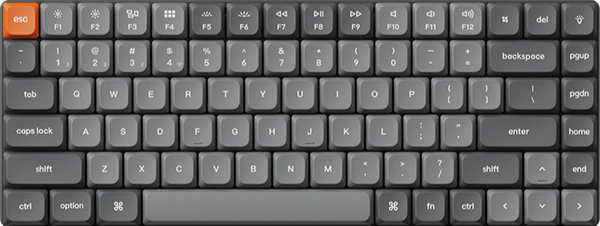
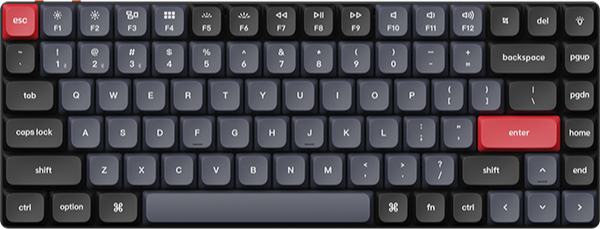
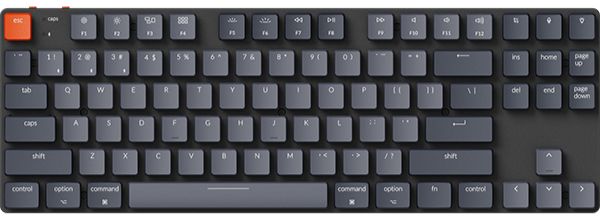












The HE keyboard supports the gamepad emulation function, allowing users to achieve equivalent mapping of gamepad operations.
Users can also customize the relevant gamepad key mappings and joystick curve parameters according to their personal preferences.
Below is a step-by-step guide on how to set up Gamepad Analog and Gamepad Curves:
How to set up Gamepad Analog:
1.Use the latest version of Chrome/Opera/Edge browser to click here to open the launcher.
2.After establishing a physical connection using our dedicated connecting cable or 2.4 GHz receiver, click the 'Connect' button and select the keyboard of the corresponding model.
Notice: Some product models only support a wired connection.
3.After entering HE Mode, click the "Gamepad Analog" function module to set the mapping between keyboard keys and gamepad buttons.

4.Just like mapping functions for a keyboard, gamepad buttons can also be remapped:
a.Select a key on the virtual keyboard (only one can be selected at a time).
b.Click the corresponding gamepad button below to complete the setup.
Notice: The controller functionality can only be used when the HE profile is set to Gamepad Mode.
5.There are also more auxiliary settings available to deliver a better user experience.
Enable or disable keyboard keys:
On.Enable if you can type while the joystick is being simulated.
Off.Disable if you cannot type while the joystick is being simulated.

XBox Mode:
After enabling Xbox Mode, the keyboard will be recognized as a native controller and can be used directly when connected to an Xbox console.

Here is a Joystick Effect Demo:
It can real-time simulate the joystick effect of a controller based on the pressure intensity of the user's keyboard key presses.
How to set up Gamepad Curve:
6.The system supports the configuration of joystick modes for the simulated controller: Linear and Smooth.
a.Linear Mode: Delivers a fixed proportional response between joystick displacement and output for precise, predictable control.
b.Smooth Mode: Adopts an inertia-based non-linear curve to filter micro-jitters and provide natural, fluid operation.

After the joystick mode configuration is completed, the system also supports the simulation of joystick curves for the simulated controller.
Notice: When simulating the joystick curve, the controller typing function must be disabled to prevent conflicts that could affect the simulation results.