
























IN THIS ARTICLE
You paste values into Excel all afternoon, and every time it costs Ctrl+Alt+V, then V, then Enter. A keyboard macro saves that whole series on one key, so the next paste is one press instead of five. Below are 10 macros for email, spreadsheets, code, and meetings, with the Windows and Mac keys for each, and the steps to store them on your keyboard in Keychron Launcher.
Key takeaways
- Worth it for repeats: a task you do many times a day, with the same keys every time, is the best macro.
- Worth it on locked work laptops: a macro stored on the keyboard plays back with no macro app on the computer.
- Keep Mac and Windows apart: record each system's version on its own layer, so the system toggle picks the right one.
- Not worth it for one-offs: if you do a task twice a week, the plain shortcut is enough.
How to tell if a task is worth a keyboard macro
A keyboard macro is a saved series of key presses that one key plays back. It can press shortcuts, type a line of text, and wait between steps.
Count the presses before you build one. The Excel paste above is five presses: Ctrl, Alt, V, V, and Enter. Do it 20 times in a day and that is 100 presses. On a macro key it is 20.
What changes in daily use: you stop reaching across the keyboard for a three-key stretch, and your eyes can stay on the cell or the email.
Worth it if the steps never change and you repeat them every day. Skip it if the task needs a different choice each time, such as picking a file or a recipient.
10 keyboard macros that save time at work
Each row is one macro. A comma means the keys are pressed one after another, and a plus sign means they are held together.
| Macro | Windows | Mac |
|---|---|---|
| 1. Email sign-off | Text step: Best regards, Enter, your name | Same text step |
| 2. Reply all with a greeting (Outlook) | Ctrl+Shift+R, then text Hi all, | Shift+Command+R, then text Hi all, |
| 3. Screenshot of an area | Windows key+Shift+S | Shift+Command+4 |
| 4. Paste values only (Excel) | Ctrl+Alt+V, V, Enter | Cmd+Ctrl+V opens Paste Special |
| 5. Today's date, then next cell (Excel) | Ctrl+;, Tab | Ctrl+;, Tab |
| 6. Show the terminal and run git status (VS Code) | Ctrl+`, text git status, Enter | Control+`, text git status, Enter |
| 7. Format the file (VS Code) | Shift+Alt+F | Shift+Option+F |
| 8. Mute or unmute (Teams desktop) | Ctrl+Shift+M | Command+Shift+M |
| 9. Camera and mic off together (Teams desktop) | Ctrl+Shift+O, Ctrl+Shift+M | Command+Shift+O, Command+Shift+M |
| 10. Lock the screen before you walk away | Windows key+L | Control+Command+Q |
Email and writing: macros 1 to 3
The sign-off uses the Text step in Launcher's macro editor, so the keyboard types the words for you. That step accepts English letters, numbers, and basic symbols, so keep accented names out of it. The reply-all macro chains a shortcut and a text step. In Outlook, Ctrl+Shift+R replies to all on Windows and Shift+Command+R does it on Mac.
What changes in daily use: short replies start with one press, and the greeting is spelled the same way every time.
Spreadsheets: macros 4 and 5
On Windows, Excel opens the Paste Special dialog with Ctrl+Alt+V, and V picks the option to paste only the values, not the formulas. Enter then confirms the dialog. On a Mac, Excel uses Cmd+Ctrl+V for Paste Special, so the Mac macro stops at the dialog. Ctrl+; enters today's date on both systems, and Tab moves one cell to the right, so a log sheet fills across the row.
Worth it if you clean up exported data or keep a daily log. Skip it if you mostly build formulas, where the shortcuts change from cell to cell.
Code: macros 6 and 7
VS Code shows its integrated terminal with Ctrl+` on both Windows and Mac. Add a text step with git status and an Enter, and one key shows what changed in your repo. Ctrl+` opens and closes the terminal panel, so press the macro key while the terminal is closed. If the terminal is already open, the text lands in your open file. Format Document is Shift+Alt+F on Windows and Shift+Option+F on Mac.
Meetings: macros 8 to 10
In the Teams desktop app, Ctrl+Shift+M toggles mute and Ctrl+Shift+O toggles video on Windows. The Mac app uses Command+Shift+M and Command+Shift+O. Both are toggles, so macro 9 turns things off only if both were on. Macro 10 locks the screen, which helps when you leave your desk for a meeting room.
What changes in daily use: mute sits on one key you can find without looking, and it is the same key on your Mac and Windows layers.
Software macros vs macros stored on your keyboard
A macro app runs on the computer. It has to be installed, and it has to run in the background on every machine you use. Some company laptops block new software, and then that route is closed.
Launcher works the other way. It is a web page, launcher.keychron.com, so there is nothing to install. It writes the macro to the keyboard, and our macro guide notes that each device has its own macro storage, which is plenty for normal use. On QMK keyboards, the macro then travels with the keyboard to another computer. One r/MechanicalKeyboards user who works in Excel on a laptop that cannot take unapproved software put it this way: their bindings "could probably be replicated using the keyboard's built-in macros."
Worth it if you switch between a work laptop and a home computer. Skip it if you need a macro that reacts to what is on screen. It plays the same keys every time.
How to record a macro in Keychron Launcher
- Connect the keyboard with a USB data cable. Open Keychron Launcher in the latest Chrome, Opera, or Edge and click Connect.
- Open Macro in the sidebar. Select an empty slot, such as M0, and type a name in the Custom title (optional) box.
- Record the keys. Click Start Recording, press the shortcut, then click Stop Recording. To type words, click the plus button and choose Text. The same menu adds Press Down, Release, Mouse, and Delays steps.
- Click Save.
- Put it on a key. With the macro selected, click the key on the on-screen keyboard. You can also open Keymap, choose the Macro tab, click a key, and pick the macro there.

Pick a key you rarely press. If you want to keep every key, place the macro on the layer you reach by holding Fn. If your keyboard has two Mac layers and two Windows layers, layer 0 is the Mac default and layer 2 is the Windows default. Put the Mac version of a macro on layer 0 and the Windows version on layer 2.
Why a macro skips steps and how to fix it
A macro sends keys faster than you type. When a step opens a window, such as the Outlook reply or the Excel Paste Special dialog, the next keys can arrive before the window is ready.
Launcher handles this in two places. Under Time Delay, you choose Disable Delay, Dynamic Delay, or Fixed Delay for the recording. You can also click the plus button and add a Delays step, in milliseconds, right after the step that opens the window. Start with a short delay and raise it until the macro runs cleanly.
If a shortcut does nothing, check that the app has one in the version you use. On Windows, the Teams desktop app toggles video with Ctrl+Shift+O, while the Teams web app has no shortcut for it.
Who should set up which macros
- You answer a lot of email: start with macros 1 and 2, then add 3 for quick screenshots in replies.
- You live in Excel: macros 4 and 5 cover the paste and the date you type most.
- You write code and sit in calls: macros 6 and 7 for VS Code, 8 and 10 for meetings.
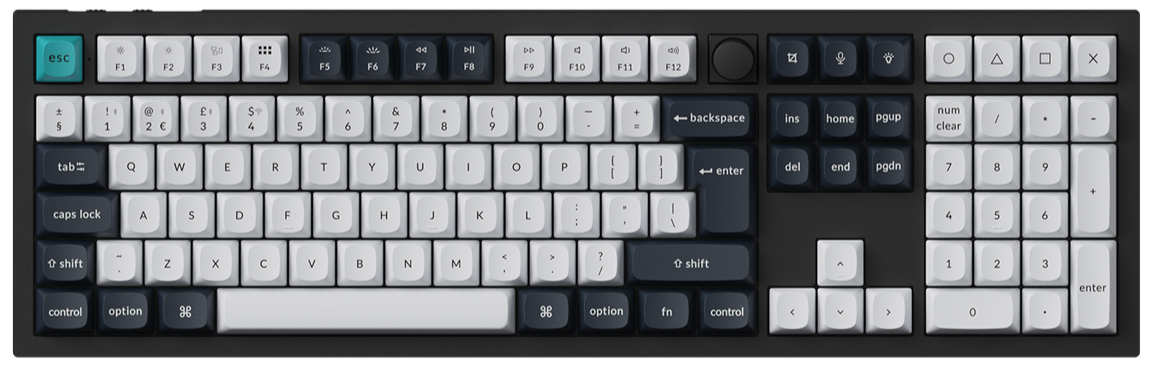
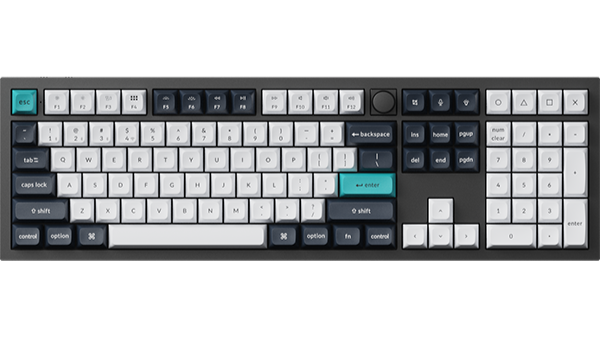
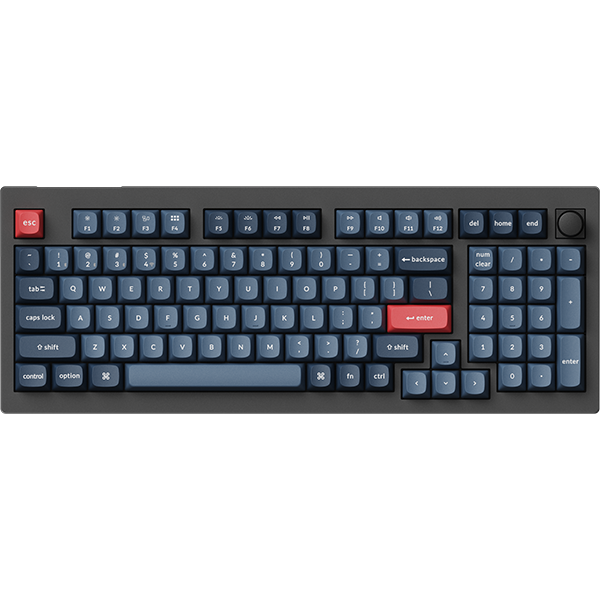
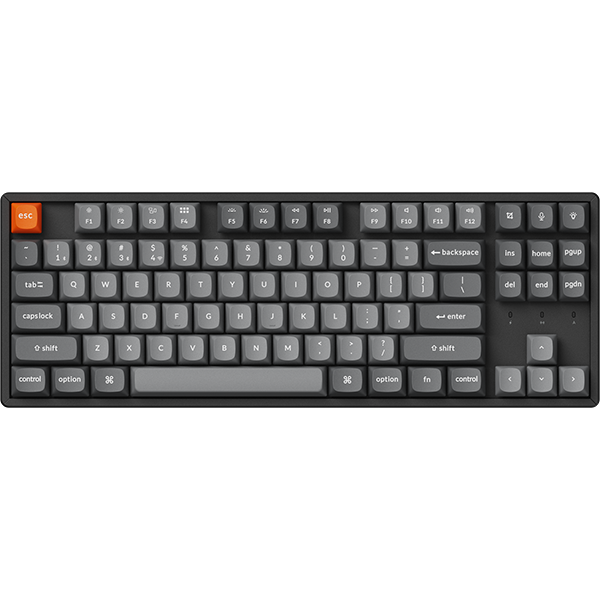
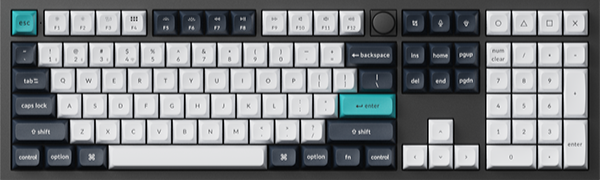
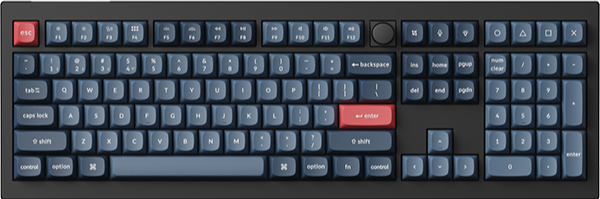
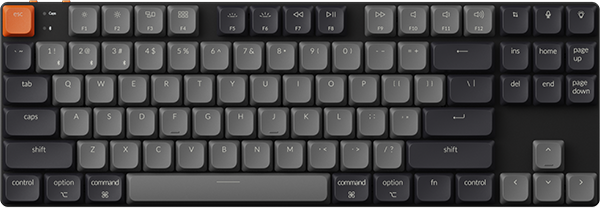
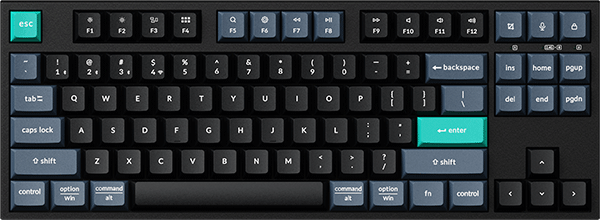
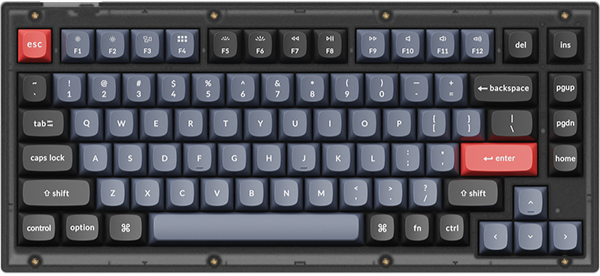
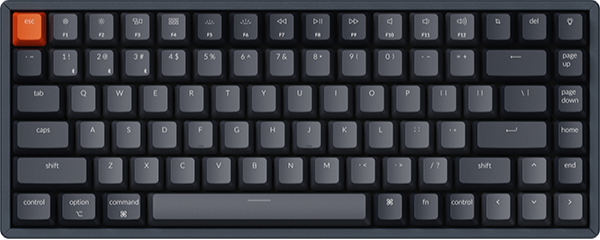
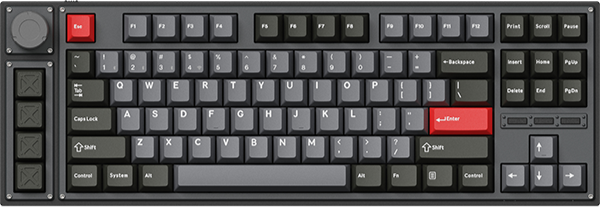
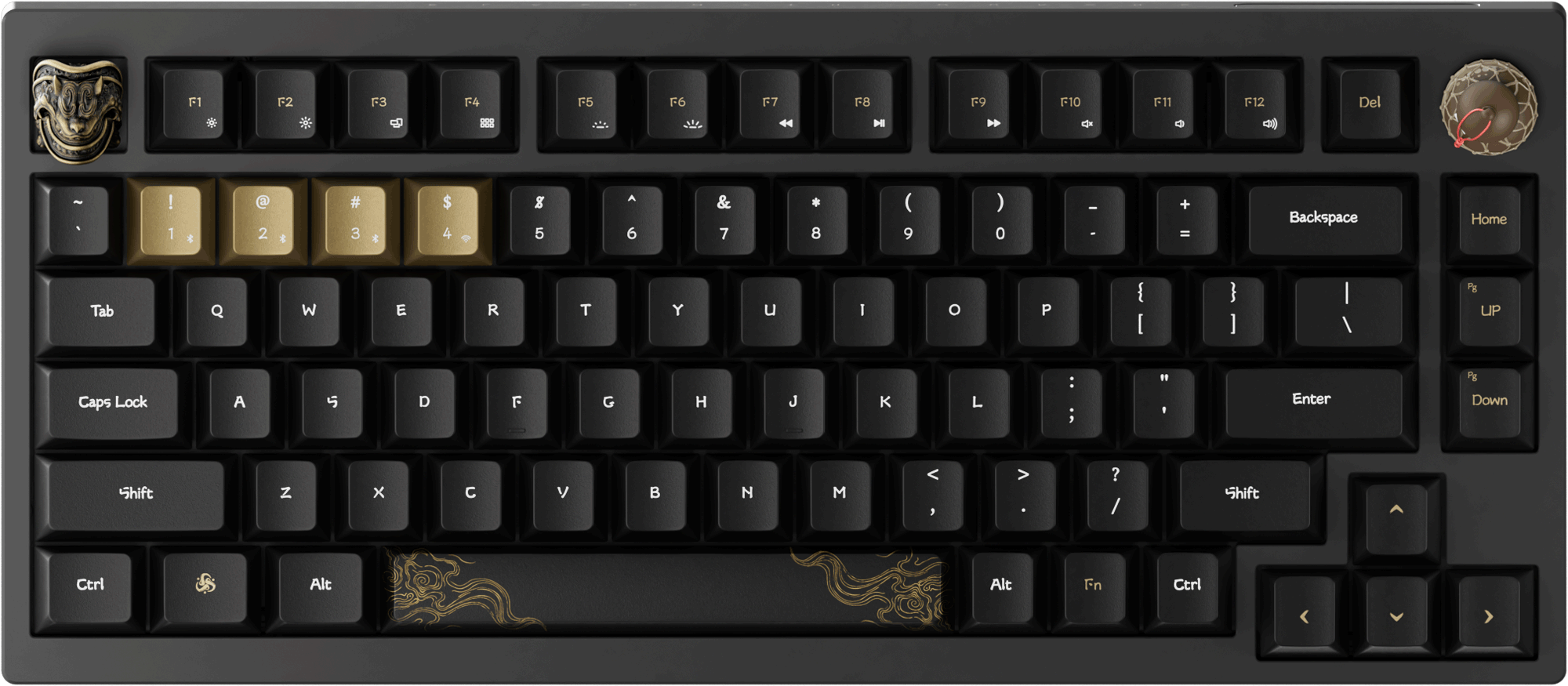
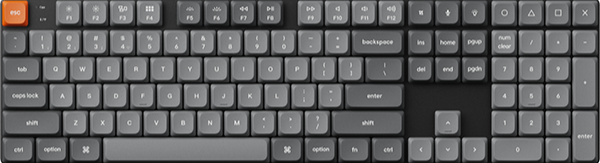
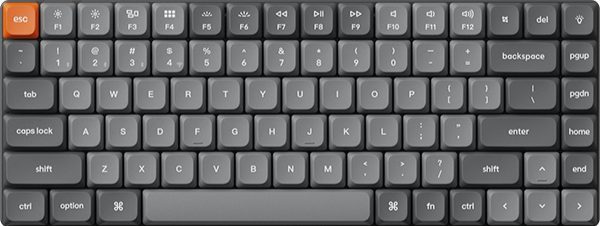
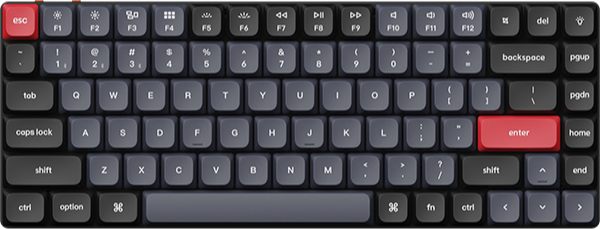
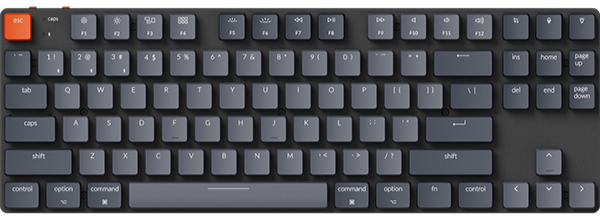
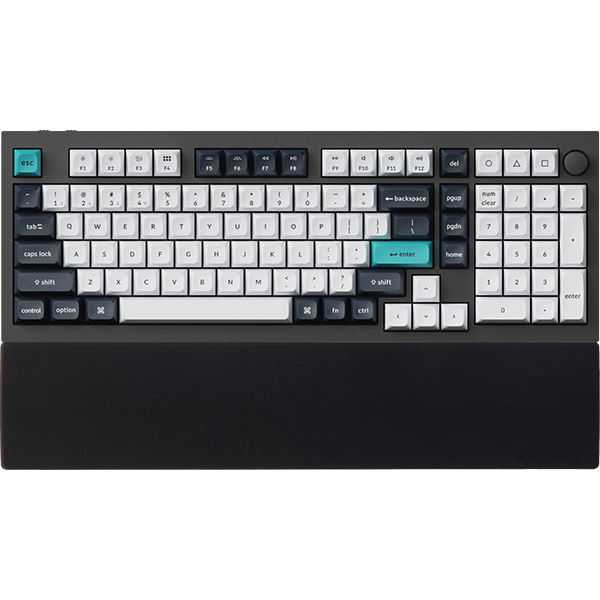
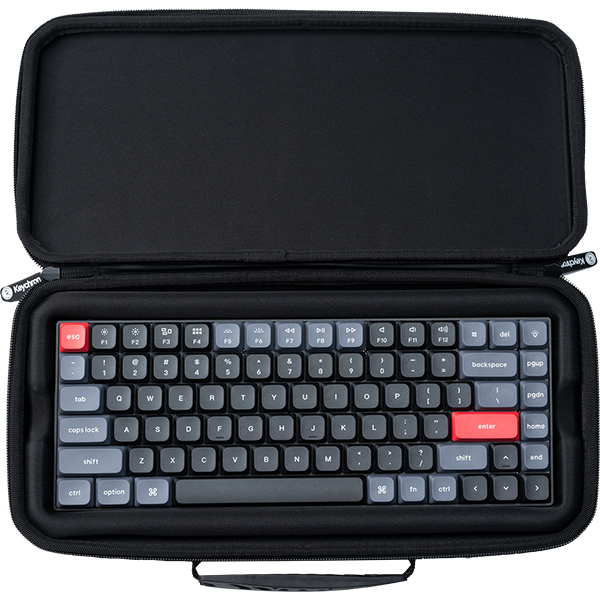
Every macro here can live on Keychron keyboards that support Launcher macros. The full-size Keychron Q6 Max has a knob. The Keychron K3 Max is a 75% low-profile board, and the Keychron V6 Max is full size with a knob. All three run QMK firmware and work with Launcher for key remapping and macros on macOS, Windows, and Linux.
FAQ
Do keyboard macros work on both Mac and Windows?
Yes, but the keys differ, as the table shows. On boards with a system toggle, such as the Q6 Max and V6 Max, you can save two layouts on the keyboard, one for each system. Put each system's version of a macro on its own layer.
Is it safe to put a password in a keyboard macro?
No. A macro types the same text for anyone who presses that key, on any computer the keyboard is plugged into. Keep passwords in a password manager.
Do I need a macro keyboard, or can any key run a macro?
You do not need dedicated macro keys. Any key can hold one on a keyboard that supports Launcher macros. Pick it in Keymap, including keys on the Fn layer.
References & Citations
- Recording, editing, and assigning macros in Launcher, and the macro storage on each device. (How to create a macro on Launcher)
- Windows key+Shift+S captures a screen region; Windows key+L locks the computer. (Keyboard shortcuts in Windows (Microsoft))
- Control-Command-Q locks the screen; Shift-Command-4 takes a screenshot on Mac. (Mac keyboard shortcuts (Apple))
- Paste Special (Ctrl+Alt+V, V for values; Cmd+Ctrl+V on Mac), Ctrl+; for the date, Tab to move right. (Keyboard shortcuts in Excel (Microsoft))
- Ctrl+Shift+R replies to all in Outlook for Windows. (Keyboard shortcuts for Outlook (Microsoft))
- Teams toggles mute with Ctrl+Shift+M and video with Ctrl+Shift+O (Command on Mac). (Keyboard shortcuts for Microsoft Teams (Microsoft))
- VS Code opens the integrated terminal with Ctrl+` and formats a document with Shift+Alt+F. (VS Code keyboard shortcuts for Windows (PDF))