























IN THIS ARTICLE
Three numbers stand out on the Keychron M1 Wireless page: a PixArt 3395 sensor, 26,000 DPI and 79 g. The question those numbers hide is which of them you will feel on a normal desk, and which one should decide the purchase. This review walks the spec sheet line by line and says what each line changes in daily use.
Specs below come from our M1 Wireless, M3 and M6 product pages, the M1 Wireless comparison chart and the M6 size drawing, checked on October 28, 2026, plus the official product images for what the shell looks like. We ran no lab tests for this review.
The short version
- Worth it if you want one 79 g mouse for office work by day and games in the evening, you move between a laptop and a desktop, or you mouse with your left hand. The M1 Wireless has two side buttons on each side.
- Skip it if you want a thumb rest and a side scroll wheel for wide spreadsheets. The Keychron M6 has both in a right-handed shape at 78 to 86 g. If you want an 8K polling rate, the M6 also has a PixArt 3950 (8K Polling Rate) option. The Keychron M3 is the one to compare if you want the same 79 g in a taller right-handed body.
- If you remember one thing: plug in the 2.4 GHz receiver for games and keep Bluetooth for the laptop. The sensor is the same either way. The report rate is eight times higher over the receiver.
What the M1 Wireless is
View the M1 Wireless on keychron.com →
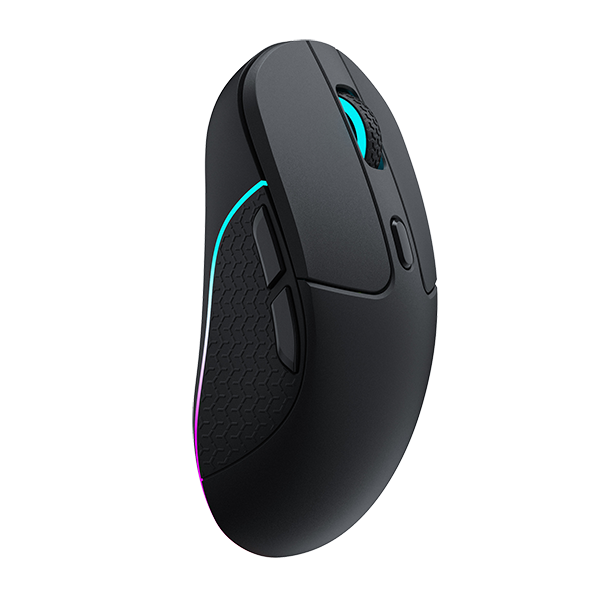
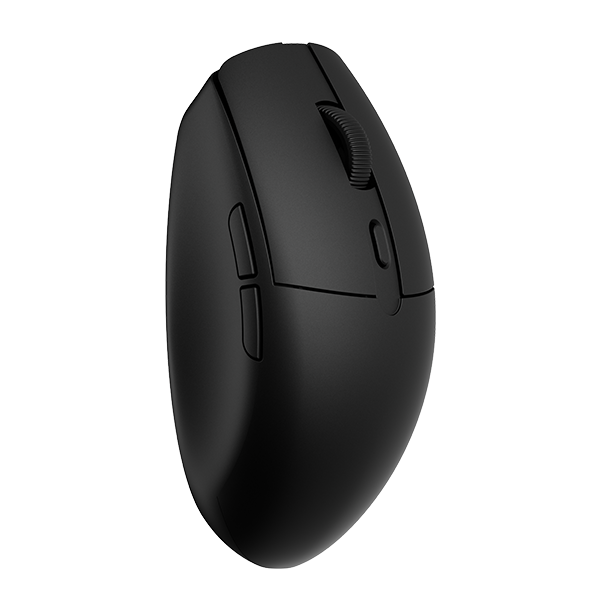
A wireless mouse for either hand, listed on the official comparison chart as both left-handed and right-handed, with the PixArt 3395 sensor, two side buttons on each side, and three ways to connect.

- Sensor: PixArt 3395, 100 to 26,000 DPI, up to 650 IPS.
- Connection: 2.4 GHz receiver, Bluetooth 5.1, or a USB-C cable.
- Weight: 79 g, in an ABS shell.
- Battery: 600 mAh, rated up to 70 hours on a charge, measured with the RGB off.
- Software: Keychron Launcher in a browser, or the Keychron Engine desktop app.
It comes in Black and White. The two colors share one spec sheet, so the choice is only about what sits next to your keyboard. The shell is perforated on the top and the sides, and the RGB strip can show 16.8 million colors or stay off.
What the spec actually measures
Three lines on the spec sheet do most of the work, and each one measures something different.
DPI is counts per inch. Move your hand one inch and the sensor registers that many counts of movement. At a low DPI the cursor crosses a small part of the screen; at a high DPI it crosses more of it. The 3395 covers 100 to 26,000 DPI. The ceiling matters less than the step you settle on: the value you leave it at is the one you will feel every day, and the range starts at 100.
Polling rate is how often the mouse reports to the computer. The M1 Wireless reports 1,000 times a second over the 2.4 GHz receiver or the cable, so one report every millisecond. Over Bluetooth it reports 125 times a second, one report every 8 ms. Your hand movement is the same; the computer hears about it less often.
Lift-off distance is the height at which the sensor stops tracking when you pick the mouse up. On this mouse you choose 1.0 mm or 2.0 mm. A lower setting means the cursor stays put when you lift the mouse to reposition it.

An illustration of what the three settings mean, not a measurement. The values on it come from the M1 Wireless product page.
Rule of thumb: DPI sets how far the cursor goes, polling sets how often the computer hears about it, and lift-off distance sets when the sensor lets go.
The trade-off
A symmetric shell is the main design decision here, and it cuts both ways. It fits either hand and puts two buttons under the thumb whichever side you hold it from. A right-handed shape, like the Keychron M3 or M6, is built around one hand, and the M6 adds a thumb rest. A right-handed shape is the one to compare if the same hand rests on the mouse all day; an either-hand shape is the one to pick if you switch hands or mouse left-handed.
The second decision is polling rate. This mouse tops out at 1,000 Hz, while the M3 and M6 both have a PixArt 3950 (8K Polling Rate) option that reports up to 8,000 times a second over the receiver or the cable. That 8K option is aimed at gaming. For a browser, a spreadsheet or a strategy game, 1,000 reports a second over the receiver is the rate the M1 Wireless was specified at, for office and gaming use alike.
The third is Bluetooth. It pairs with a laptop without a receiver, and it reports at 125 Hz on this mouse. That is fine for a document. In a game, use the receiver.
Rule of thumb: shape decides comfort over a full day, polling rate decides how often, down to a fraction of a millisecond, the computer hears about your hand in a shooter, and Bluetooth is for the laptop, not for the match.
What it means on your desk
| Spec | Figure | On your desk |
|---|---|---|
| Weight | 79 g | The same 79 g as the M3; the M6 is 78 to 86 g depending on version |
| Size | 130.2 x 66.4 x 38.3 mm | Longer and flatter than the M3 (125.2 x 68.2 x 40.6 mm) |
| Polling rate | 1,000 Hz over 2.4 GHz or cable; 125 Hz over Bluetooth | Receiver for games, Bluetooth for the laptop |
| Battery | 600 mAh, up to 70 hours (RGB off) | Charge over the included Type-C to Type-C cable |
| Lift-off distance | 1.0 mm or 2.0 mm | Pick 1.0 mm if you lift the mouse often in games, so the cursor stops sooner |
The spec sheet says: 130.2 mm long and 38.3 mm tall. On your desk it means a longer, lower body than the M3, which is 125.2 mm long and 40.6 mm tall. Our M6 is a different shape again: its page describes a right-handed silhouette that mirrors the hand's natural resting state, with a thumb rest, and its official size drawing puts it at 50.0 mm tall. If the same hand rests on the mouse all day, that is the shape to compare against.

Two labelled controls sit on the underside. A three-position slider marked B, OFF and G, read as Bluetooth, off and 2.4 GHz, chooses the wireless mode, and a DPI button steps through the sensitivity levels without opening any software.
Rule of thumb: the M1 Wireless is the longer, lower, either-hand body at 38.3 mm tall. Its siblings, the M3 at 40.6 mm and the M6 at 50.0 mm, are the taller right-handed ones.
How Keychron sets it up
The settings live in Keychron Launcher, a web app that runs in the latest Chrome, Opera or Edge. Connect the mouse with the cable or the 2.4 GHz receiver first, because Bluetooth does not pair with the software. From there you can remap the buttons, set shortcuts, build macros, change the RGB effects, and set lift-off distance, polling rate and DPI. We have a step-by-step on how to set DPI and polling rate in Launcher. The Keychron Engine desktop app for Windows and macOS covers the same settings if you prefer an installed program.
There is a DPI button on the underside, so you can change DPI without opening any software.

The box holds a Type-C 2.4 GHz receiver, a Type-A 2.4 GHz receiver, an extension adapter for the receiver, a Type-C to Type-C cable, and a Type-A to Type-C adapter. A laptop with only USB-C ports and a desktop with only USB-A ports are both covered without buying anything else. Our M1 Wireless shortcuts post lists the button combinations for pairing and switching.
Rule of thumb: set DPI and lift-off distance once in Launcher over the receiver, then let the underside button handle day-to-day DPI changes.
Who should care, and who should not
You should care if your mouse has two jobs. The 79 g symmetric body, the 3395 sensor and the receiver cover an evening of games, and the Bluetooth mode and the small Type-C receiver cover a laptop the next morning. Left-handed users get the same two side buttons as everyone else, because the shell is the same on both sides. If you keep one mouse in a laptop bag and want it to play when you get home, this is the M1 Wireless case.

If you want your hand to rest on a thumb rest and scroll wide sheets sideways, the Keychron M6 is built for that, and it is also the pick if the polling rate number is the reason you are shopping: it has a PixArt 3950 (8K Polling Rate) option. The Keychron M3 keeps the 79 g weight in a taller right-handed body. Both are set up in the same Launcher, so nothing you learn on the M1 Wireless is lost.
FAQ
Is the Keychron M1 Wireless good for left-handed use?
Yes. The shell is symmetric, and the official comparison chart lists two side buttons on the left and two on the right. In Keychron Launcher you can modify the buttons and set shortcuts, so the right-side pair can take over whatever the left-side pair did for you.
Does the M1 Wireless work over Bluetooth with a laptop?
Yes. It pairs over Bluetooth 5.1 and reports at 125 Hz in that mode, which is enough for documents, browsing and video calls. For games, plug in the Type-C or Type-A 2.4 GHz receiver and the report rate rises to 1,000 Hz.
How long does the battery last?
The 600 mAh battery is rated for up to 70 hours on a charge, measured with the RGB lighting off. Set the lighting off in Launcher if you want to stay near that figure, and charge over the included Type-C to Type-C cable.
Shop the gear


References & Citations
- M1 Wireless sensor, DPI range, polling rate per connection mode, lift-off distance, battery, weight, colors, box contents, and the official M3 vs M1 comparison chart and dimension drawing. (Keychron M1 Wireless Mouse product page)
- Keychron Engine desktop app: connects over USB or 2.4 GHz, not Bluetooth; button remapping, DPI and polling rate, macros, RGB, lift-off distance. (How to use Keychron mouse software)
- Keychron Launcher web app for mouse settings in Chrome, Opera or Edge. (Keychron Launcher)
- Step-by-step for changing DPI and polling rate in Launcher. (How to set mouse DPI and polling rate on Launcher)
- Button combinations for pairing and switching on the M1 Wireless. (Keychron M1 Wireless Mouse shortcuts)
- M3 weight, right-handed shape, PixArt 3950 (8K Polling Rate) option and dimensions. (Keychron M3 Wireless Mouse product page)
- M6 weight range, right-handed shape, thumb rest, side scroll wheel and 8K option. (Keychron M6 Wireless Mouse product page)