


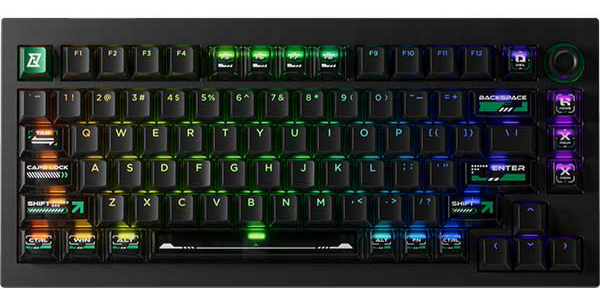
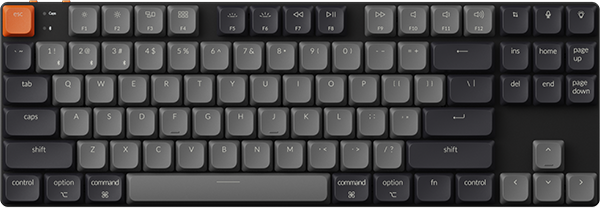
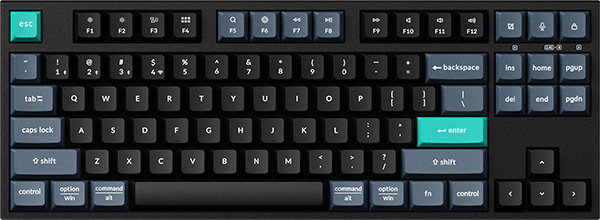


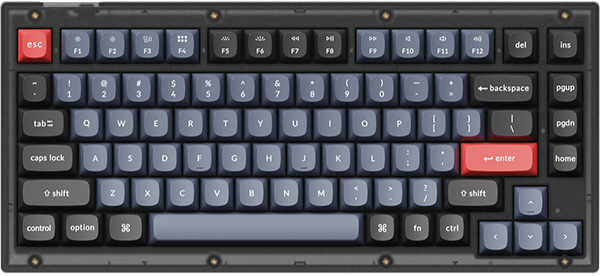




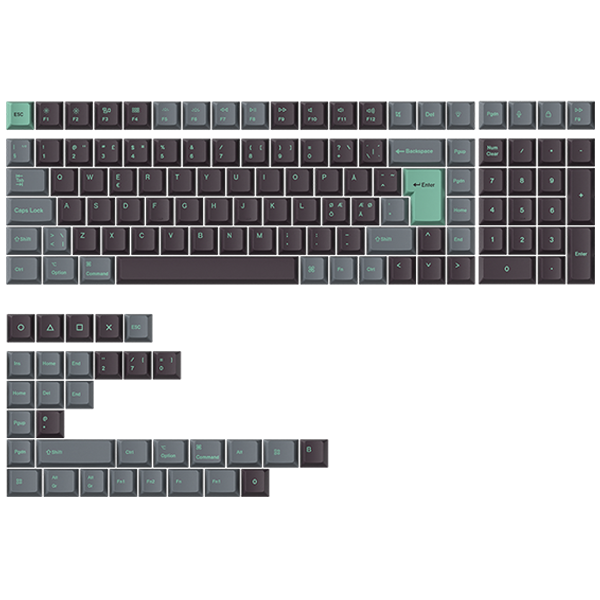






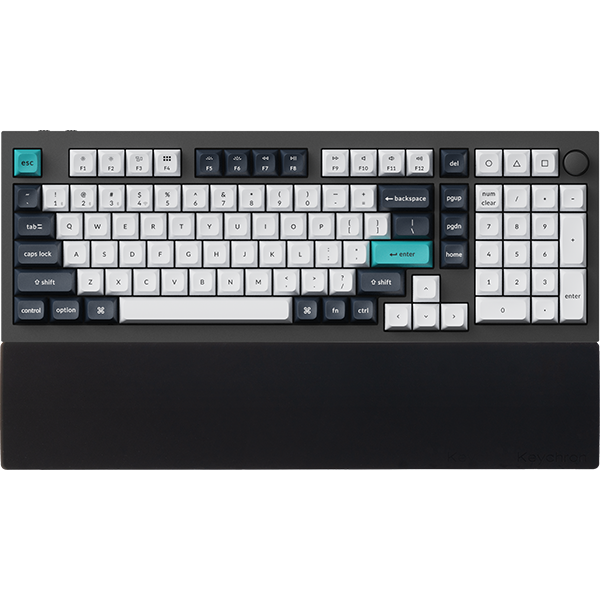

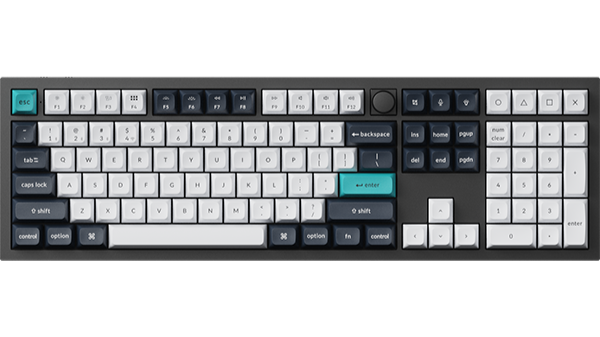
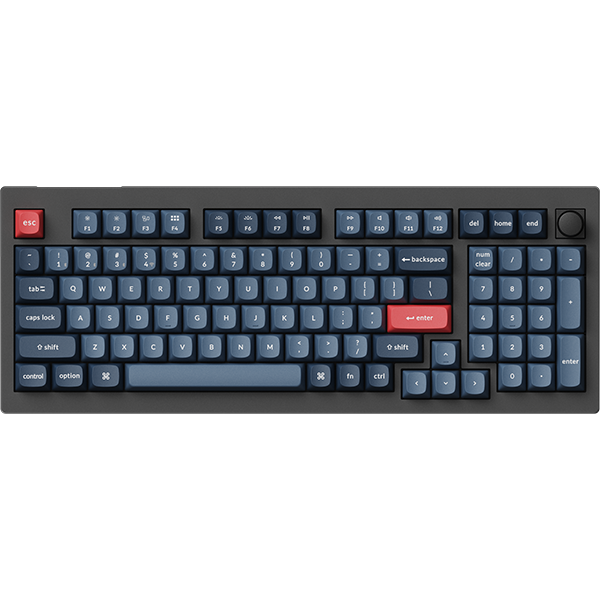
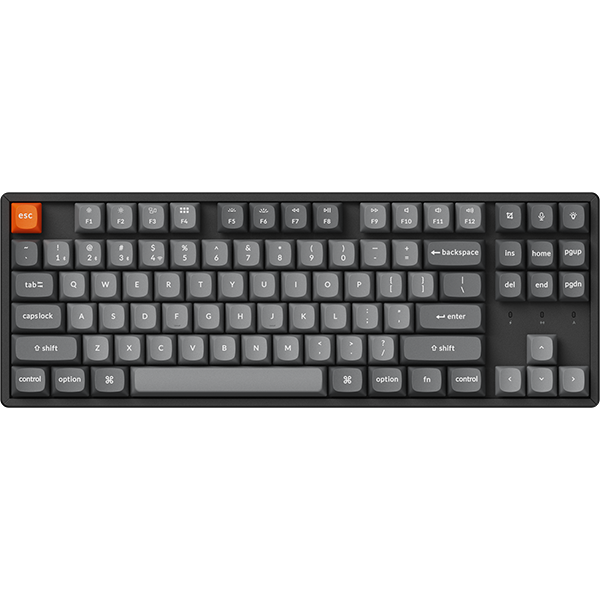

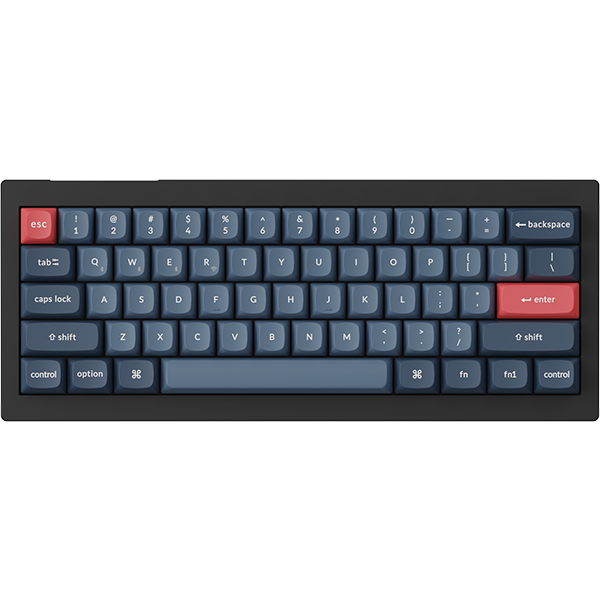


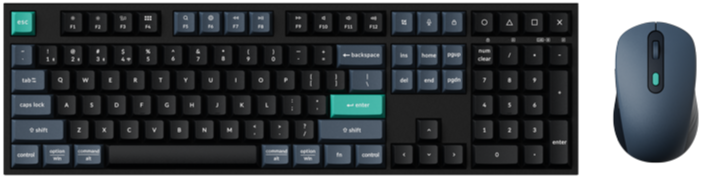
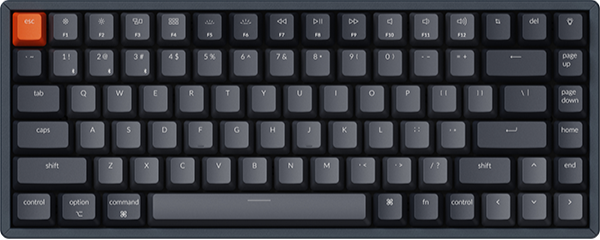
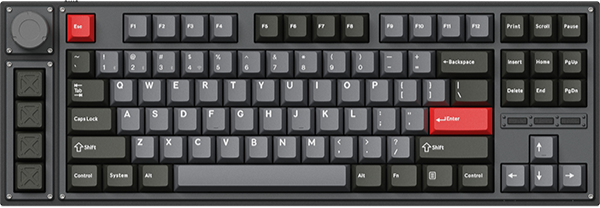
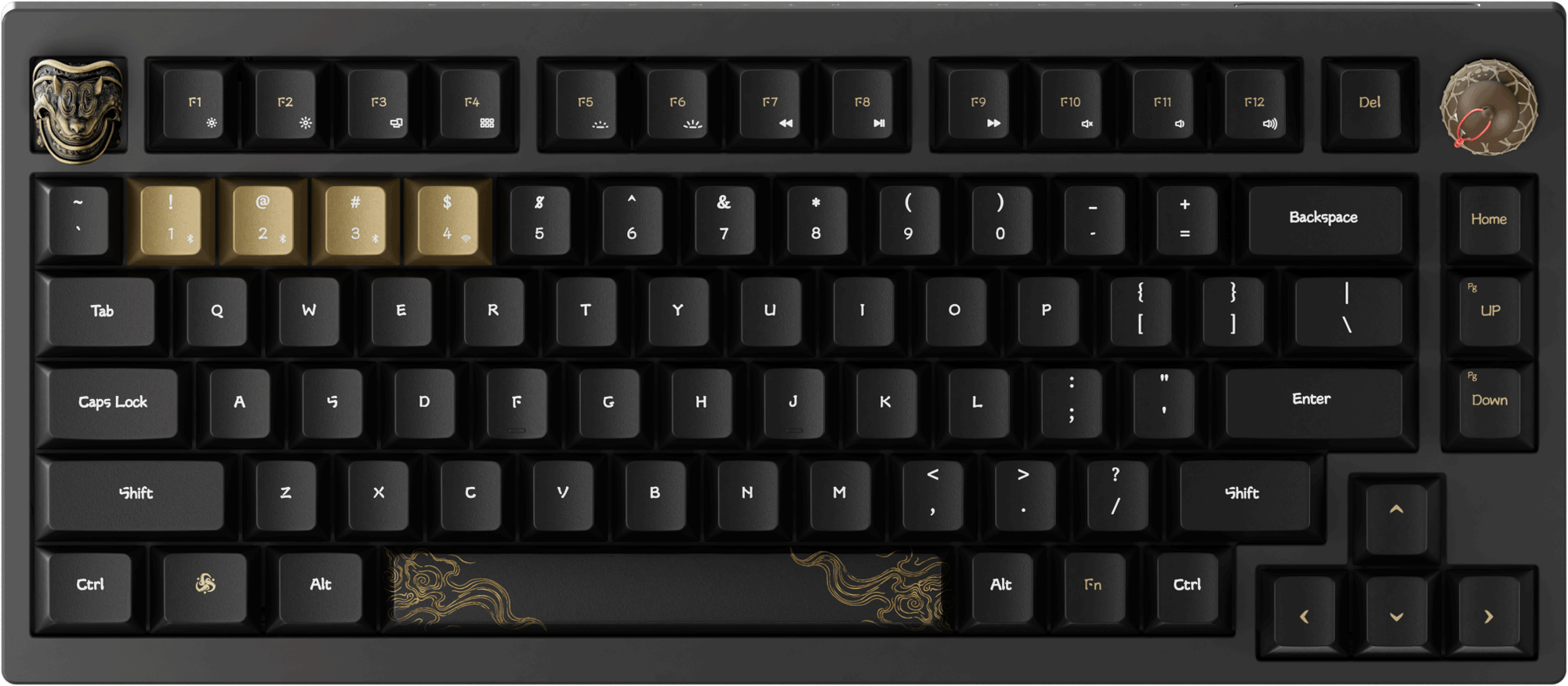


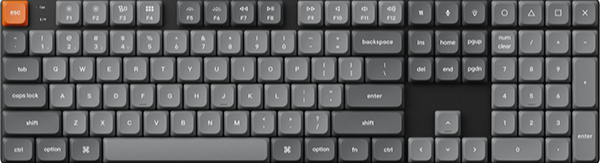

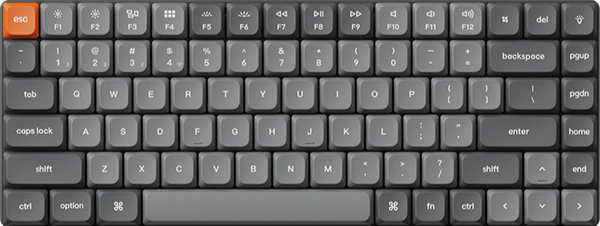
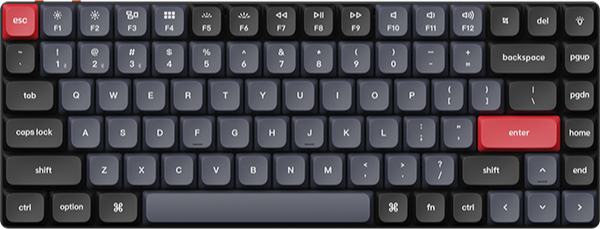
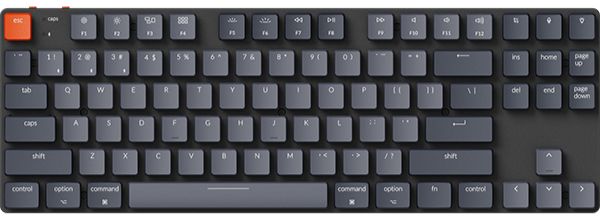











The Mix RGB feature allows users to split the keyboard into two key zones, each capable of displaying distinct lighting effects. You can set a cycle time period for each zone, and different lighting effects can be configured for different time periods within the cycle.
Below is a step-by-step guide on how to set up Mix RGB:
1. Use the latest version of Chrome/Opera/Edge browser to click here to open the launcher.
2. After establishing a physical connection using our dedicated connecting cable or 2.4 GHz receiver, click the 'Connect' button on the Launcher and select the device you need to configure to connect to it.
Notice: Some product models only support a wired connection.
3. Click "Backlight" in the left-side function bar, then select "Mix RGB" and toggle on the function switch to make relevant settings.
4. The Launcher defaults to two key zones for users.
(1) To add keys to Zone 1: click Zone 1, select the non-zone keys you want to add, then click "Save" to confirm.
(2) To remove keys from Zone 1: Click Zone 2, select the Zone 1 keys you want to delete, then click "Save".
(3) The same logic applies to adding or removing keys for Zone 2.
Currently, the app only supports two key zones, and the number of zones may be increased in future updates.
5. Click the level dropdown menu to set the timeline level for the zone's lighting effects.
The app supports a total of 5 timeline levels: the level number corresponds to the number of distinct lighting effects that can be configured within a single cycle.
For example, selecting Level 4 allows you to set 4 different lighting effects in one cycle.

6. Configure the duration, color, and style for each distinct lighting effect within a single cycle. The time range for each lighting effect is 1–99 seconds.
Click "Save" after configuration to complete the setup.