
























IN THIS ARTICLE
- What Keychron Launcher is
- What you can change in Launcher
- HE Mode on a magnetic keyboard
- Launcher on three of our full-size boards
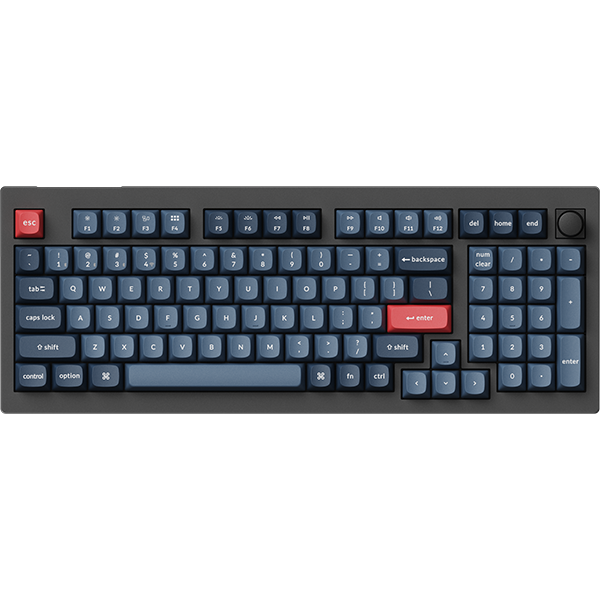
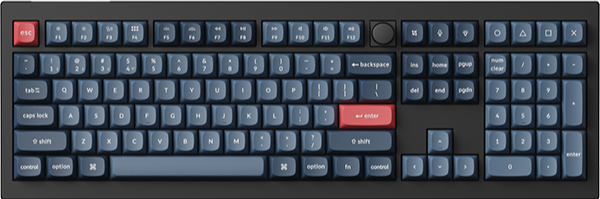
- Keychron K10 HE: Best for setting how deep each key fires
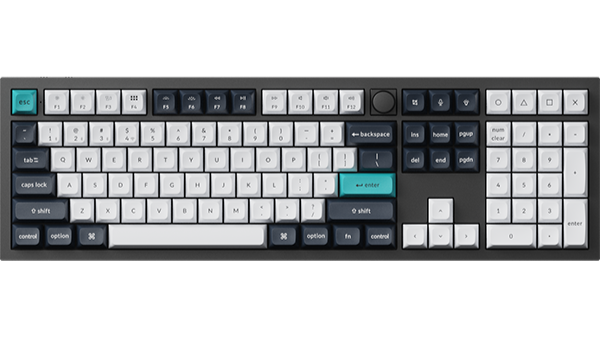
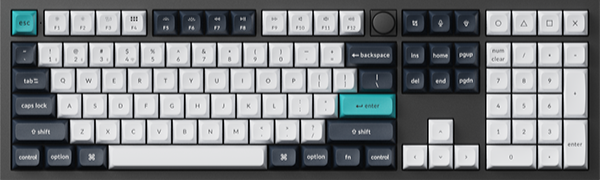
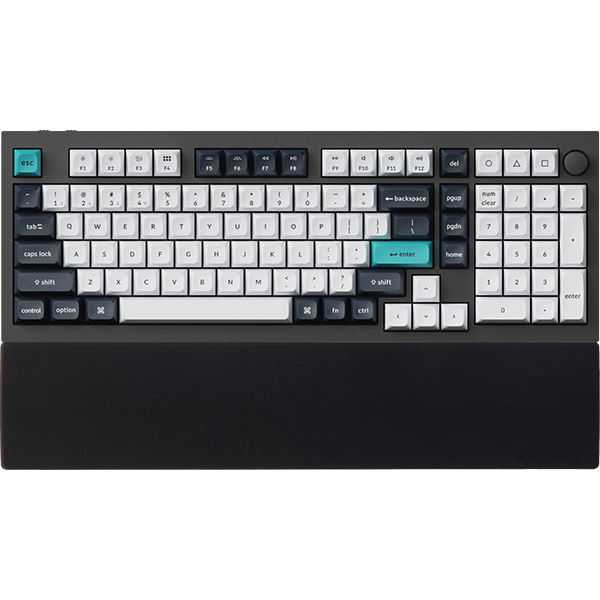
- Keychron Q6 Max: Best for a heavy aluminum board with a knob
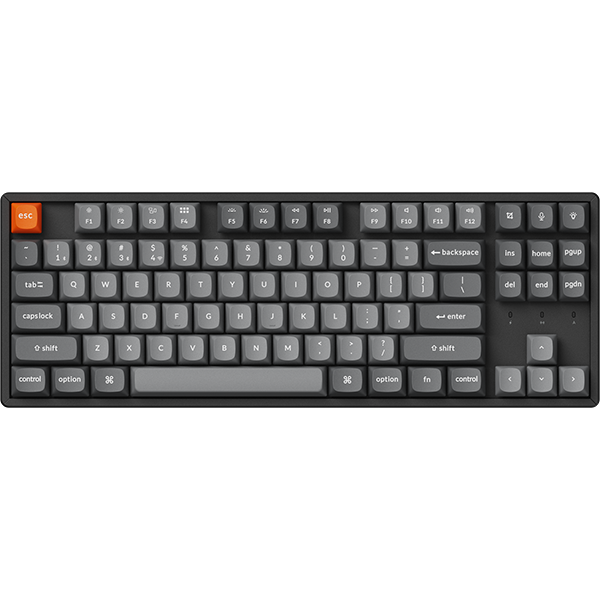
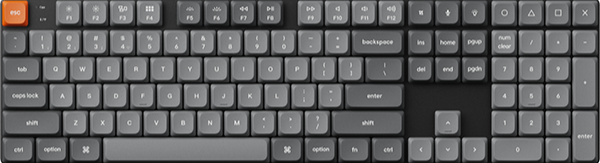
- Keychron K5 Ultra 8K: Best for a low-profile full-size board at 8000 Hz wired and 2.4 GHz
- FAQ
You were reading a Keychron product page, reached the line about remapping every key in Keychron Launcher, and stopped to ask what that means before you buy. The short answer: Keychron Launcher is our free web app. You open it in the latest Chrome, Opera, or Edge, plug the keyboard in with its cable, and change keys, macros, and lighting without installing anything. Firmware updates run from the same page.
What you get beyond that depends on the board. A magnetic board such as the K10 HE adds per-key actuation and Rapid Trigger, and the Q6 Max and K5 Ultra 8K add a knob you can reassign.
Key takeaways
- Nothing to install for keys and macros: open launcher.keychron.com in the latest Chrome, Opera, or Edge, connect the keyboard with the cable, and click Connect.
- Keys, macros, lighting, firmware: Keymap, Macro, Backlight, and Firmware Update sit in the left menu on all three boards here.
- Setting how deep each key fires: pick the K10 HE, the one board here with HE Mode.
- A knob you can remap: pick the Q6 Max for a heavy gasket-mounted case, or the K5 Ultra 8K for a low-profile board at 8000 Hz on the cable and 2.4 GHz.
What Keychron Launcher is
Launcher is the settings page for your Keychron keyboard, and it runs in a browser tab.
- Where: launcher.keychron.com, free to use.
- Browser: the latest Chrome, Opera, or Edge.
- Systems: macOS, Windows, and Linux.
- Connection: the cable, on all three boards in this review.
- What it changes: key and knob functions, macros, lighting, and firmware.
One thing up front. Safari and Firefox are not on the supported list. If you use one of those every day, keep Chrome, Opera, or Edge around for setup.
That is also the part owners notice first. One r/Keychron owner wrote: "I use their launcher on Google Chrome to configure the keyboard and everything seems to work without the need to install anything."
What you can change in Launcher
Start with Keymap, then add macros once you know which shortcuts you repeat.
Keys and layers
Click Keymap on the left, then click a key on the on-screen keyboard. It turns red, and you pick its new job from the tabs below: Basic, Media, Macro, Special Key, Lighting, Custom, and Layer. The change is done once the on-screen key shows the new function.

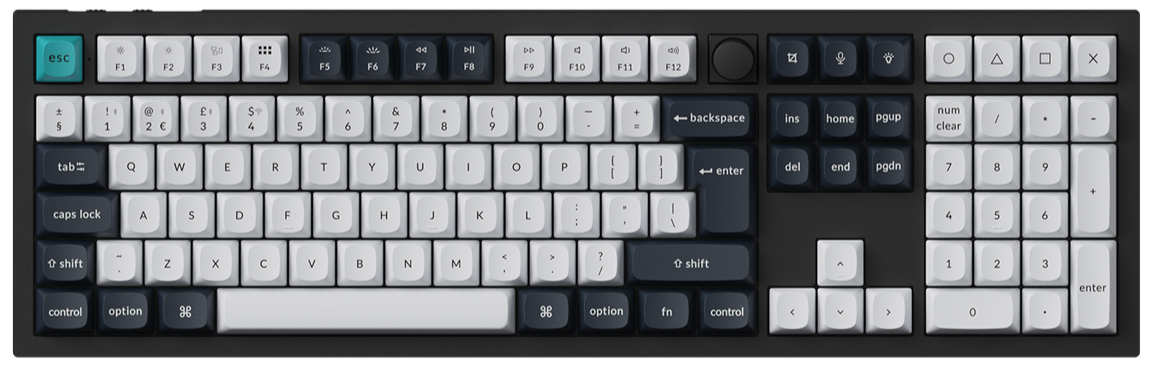
Each layer gives every key another job. On the Q6 Max, the Layer row runs from 0 to 3, and on Keychron QMK boards like it there are two layers for Mac and two for Windows, with Layer 0 as the Mac default and Layer 2 as the Windows default. On the Mac layer, the fn key, shown as MO(1), switches to Layer 1 while you hold it. Set the Layout Language so the on-screen keys match your keycaps, and use Export to keep a copy of your layout before you experiment.
Macros
A macro puts several key presses on one key. Click Macro on the left, choose a slot such as M0 (shown as M 00), click Start Recording, press the keys, click Stop Recording, then click Save. Then go back to Keymap, open the Macro tab, and give that slot to a key.

If you take screenshots all day on a Mac, Command + Shift + 4 on one key is a good first macro.
Firmware updates
Firmware Update finds the latest version for your board once you click Connect. Use the cable, follow the steps Launcher shows for your model, and leave the cable in until it finishes. On Windows, Launcher may ask you to install the QMK Toolbox driver before your first update. Our Launcher guide walks through every screen in more detail.
HE Mode on a magnetic keyboard
HE Mode is the reason to pick a magnetic board if you plan to tune your keys.
On a magnetic board, Launcher adds HE Mode. Actuation Distance is how far you press a key before it sends a signal. Select keys on the screen or by pressing them, then slide the bar or type a value, and the new distance saves automatically.

Rapid Trigger changes how a key resets. Select keys and click Turn On, and each key then resets after a release distance you set, instead of at one fixed point. Basic uses the same distance for press and release, and Advanced lets the two differ. Trigger Demo shows how one selected key actuates, and Test Keys shows which keys fire as you press them. Our HE Mode how-to has the step-by-step version.
Launcher on three of our full-size boards
The three boards below are all full-size, and they are split by what Launcher can tune on them.
| K10 HE | Q6 Max | K5 Ultra 8K | |
|---|---|---|---|
| Firmware | QMK | QMK | ZMK |
| HE Mode | Yes | — | — |
| Actuation range | 0.2 to 3.8 mm (Gateron Double-Rail), 0.2 to 3.3 mm (Keychron Ultra-fast Lime) | — | — |
| Knob | — | Yes | Yes |
| Switches | Gateron Double-Rail Magnetic Nebula or Keychron Ultra-fast Lime Magnetic, hot-swappable | Gateron Jupiter Brown, Banana, or Red, hot-swappable | Low-profile Keychron Milk POM Red, Brown, or Banana, hot-swappable |
| Polling rate | 1000 Hz wired and 2.4 GHz | 1000 Hz wired and 2.4 GHz | 8000 Hz wired and 2.4 GHz |
| Width | 440.2 mm (Standard Version) | 446 mm | 436.6 mm |
If full-size is too wide for your desk, the 75% K2 HE has Rapid Trigger and adjustable actuation from 0.2 to 3.8 mm with the Gateron Double-Rail switch, at 316.4 mm wide for the Standard Version. The 75% Q1 Max keeps a knob at 327.5 mm wide.
Keychron K10 HE: Best for setting how deep each key fires
View the K10 HE on keychron.com →
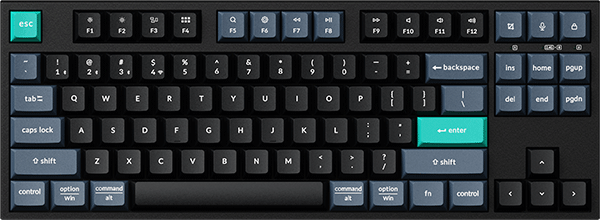
The K10 HE is a full-size magnetic keyboard, and it is the board here that opens HE Mode in Launcher. Actuation runs from 0.2 to 3.8 mm with the Gateron Double-Rail switch and from 0.2 to 3.3 mm with the Keychron Ultra-fast Lime switch, both in 0.1 mm steps. One Key Multiple Commands can put up to four actions on one key by press depth. It connects over 2.4 GHz, Bluetooth, or cable, at 1000 Hz on the cable and 2.4 GHz.
The option to pick: Standard Version in Black, then the switch. Choose Keychron Ultra-fast Lime Magnetic Switch for a softer feel and a deep, thocky sound, or Gateron Double-Rail Magnetic Nebula Switch for a smoother, more stable switch structure and the wider 0.2 to 3.8 mm range. Each version takes only its own switch line when you hot-swap. The Special Edition adds a wood frame and OSA keycaps.
Keychron Q6 Max: Best for a heavy aluminum board with a knob
View the Q6 Max on keychron.com →
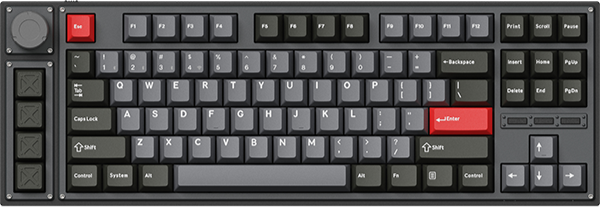
The Q6 Max is a full-size QMK keyboard with a knob, a gasket-mounted aluminum case, and a PC plate, at 2184 g ± 10 g for the Fully Assembled version. In Launcher, you get Keymap, Macro, Backlight, and Firmware Update, and you can fine-tune its 22 RGB effects or remap the lighting keys. Its system toggle keeps two layouts on the keyboard, one for Mac and one for Windows.
The option to pick: Fully Assembled Knob in Carbon Black with Gateron Jupiter Brown. For a white board, pick Shell White with Gateron Jupiter Banana or Gateron Jupiter Red. It connects over 2.4 GHz, Bluetooth to up to three devices, or cable, at 1000 Hz on the cable and 2.4 GHz.
Keychron K5 Ultra 8K: Best for a low-profile full-size board at 8000 Hz wired and 2.4 GHz
View the K5 Ultra 8K on keychron.com →
The K5 Ultra 8K is a low-profile full-size board with an 11.9 mm switch and a 20.0 mm front edge, and it runs ZMK firmware. Launcher gives it the Keymap, Macro, Backlight, and Firmware Update screens. Its knob can be set to screen brightness, zoom, brush size, or media control. It reports at 8000 Hz on 2.4 GHz and the cable, and weighs 720 g ± 10 g.
The option to pick: Fully Assembled in Black with Keychron Milk POM Switch - Brown or Keychron Milk POM Switch - Banana. It is hot-swappable with low-profile Keychron Milk POM switches, so check its page for the full list before you buy spares.
FAQ
Is Keychron Launcher free?
Yes. It is a free web app at launcher.keychron.com, and you open it in the latest Chrome, Opera, or Edge.
Does Keychron Launcher work on Mac and Linux?
Yes for keys, macros, and lighting: Launcher lists macOS, Windows, and Linux, and so do the K10 HE, Q6 Max, and K5 Ultra 8K. Our firmware update guide covers macOS and Windows. Use the latest Chrome, Opera, or Edge on any of them.
Do I need the cable to use Launcher?
Yes, for the K10 HE, Q6 Max, and K5 Ultra 8K. Connect the cable, then click Connect. Some other Keychron devices can also connect through the 2.4 GHz receiver, and firmware updates need a wired connection.
Shop the gear


References & Citations
- Launcher is a free web app for remapping keys and knobs, macros, lighting, and firmware updates, opened in the latest Chrome, Opera, or Edge. (How To Use Launcher To Program Your Keyboard)
- Keymap steps, the function tabs, and keymap import, export, and reset. (How to Remap a Key on Launcher)
- Recording a macro and assigning it to a key. (How to Create a Macro on Launcher)
- Actuation Distance, Rapid Trigger Basic and Advanced modes, Trigger Demo, and Test Keys in HE Mode. (How to use HE mode on Keychron Launcher)
- K10 HE actuation ranges per switch, Dynamic Keystrokes, polling rate, and the wired-mode note for Launcher. (Keychron K10 HE product page)
- K5 Ultra 8K low-profile build, ZMK firmware, 8000 Hz, and knob functions in Launcher. (Keychron K5 Ultra 8K product page)
- An owner on using Launcher in Chrome without installing anything. (r/Keychron, November 2025)