
























IN THIS ARTICLE
The Keychron Nape Pro has a 25 mm ball, but for editing and coding, the bigger change is how far your hand travels to move the cursor.
With the Nape Pro below your spacebar, cursor movement, clicks, scrolling, and shortcuts happen without leaving your typing position. Your editor, your keyboard, and your key bindings stay as they are.
The short version
- Worth it if you stay on the keyboard all day and reach for a mouse mainly to click, select text, or scroll.
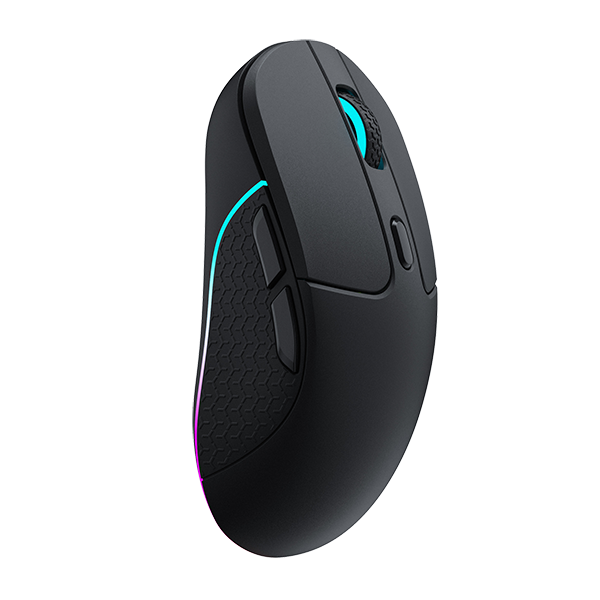
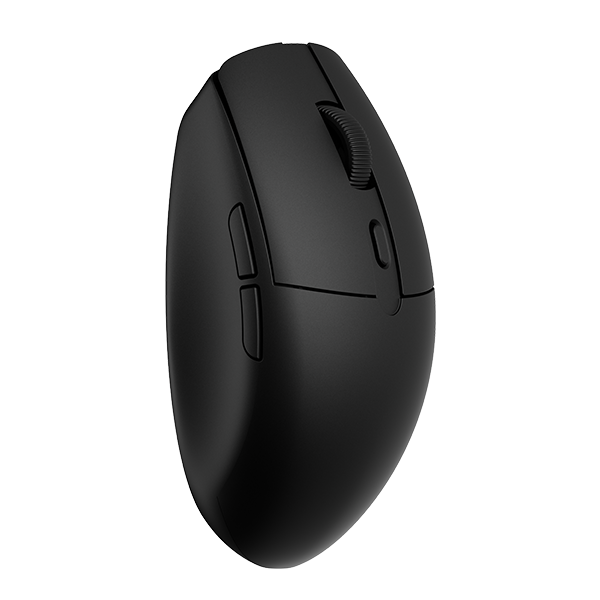
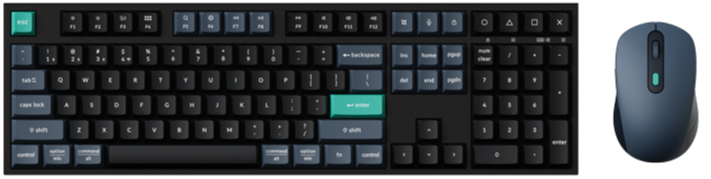
- Skip it if a thumb-operated ball does not appeal, or you would rather move a shaped mouse with your whole hand. The Keychron M6 has a thumb rest and a side wheel.
- Before you judge it: set the angle for where it sits, then give your hands one to two weeks.
What changes when you edit and code
Placing the cursor
Below the spacebar, the ball is within reach of your thumb. You roll it to place the cursor, and your hands stay around the keyboard. M1 is the left button, and M2 is the right button until you change them.
The ball changes the reach. It does not change how fast you type, and your editor's keyboard shortcuts keep working on your keyboard.
Scrolling long files
The ring around the ball is a programmable control dial. It adjusts volume until you remap it. Assign Scroll Up and Scroll Down to the dial, and it moves through a long file.
If you work across wide sheets, assign Scroll to one button. While you hold that button, the ball scrolls in any direction.
Running shortcuts and macros
Six buttons take a mouse click, a keyboard shortcut, a layer switch, or a multi-step macro. If you keep pressing the same chord for search, format, or build, one button can hold it.
One engineer in our setup guide works mostly in Neovim. The commands that are easy to forget live on M1 and M2, and the body sits on a diagonal to suit a low keyboard.
Launcher gives you up to 8 layers, numbered 0 to 7. One can hold your editor set and another your browsing set. Each layer stores its own angle, so changing layer can also change the angle.

Rule of thumb: assign only what you will remember, and add the rest later.
What the spec sheet actually measures
The Nape Pro is a wireless trackball shaped like a slim bar. The body stays put on the desk while the ball moves the cursor.

- Connection: 2.4 GHz, Bluetooth, or USB-C cable.
- Sensor: PixArt 3222, up to 4,000 DPI, and up to 1000 Hz polling in wired and 2.4 GHz wireless modes.
- Battery: 200 mAh, for up to 50 hours at 125 Hz or up to 40 hours at 1000 Hz.
- Controls: six customizable buttons and a dial, with Huano Silent Micro Switches.
The spec sheet says up to 4,000 DPI. On your desk, DPI is how far the cursor travels for a given roll of the ball. The 02 button steps through 400, 800, 1600, 3200, and 4000 DPI, and 1600 is the default. For a value in between, use DPI Settings in Launcher.
Polling rate is how many times a second the Nape Pro reports its position, so 1000 Hz means 1,000 reports a second.
The trade-off
You steer the cursor with your thumb on a 25 mm ball. If a long move across a wide screen takes more than one roll, try a higher DPI step. A lower step gives finer placement.
The second trade-off is the strip of desk in front of your keyboard. How close the Nape Pro can sit depends on your keyboard's height. If the body gets in the way of your keys, try a diagonal placement beside the board.
The third trade-off is habit. Plan on one to two weeks of daily use while your thumb learns the ball.
Rule of thumb: judge it after those two weeks, not after the first afternoon.
What it means on your desk
The Nape Pro is set for vertical use out of the box. For the spot below your spacebar, set the angle before you map any buttons. Each press of the 04 button moves to the next of eight angles, and the mouse indicator color tells you which one is active.
| Where it sits | Angle (°) | Indicator color | What it suits |
|---|---|---|---|
| Horizontal, below the keyboard | 90 | Blue | Thumb reach from the typing position |
| Vertical, inside a split keyboard | 0 | White | The gap between two halves |
| Diagonal, as a multi-button trackball | 135 or 225 | Yellow or Purple | Beside the keyboard |
| Next to a drawing tablet | 315 | Orange | A macro pad |

You can also select a layer in Launcher and pick one of the eight angles for it directly. We call the eight-angle support OctaShift.
The body measures 135 x 35.4 x 36.7 mm and weighs 82 ± 5 g. It needs no mouse pad, because only the ball moves. Measure the free strip in front of your keyboard. With the Nape Pro horizontal, it needs 135 mm across and 35.4 mm front to back.
For the vertical placement, a split board such as the Keychron Q11 Ultra 8K gives you the gap. It is a 75% split keyboard with a knob, and its two halves need no cable between them.
If your left hand drives the cursor, place the Nape Pro to the left of your keyboard and press the 04 button until the angle suits that hand.

Which connection to use
- Main desk, 2.4 GHz: with the mode toggle in the G position, plug the Type-A receiver into your computer. The box also has an extension adapter and a Type-A to Type-C adapter.
- Laptop or tablet, Bluetooth: with the toggle in the BT position, choose Keychron Nape Pro in your device's Bluetooth settings. It pairs with up to 3 devices. To add one, hold the round button with 01, 02, or 03 for 3 seconds. A short press of the same pair switches devices.
- Cable: with the toggle in the middle position, connect USB-C. The Nape Pro uses wired mode while the cable is connected, even with the toggle in the G position.
How Keychron does it: ZMK and Launcher
The Nape Pro runs on ZMK, and you set it up in the Keychron Launcher web app, with nothing to install. Move the toggle out of BT first: use the middle position with the cable, or G with the receiver. Then open Launcher in the latest Chrome, Opera, or Edge. Launcher does not connect over Bluetooth.
- With the toggle in the middle position, connect the cable, then open Firmware Update and install the latest version. Firmware updates need the cable.
- On Customize, click a button on the drawing, then pick a function on the Basic tab, such as Left Click, Back, or Scroll. If Launcher shows Save, click it. The change is done when Launcher reports success.
- To put a shortcut on a button, use the Combination Key tab, then click Save.
- To add a macro, pick a slot on the Macro page, click Start Recording, enter the keys, click Stop Recording, and click Save. Then assign it from the Macro tab under Customize.
- To change the dial, click its + or - side on the drawing and assign a function, such as Scroll Up or a zoom shortcut. For a shortcut, click Save.

Your settings are saved to the Nape Pro, so the setup stays with it when you move to another computer. On a Mac, the key list still shows Windows names. L win works as Command, and L Alt works as Option.
If you remember one thing: update the firmware before you start mapping buttons.
Who should care, and who should not
Care if your hands already live on the keyboard. If you work in code, long documents, or spreadsheets and lean on shortcuts, the Nape Pro keeps the cursor and those shortcuts in one place. If you work in an office or shared room, the silent clicks make it easier to work comfortably there.
Pass if a thumb-operated ball does not appeal. The M6 gives you a palm-down shape with a thumb rest and a side wheel, and the Keychron M5 holds your hand at a 47° angle.
The Nape Pro won the Best of CES 2026 award for Best Mouse from Tom's Hardware, and we co-developed it with Gizmodo Japan.
Frequently asked questions
Can the Keychron Nape Pro replace a mouse?
For cursor work, clicks, and scrolling, yes, if you are happy driving the cursor with a ball. It can also sit next to the mouse you already own, because your computer treats it as one more input device.
Is the Nape Pro good for left-handed users?
Yes. Place it on the left side of your keyboard, then press the 04 button until the angle suits your left hand. You can also remap the six buttons for that hand in Launcher.
Does the Nape Pro work with Mac, Windows, and iPad?
On Mac and Windows, Launcher offers the same functions. Over Bluetooth, the Nape Pro pairs with laptops and tablets, up to 3 devices, and it can sit beside an iPad as a macro pad. Launcher does not connect over Bluetooth, so map your buttons with the cable or 2.4 GHz receiver connected.
Shop the gear


References & Citations
- Below-spacebar design, 25 mm trackball, button functions, control dial, OctaShift, silent clicks, sensor, DPI, polling rate, and weight. (Keychron Nape Pro product page)
- Button map, angle and DPI indicator tables, placement scenarios, pairing steps, battery, and dimensions. (Keychron Nape Pro user manual)
- Setup order in Launcher: connect, update firmware, set the angle, assign buttons, adjust DPI. (Keychron Nape Pro Quick Start Guide)
- Break-in period, per-layer angles, ball scroll, Mac key names, and setup examples (in Japanese, linked from our User Guide). (Nape Pro setup guide)
- Launcher web app used to remap buttons, create macros, and update firmware. (Keychron Launcher)
- 75% split layout, knob, and no cable between the halves. (Keychron Q11 Ultra 8K product page)
- M6 thumb rest and side wheel; M5 vertical design. (Keychron M6 and M5 product pages)