























IN THIS ARTICLE
- The three picks at a glance
- How to choose a keyboard for programming
- Keychron Q1 Max: Best for most developers
- Keychron Q6 Max: Best for developers who live in the number pad
- Keychron K3 Max: Best for laptop-trained hands
- Layers and shortcuts that ship code
- Which one should you get
- Frequently asked questions
You spend most of the day in a code editor, and the keyboard under your hands is still the one that came with the computer. Here are three Keychron mechanical keyboards for programmers, one for each kind of desk, and a setup section on the layers and macros that make any of them faster.
Specs below come from our product pages, checked October 28, 2026. We did not run typing tests for this guide; how each board feels comes from owners on Reddit, linked where quoted.
The short version
- Most developers: the Q1 Max. A 75% layout keeps the arrows and the function row, drops the number pad, and brings your mouse closer.
- You type numbers all day: the Q6 Max. Full size with the number pad, in the same aluminum body.
- Your hands learned on a laptop: the K3 Max. Low profile, 17 mm tall at the front with keycaps on, 75% layout.
- Pick the switch last. Brown on all three if you type all day and want to feel each key.
The three picks at a glance
Model names link to each product page. Battery figures are the rated maximums with the backlight off.
| Model | Layout | Width | Connection | Switch | Battery | Best for |
|---|---|---|---|---|---|---|
| Q1 Max | 75%, knob | 327.5 mm | 2.4 GHz, Bluetooth, wired | Gateron Jupiter Brown, Red or Banana, hot-swappable | Up to 180 hours | Most developers |
| Q6 Max | 100%, knob | 446 mm | 2.4 GHz, Bluetooth, wired | Gateron Jupiter Brown, Red or Banana, hot-swappable | Up to 180 hours | Number pad work |
| K3 Max | 75%, low profile | 306 mm | 2.4 GHz, Bluetooth, wired | Low Profile Gateron Mechanical Brown, Red, Blue or Banana, or Low Profile Keychron Mechanical Red (varies by color); hot-swappable on the (Hot-swappable) backlight versions | Up to 73 hours | Laptop-trained hands |
All three run QMK firmware, are set up in the Keychron Launcher web app, and ship with keycaps for macOS and Windows.
How to choose a keyboard for programming
One thing up front. The keys a developer hits most are the arrows, Home and End, Page Up and Page Down, the function row, and the modifiers behind every shortcut. Choose the layout around those keys, then the connection, then the switch.
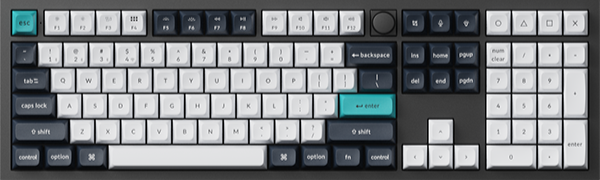
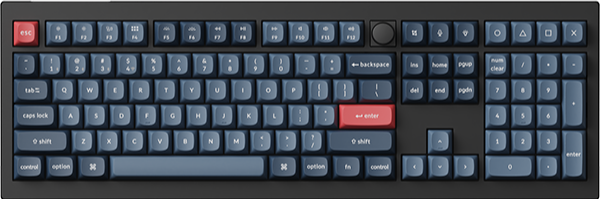
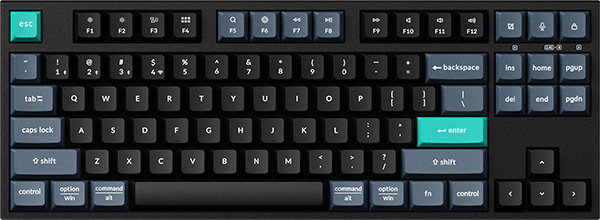
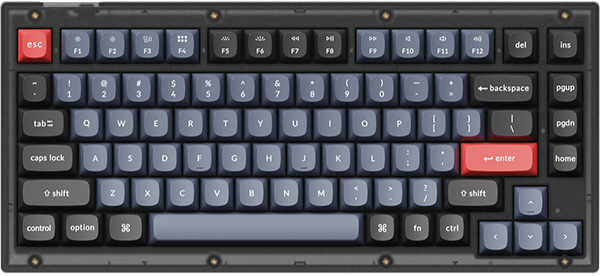
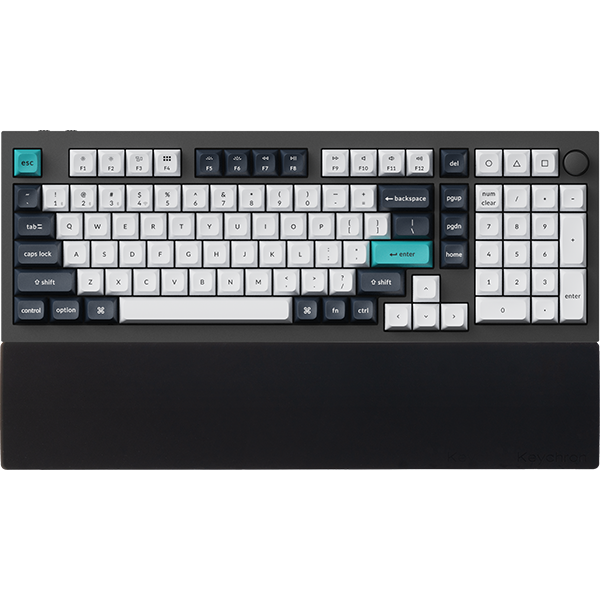
Layout first. A 75% board such as the Q1 Max keeps the function row, the arrows and a column of Del, Page Up, Page Down and Home, and drops the number pad, so the mouse sits closer. A 100% board such as the Q6 Max keeps the number pad. Measure the free width where the keyboard will sit, leaving the mouse its usual spot: about 33 cm for the Q1 Max, 31 cm for the K3 Max and 45 cm for the Q6 Max.
Keep the number pad if you type numbers every day, and go 75% if you never touch it.
Height. The K3 Max stands 17 mm tall at the front with keycaps on; the Q1 Max is 20.7 mm before the keycaps go on. After years on a laptop, the low board feels familiar on day one.
Connection second. All three connect over a 2.4 GHz receiver, Bluetooth to up to three devices, or a USB-C cable. Polling rate, how many times a second the keyboard reports to the computer, is 1000 Hz over 2.4 GHz and cable on all three, and 90 Hz on Bluetooth. With a work laptop and a personal machine on one desk, pair one over Bluetooth and the other over the receiver. Battery with the backlight off is rated at up to 180 hours on the Q1 Max and Q6 Max and up to 73 hours on the K3 Max, which its page marks as a lab figure.
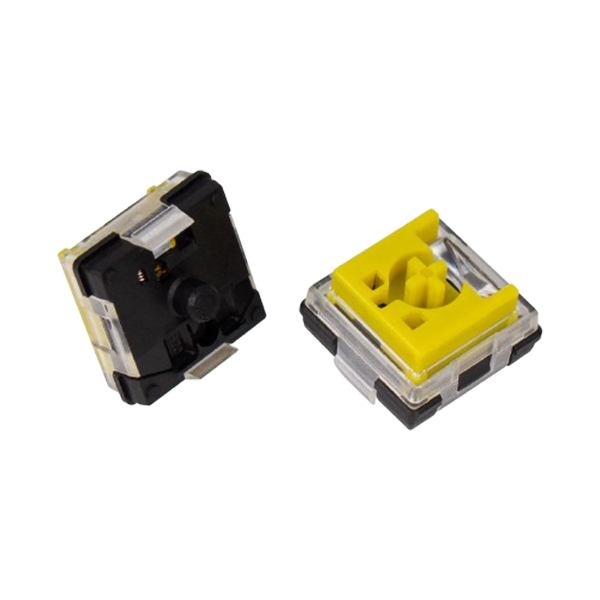
Switch last. Linear switches move smoothly; tactile ones add a bump you feel before the key fires. On the Gateron Jupiter switches in the Q1 Max and Q6 Max, Red is linear at 45±15 gf (grams-force, the push a key takes), Brown is tactile at 55±15 gf, and Banana is tactile at 59±10 gf with the bump at the top of the press. All three share a nominal pre-travel of 2.0±0.6 mm; Banana's total travel is shorter at 3.4 mm max against 4.0 mm max. The K3 Max uses low-profile Gateron switches, which are not the Jupiter switches above; its product page lists the switch options.
Rule of thumb: many all-day typists prefer Brown, Banana if you want to feel every press, Red if you want a light, quick key.
Keychron Q1 Max: Best for most developers
View the Q1 Max on keychron.com →

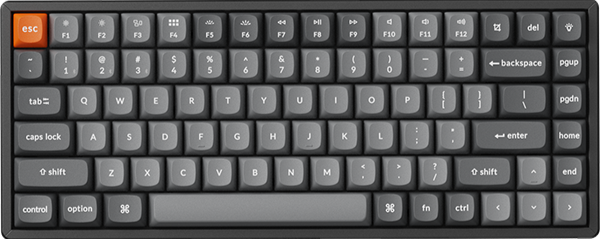
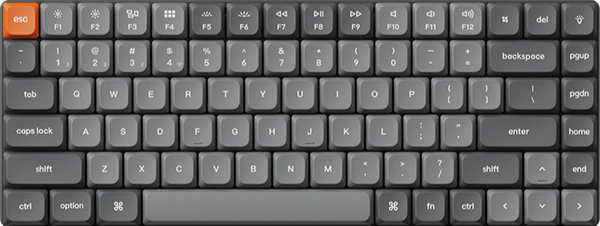
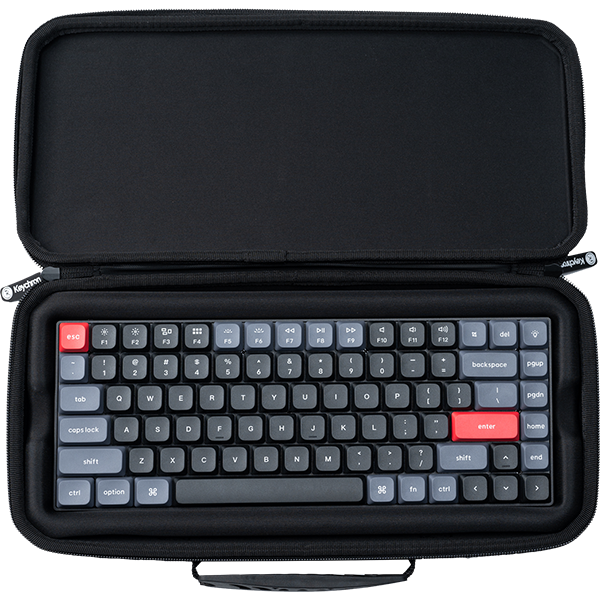
The Keychron Q1 Max is a 75% board with a knob in a CNC-machined aluminum body, and it is one of our best sellers. It weighs 1724 g fully assembled. A double-gasket design cuts the resonance between the metal cases and layers of acoustic foam dampen echo, hot-swap sockets take almost any 3-pin or 5-pin MX style switch without soldering, and a system toggle on the side saves one layout for macOS and one for Windows.
If you never touch the number pad, start with the Q1 Max. On the product page choose Fully Assembled Knob, then Carbon Black or Shell White, then Gateron Jupiter Brown. If you work with the lights low, Fully Assembled Knob (Side-Printed Keycaps) prints the legends on the side of each key, where the backlight shines through.
An owner of both a Q1 Max and a Q6 Max, answering a thread about gaming plus programming, wrote: "I can recommend both very highly." (r/Keychron)
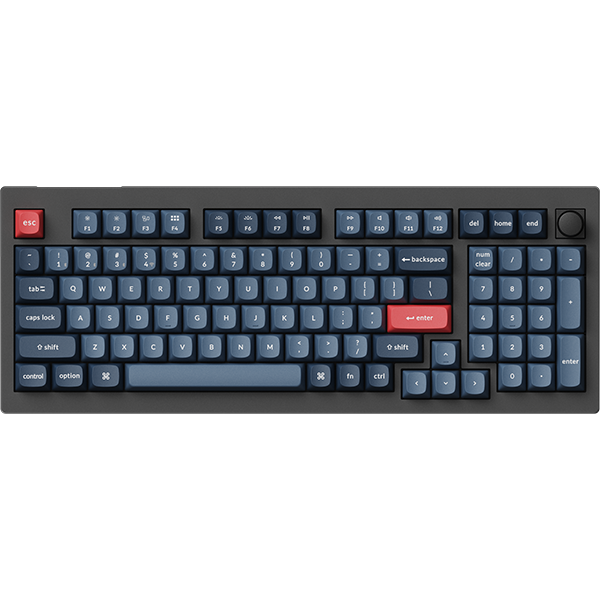
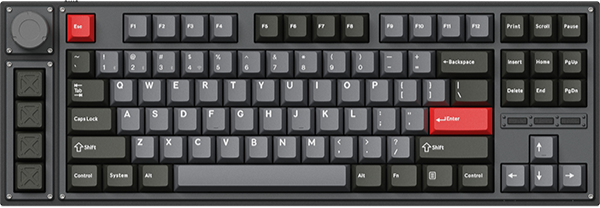
Also in the Q Max line: the Q3 Max (TKL, 80%, 365 mm wide) and the Q5 Max (96%, 408 mm) share the same build, switches, connections and software in other layouts.
Keychron Q6 Max: Best for developers who live in the number pad
View the Q6 Max on keychron.com →

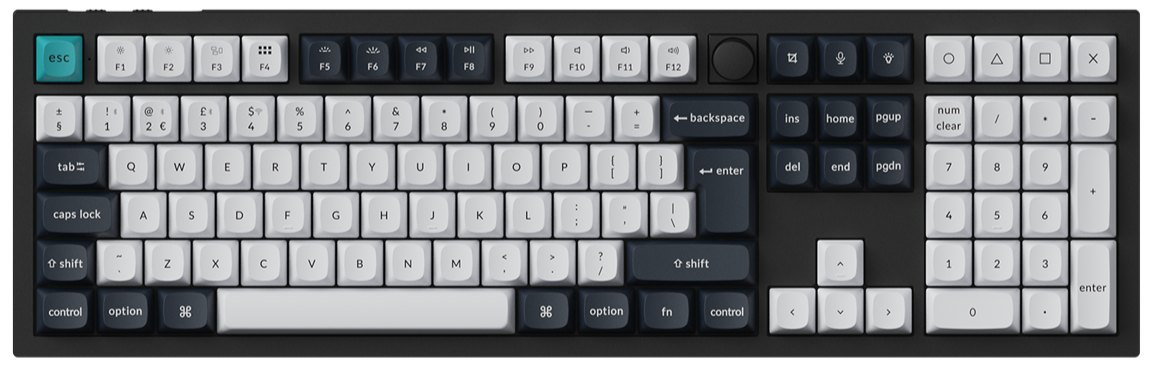
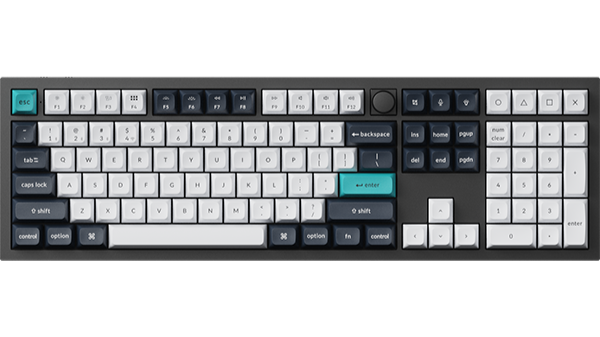
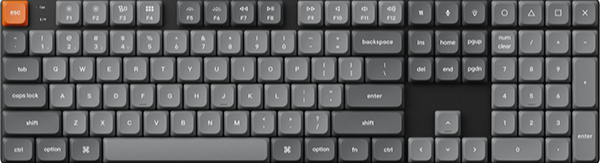
If your day runs through database IDs, test data or a spreadsheet beside the editor, the Keychron Q6 Max puts a full number pad under your right hand. It is the full-size version of the Q1 Max, with the same aluminum body, gaskets, foam, hot-swap sockets, knob and system toggle, at 446 mm wide and 2184 g fully assembled. It is also one of our best sellers.
Take the Q6 Max when the number pad earns its desk space. Choose Fully Assembled Knob, Carbon Black or Shell White, and Gateron Jupiter Brown. Flip the system toggle to the system you are on, and the board uses the layout saved for it.
In a thread asking about a board for a non-gamer, an owner answered: "I have a q6 max and I love it." (r/Keychron)
Keychron K3 Max: Best for laptop-trained hands
View the K3 Max on keychron.com →

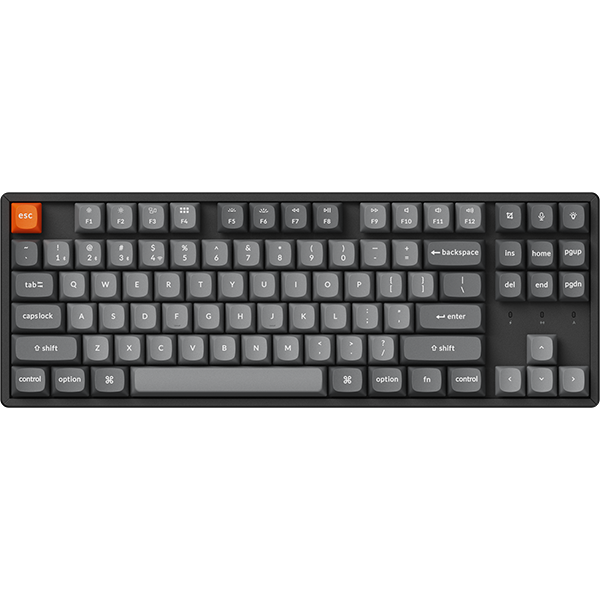
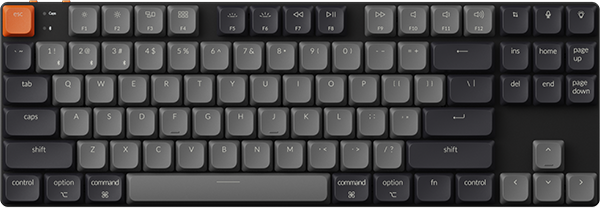
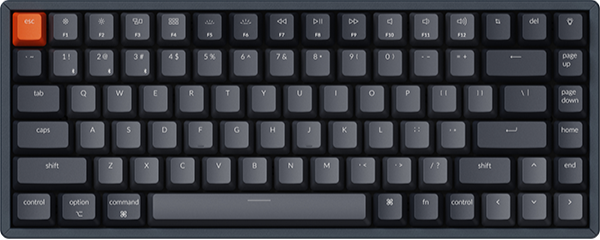
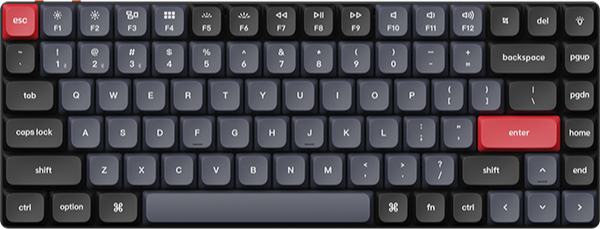
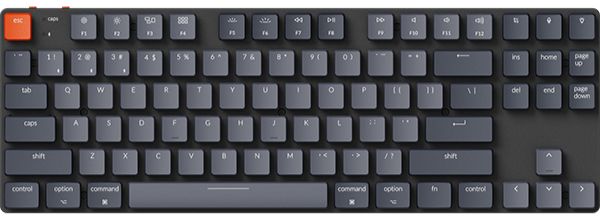
The Keychron K3 Max is a 75% board with 84 keys in an ABS and aluminum frame, 306 mm wide and 525 g. Its low-profile Gateron switches are 31% slimmer than normal-profile switches, so the board stands 17 mm tall at the front with keycaps on. Typing angles are 2.5°, 4.2° and 6.5°. The layout follows the Mac convention for media and function keys, keycaps for Windows come in the box, and a keymap is saved for each system. Among low-profile boards, it is one of our best sellers.
If your fingers already fly on a laptop keyboard, get the K3 Max. Choose Black, then RGB Backlight (Hot-swappable), then Low Profile Gateron Mechanical Brown. Hot-swappable means you can pull the switches later and fit others, but the K3 Max takes Gateron or Keychron low-profile mechanical switches only.
In a thread titled Coding Setup, a K3 Max owner wrote: "I use the k3 max with reds and I love it for both programming and gaming." (r/Keychron)
Also in the K Max line: the K5 Max (100%, 424 mm wide, 720 g) is the full-size low-profile version with the number pad.
Layers and shortcuts that ship code

The three boards in this guide run QMK, and Keychron Launcher is where you shape them. Open it in the latest Chrome, Opera or Edge with the keyboard on the cable, click Connect, and choose Keymap.
Layers are the developer feature. Launcher gives these boards two layers for macOS and two for Windows. Layer 0 is the macOS base and Layer 2 the Windows base; the system toggle on the Q1 Max and Q6 Max picks between them. On the macOS side the fn key is MO(1): hold it and Layer 1 sits on top of Layer 0 until you let go. The Windows pair works the same way with Layer 2 and Layer 3. Those fn layers are where your shortcuts live.
One setup worth trying on Layer 1: put Home, End, Page Up and Page Down under your right hand on the home row, so the hand never leaves the letters to move around a file. Click a key on the virtual keyboard, then pick the function from the Basic section below it.
Macros turn a sequence into one key. Open the Macro tab, pick a slot such as M0, click Start REC, type the keys, click Stop REC, then Submit. The editor lets you reorder presses, add delays and enter plain text, so one key can type the command you run fifty times a day. Back in Keymap, assign it to a key you rarely use; the macro guide shows every step.
Toggle a layer when holding gets old. Besides MO(n), the Layer section offers TG(n), which keeps a layer on until you press the key again, and OSL(n), which turns a layer on for one keypress. The layer guide has an example for each, and our VS Code shortcuts list is a good set to map first.
Which one should you get
Most developer desks: the Q1 Max, Fully Assembled Knob with Gateron Jupiter Brown.
Numbers all day: the Q6 Max, Fully Assembled Knob with Gateron Jupiter Brown, or the Q5 Max on a narrower desk.
Laptop hands or a slim setup: the K3 Max, RGB Backlight (Hot-swappable) with Low Profile Gateron Mechanical Brown.
Another Keychron fits better if you want each hand in front of its own shoulder: the Q11 Ultra 8K is a 75% board split into two halves that sync over 2.4 GHz with no cable between them. If you are still between two, our Keyboard Finder filters by layout, switch and connection.
Frequently asked questions
Is a 75% keyboard enough for programming?
For most code it is. The Q1 Max and K3 Max keep the function row, the arrows and a column of navigation keys beside them. You lose the number pad, so pick the Q6 Max if you enter figures all day.
Do these keyboards work with Mac and Linux?
Yes. Each of the three lists macOS, Windows and Linux, and Keychron Launcher runs in a browser, so remapping works the same on each.
Can I change the switches later?
Yes. The Q1 Max and Q6 Max take almost any 3-pin or 5-pin MX style mechanical switch. The K3 Max is hot-swappable in the RGB Backlight (Hot-swappable) and White Backlight (Hot-swappable) versions and takes Gateron or Keychron low-profile mechanical switches only.
Shop the gear


References & Citations
- Q1 Max layout, connections, polling rates, battery, weight, width, hot-swap compatibility, system toggle and Launcher requirements. (Keychron Q1 Max product page)
- Q6 Max layout, connections, battery, weight and width; same build and software as the Q1 Max. (Keychron Q6 Max product page)
- K3 Max height, weight, width, typing angles, battery, Mac layout and low-profile switch compatibility. (Keychron K3 Max product page)
- Gateron Jupiter Red, Brown and Banana operation force, pre-travel and total travel. (Gateron Jupiter switch set page)
- Launcher layers: two for Mac and two for Windows, Layer 0 and Layer 2 as the bases, fn as MO(1); remapping and macro recording steps. (How to use Launcher to program your keyboard)
- The six layer keys in Launcher (MO, TG, TT, OSL, TO, DF) and what each does. (Switching and toggling layers guide)
- A K3 Max owner on using it for programming; the Q6 Max and Q1 Max remarks are linked in place. (r/Keychron, Coding Setup thread, April 2026)