























IN THIS ARTICLE
- What is the difference between QMK and VIA?
- What does QMK firmware do on your keyboard?
- How does VIA change keys without flashing?
- How do QMK, VIA, and Launcher compare?
- Where does Keychron Launcher fit with VIA?
- Which one is the best for you?
- What if VIA does not detect your Keychron keyboard?
- Frequently asked questions
You want Caps Lock to work as Ctrl, and the answers you find keep naming QMK, VIA, and Launcher. QMK is the open-source firmware that runs inside your keyboard. VIA and Keychron Launcher are apps that change that keyboard's keymap live, with no code and no flashing. If you want to remap keys, layers, or macros, the best choice is an app, and QMK code is for features you build yourself.
Quick answer
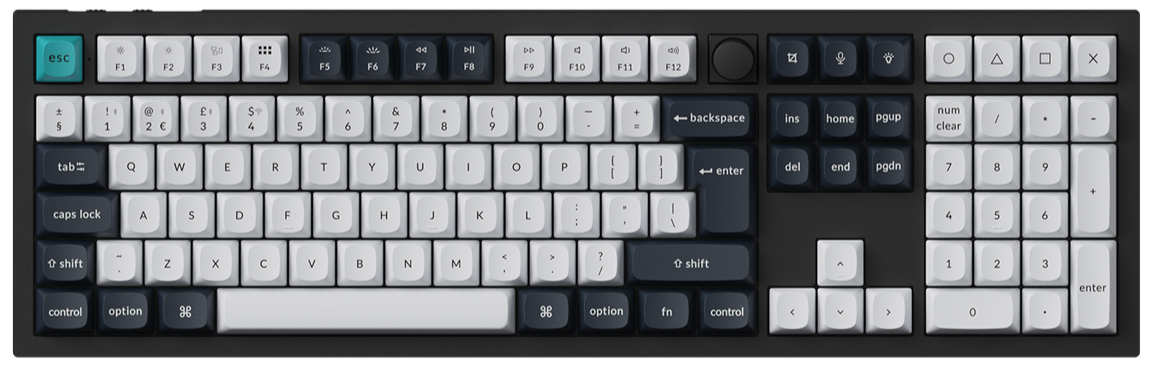
- If you want to remap keys, layers, or macros: use Keychron Launcher or VIA on a QMK/VIA board such as the Q6 Max.
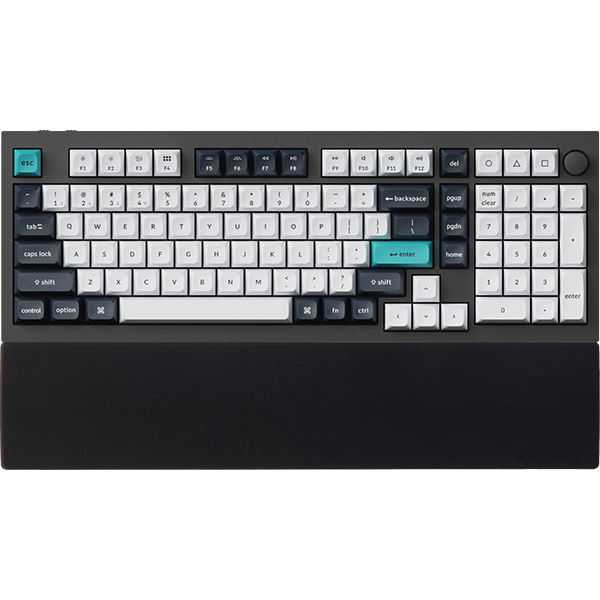
- If you own a magnetic keyboard such as the Q6 HE: use Launcher, where HE Mode sets actuation and Rapid Trigger.
- If you own an Ultra 8K board such as the Q6 Ultra 8K: use Launcher. Its product page lists ZMK firmware and Keychron Launcher.
- If you want keys pressed together or tap and hold actions: look in Launcher's Keymap first. Recent versions have Press Simultaneously and Hold / Tap tabs, if your keyboard and firmware show them.
- If you want full Tap Dance or your own code: build QMK from our source on GitHub.
What is the difference between QMK and VIA?
Short answer: QMK is the firmware in the keyboard, and VIA is an app that edits it live.
Your keyboard has a small processor inside. It runs software that detects key presses and tells the computer. On a QMK keyboard, that software is QMK Firmware. QMK stands for Quantum Mechanical Keyboard, and it is open source.
VIA does not replace QMK. It is an app that talks to the QMK firmware over USB. You click a key on screen, choose a new function, and the keyboard stores it.
A common mix-up is that VIA is a second kind of firmware. It is not. VIA only works when two things are in place:
- VIA turned on in the firmware: the keyboard maker builds QMK with VIA support switched on.
- A keyboard definition: a JSON file that tells VIA the layout and, where the board has them, the knob and lighting.
A VIA keyboard is already a QMK keyboard. What you choose is how to change its keymap.
What does QMK firmware do on your keyboard?
Short answer: It runs your keymap, and changing it the QMK way means building new firmware.
QMK gives you two ways to make a keymap. QMK Configurator is a web tool that needs no programming. It turns your layout into a firmware file, either .hex or .bin. The other way is the source code. It is harder to use, but it can do more.
Either way, a change ends the same way. You put the keyboard into bootloader mode and flash the new file, for example, with QMK Toolbox. The keyboard then runs the new keymap.
The source code is where advanced QMK features live. Two examples:
- Tap Dance: one key does different things when you tap it once, twice, or three times.
- Combos: pressing A and B together sends a different key, such as Esc.
In QMK source, Tap Dance and Combos are switched on in a settings file and written into the keymap code. Then you build and flash the firmware. Launcher also has a Press Simultaneously tab for two to four keys pressed together and a Hold / Tap tab with a Double option, so check whether your keyboard shows them before you set up a build.
Check: if you do not want to edit code, you do not need this route for everyday remapping.
How does VIA change keys without flashing?
Short answer: VIA sends your change to the firmware over USB, and the keyboard saves it.
The firmware already holds a keymap that can be edited. VIA reads it, shows it on screen, and writes your changes back. The keymap, macros, and layout options are stored in the keyboard's own memory. VIA provides four layers by default.

This is why VIA feels instant. You click a key, choose a function, and the key changes right away. Nothing is compiled, and nothing is flashed.
VIA also has an Any key. It accepts a raw QMK keycode for functions that have no button in the app. Our guide to locking the Windows key uses it.
Check: VIA runs in a Chrome-based browser at usevia.app, with the keyboard connected by USB cable.
How do QMK, VIA, and Launcher compare?
Short answer: on a QMK board, the firmware does the work, and VIA and Launcher are two ways to edit it.
| QMK source or Configurator | VIA | Keychron Launcher | |
|---|---|---|---|
| What it is | Open-source firmware on the keyboard | App that edits a QMK keymap | Our web app for Keychron keyboards and mice |
| Where you use it | Code editor or QMK Configurator, then a flashing tool | Chrome-based browser | Latest Chrome, Edge or Opera |
| Needs code | Source: yes. Configurator: no | No | No |
| How a key change lands | Compile and flash new firmware | Applies right away | Applies right away |
| Keymap, layers, macros | Yes | Yes | Yes |
| Where changes are kept | In the firmware you flash | Keyboard memory | Keyboard memory |
| Firmware updates | Flash with QMK Toolbox |
|
Built-in Firmware Update page |
Check: if your goal is in the Keymap, layers, macros row, an app is enough.
Where does Keychron Launcher fit with VIA?
Short answer: Launcher does the same live editing as VIA and adds Keychron settings and firmware updates.
Keychron Launcher is our free web app. It remaps keys and knobs, records macros, changes lighting, and updates firmware. Open it in the latest Chrome, Edge, or Opera with the cable plugged in. Remapping needs no installed program.
Launcher and VIA share one piece: the VIA JSON keyboard definition. If Launcher cannot find it for your board, it asks you to upload it. The JSON files for QMK models such as the Q6 Max are on our firmware page.
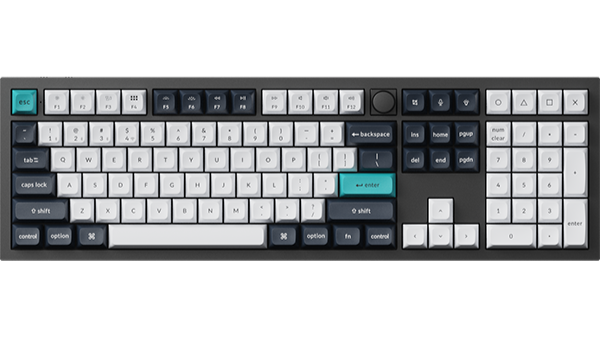
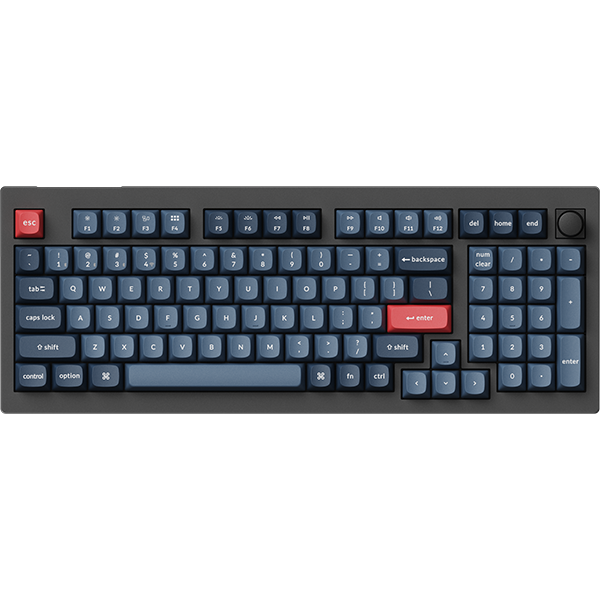
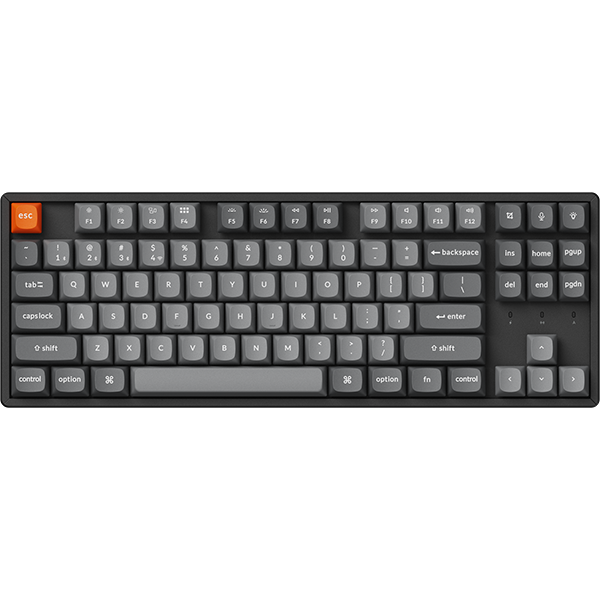
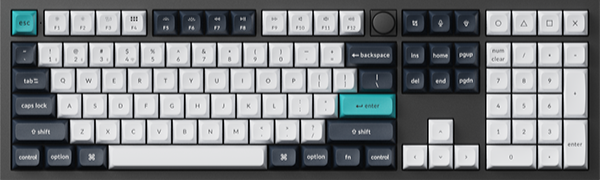
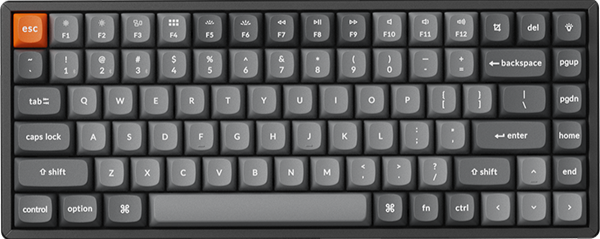
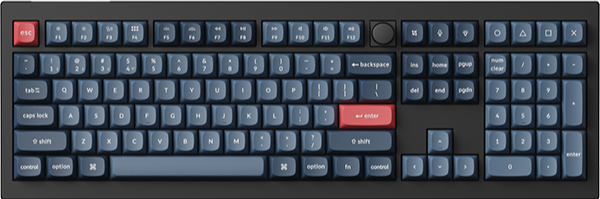
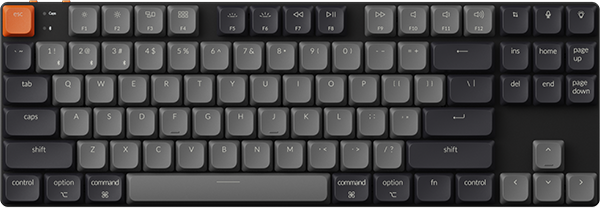
The product pages of the Q6 Max, K3 Max, and V6 Max list QMK firmware and Launcher. The Q6 Max and V6 Max pages also say keys and macros can be customized through VIA software, and the K3 Max page says it supports QMK/VIA. On these boards, you can choose the app you prefer.

Launcher also has settings that go past remapping. On the Q6 HE, a magnetic keyboard, HE Mode is where you set actuation and Rapid Trigger. The Q6 Ultra 8K runs ZMK firmware and is set up in Launcher too.
Our Launcher guide walks through remapping, macros, and firmware updates step by step.
Check: read the Software line on your product page. It names the firmware and the app.
Which one is the best for you?
Short answer: if you want to remap keys, layers, or macros, the best choice is an app, and QMK code is for features you build yourself.
Pick Launcher if you own a Keychron QMK or ZMK keyboard, such as the boards in this guide. It covers remapping, macros, lighting, and firmware updates in one place. HE Mode on the Q6 HE and the setup of the Q6 Ultra 8K also live there.
Pick VIA if you already use it. On a QMK/VIA board such as the V6 Max, the product page names VIA software for remapping and macros.
Pick QMK source if you want behavior you write yourself. Full Tap Dance and custom code start in the source. For keys pressed together or tap and hold actions, try Launcher's Press Simultaneously and Hold / Tap tabs first. Our QMK code is public on GitHub, including folders for the Q6 Max, K3 Max, and V6 Max.
Check: you do not need to flash anything to start, as long as your keyboard works fine.
What if VIA does not detect your Keychron keyboard?
Short answer: load the keyboard's JSON file in VIA's Design tab, then connect again.
Follow these steps in order:
- Reconnect the cable. Unplug the keyboard and plug it back in.
- Download the JSON file. Get the keymap JSON file for your QMK model from our firmware page.
- Show the Design tab. In VIA, open SETTINGS and turn on Show Design tab.
- Load the file. Open the Design tab, click Confirm, and drag the JSON file in.
- Connect. Click your keyboard model in the window that appears, then click Connect.
If you use Launcher, the same JSON file solves its upload prompt.
Check: to update firmware, use the Firmware Update page in Launcher with the cable plugged in. Our QMK firmware update tutorial shows each step on Windows.
Frequently asked questions
Is VIA the same as QMK?
No. QMK is the firmware that runs inside the keyboard. VIA is an app that edits the keymap of a QMK keyboard with VIA turned on.
Do I need to flash firmware to use VIA or Launcher?
No. On a QMK/VIA board, both apps change keys, layers, and macros without flashing. You only flash firmware to update it or to install a keymap you built yourself.
Do my settings stay on the keyboard?
Yes. VIA stores your keymap and macros in the keyboard's own memory, so they go with the keyboard. Launcher changes on a QMK keyboard are stored on the keyboard as well.
References & Citations
- QMK is open-source keyboard firmware; QMK Configurator builds .hex or .bin files without programming. (QMK Firmware documentation)
- VIA talks to compatible QMK firmware over USB, stores keymaps and macros in the keyboard's memory, and provides four layers by default. (VIA documentation: Configuring QMK)
- Keychron's QMK firmware source for Keychron keyboards, including the Q6 Max, K3 Max and V6 Max. (Keychron qmk_firmware on GitHub)
- Firmware and keymap JSON files for each model; firmware is updated through Keychron Launcher. (Keychron firmware page)
- Steps to load the keymap JSON file in VIA's Design tab when VIA does not pair. (Firmware and JSON files of the K Pro and K Max series)
- Launcher remaps keys and knobs, records macros, changes lighting and updates firmware in Chrome, Opera or Edge. (How To Use Launcher To Program Your Keyboard)
- Q6 Max software: QMK firmware, VIA software and Keychron Launcher for remapping and macros. (Keychron Q6 Max product page)
Browse Keychron custom keyboards →·Browse the Keychron blog →